Assign editing work to a teammate
Once AI has translated your file, you can hand any language over to a colleague to review and correct it, segment by segment, in the translation editor. This is what Translation Studio is: your own team doing the human pass, without sending work outside your organization.
Prerequisites
- A Pro or Enterprise plan. The translation editor is not available on Free or Basic — see the plans matrix.
- A project whose AI translation has completed. If you haven't run one yet, start with your first AI translation.
That's all you need. You do not need an organization, a team, or any colleagues — a single Pro user working alone uses this same feature to open their own translations in the editor. See working on your own below.
To assign work to someone else you additionally need:
- Another person in your organization. See invite a team member.
- To be an organization manager or team manager. Team members can be assigned work but cannot assign it. See user roles.
Steps
-
Open the project from your Projects list.
-
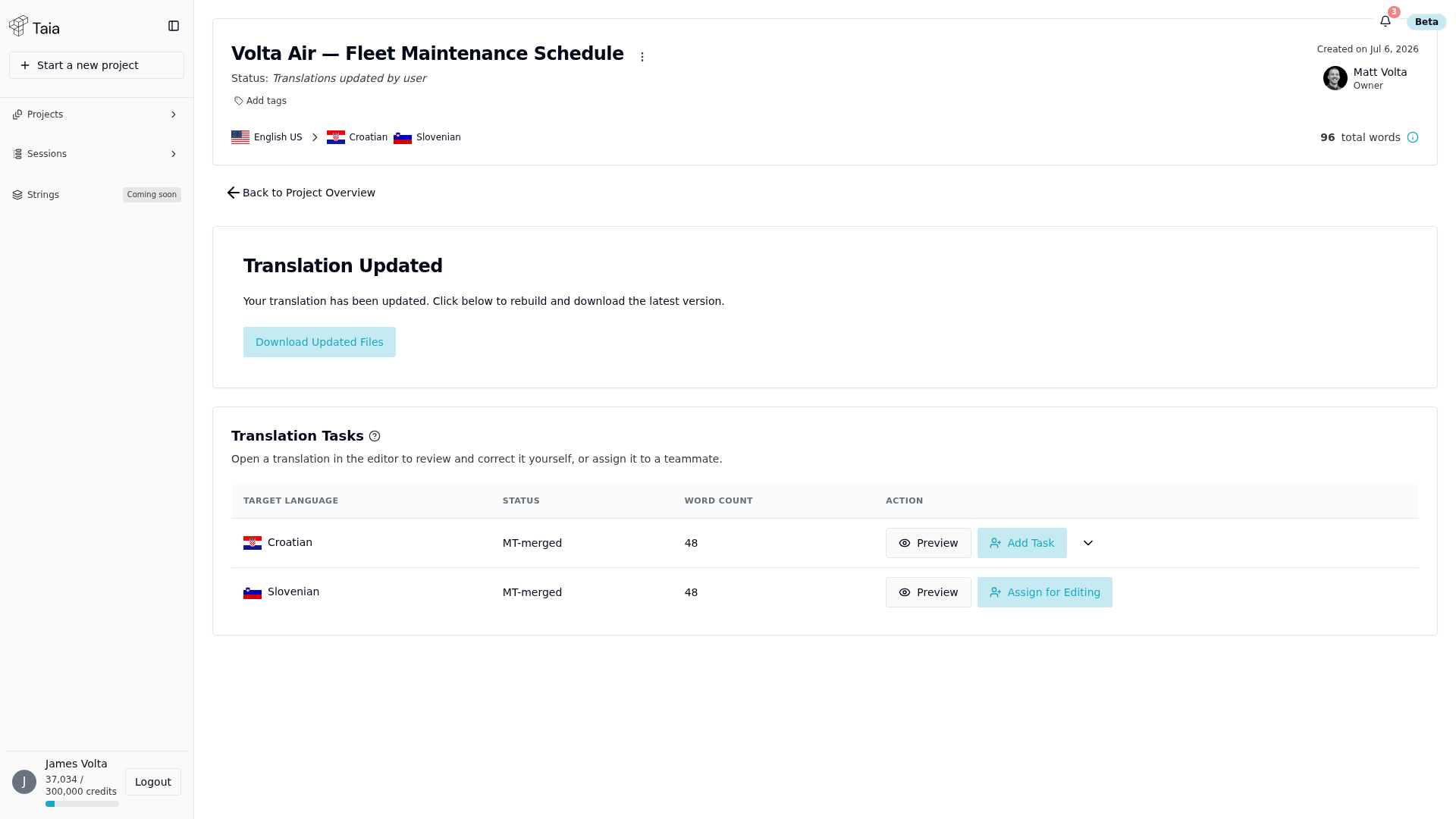
Scroll to the Translation Tasks card. Each row is one target language, with its status and word count.
-
On the row you want reviewed, click Assign for Editing.
If that job already has at least one task, the button reads Add Task instead. Both open the same dialog.
-
In the Create New Task dialog, choose a Task Type:
Task type Use it for Post-Edit AI Translation The first human pass over AI output — correct anything the AI got wrong. This is the default for a job with no tasks yet. Revision A second linguist checks the edited translation against the source text. Proofreading A final read of the translation only, without comparing it to the source. The same descriptions appear in the app: under each option in this dropdown, and on the ? icon next to the Translation Tasks heading.
-
Pick the person from Assign to User. The dropdown groups people under Team Members and External Linguists. Your own name is preselected, so leaving it as-is assigns the work to yourself.
-
Optionally set a deadline date and time, and use Description to tell the assignee what you need. Whatever you write there reaches them as a comment and in their email.
-
Click Create Task.
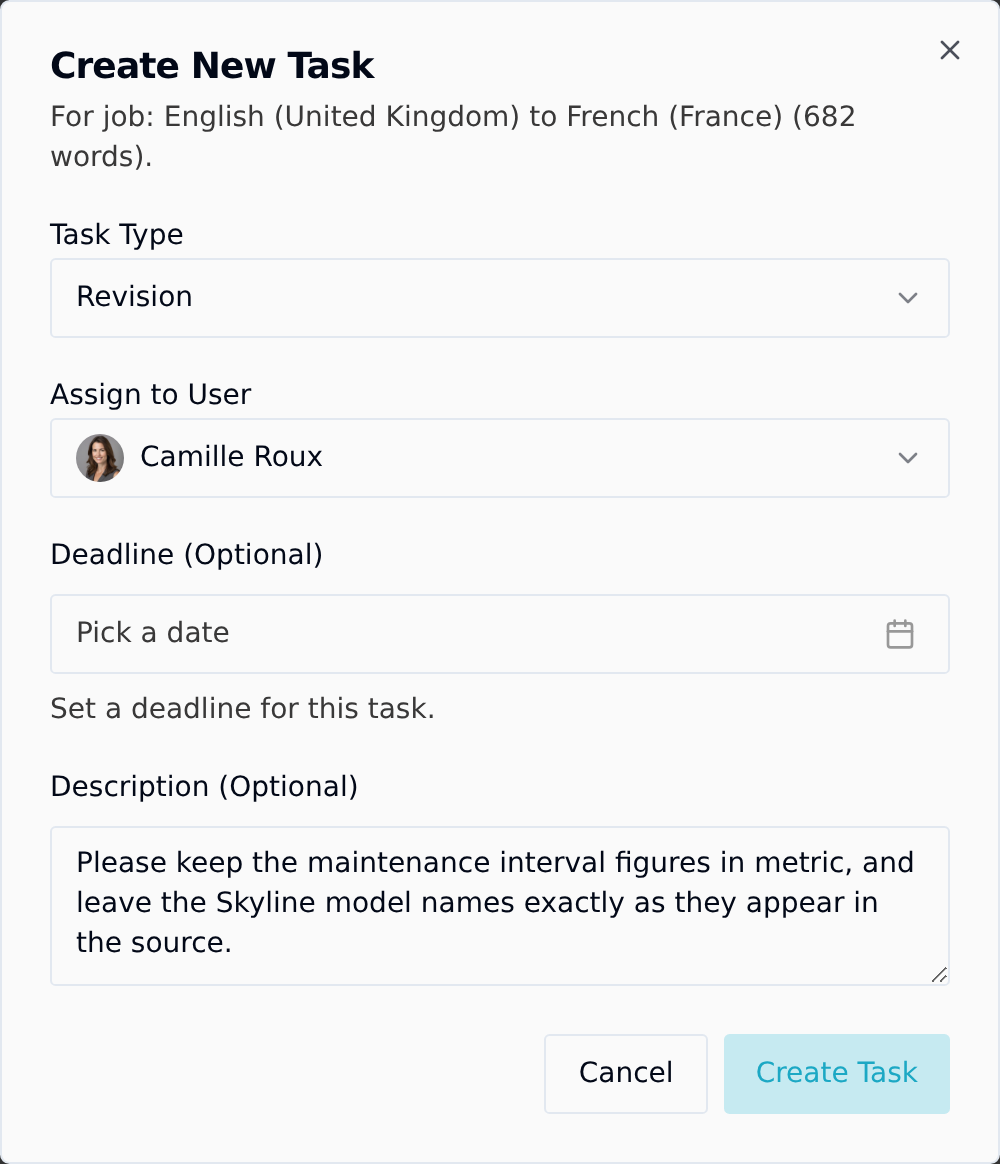
The task appears under the job row, and the assignee is notified by email and in the app. They then accept or decline it.
Anything you type in Description is posted as the first comment on the task and included in the assignment email, so it is waiting for the assignee before they even accept. Use it for the instructions that matter.
Working on your own
You do not need a team to use this. If you are a single Pro user with no organization set up, assign the task to yourself — your own name is preselected in the dropdown, so you can leave it as it is.
Taia then skips the accept step and the task is ready to edit immediately. This is the normal way to open your own AI translation in the editor and clean it up yourself, and it is also the quickest route for a manager who wants to do one language personally.
Chaining a second pass
Click Add Task again on the same job to stack another step. Taia suggests the next logical type based on what already exists: Post-Edit AI Translation first, then Revision, then Proofreading.
Each task is independent — a second task does not wait for the first to finish, and both assignees can be in the editor at the same time.
Private projects
If the project is marked private, the dialog shows a warning before you assign. Assigning a task to someone on a private project does let them open and edit the content in the editor, but the project will not appear in their own project list. They reach it through the assignment itself.