Accept or decline an assignment
When someone assigns you editing work, it doesn't start automatically. You get a chance to look at the scope and the deadline first, then take it or turn it down.
Prerequisites
- You are a member of an organization on a Pro or Enterprise plan.
- Someone has assigned a task to you. If nobody has, none of the screens below will show anything.
Finding your assignment
There are three ways in, and they all land in the same place.
From the email
Every new assignment sends you an email with a direct link to it. This is usually the fastest route.
From the notification bell
Open translate.taia.io and click the bell in the top bar. A New Assignment notification links straight to the assignment.
From your profile
Go to Profile. If you have any assignments, a My Assignments card appears with a Go to Assignments button.
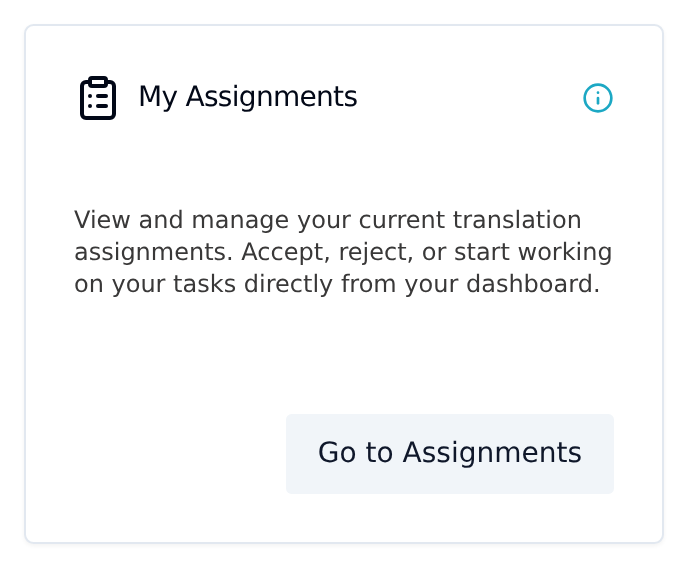
The My Assignments card only appears once you actually have an assignment. If you have never been assigned anything, the card is hidden and you will not see it on your profile. That is intentional.
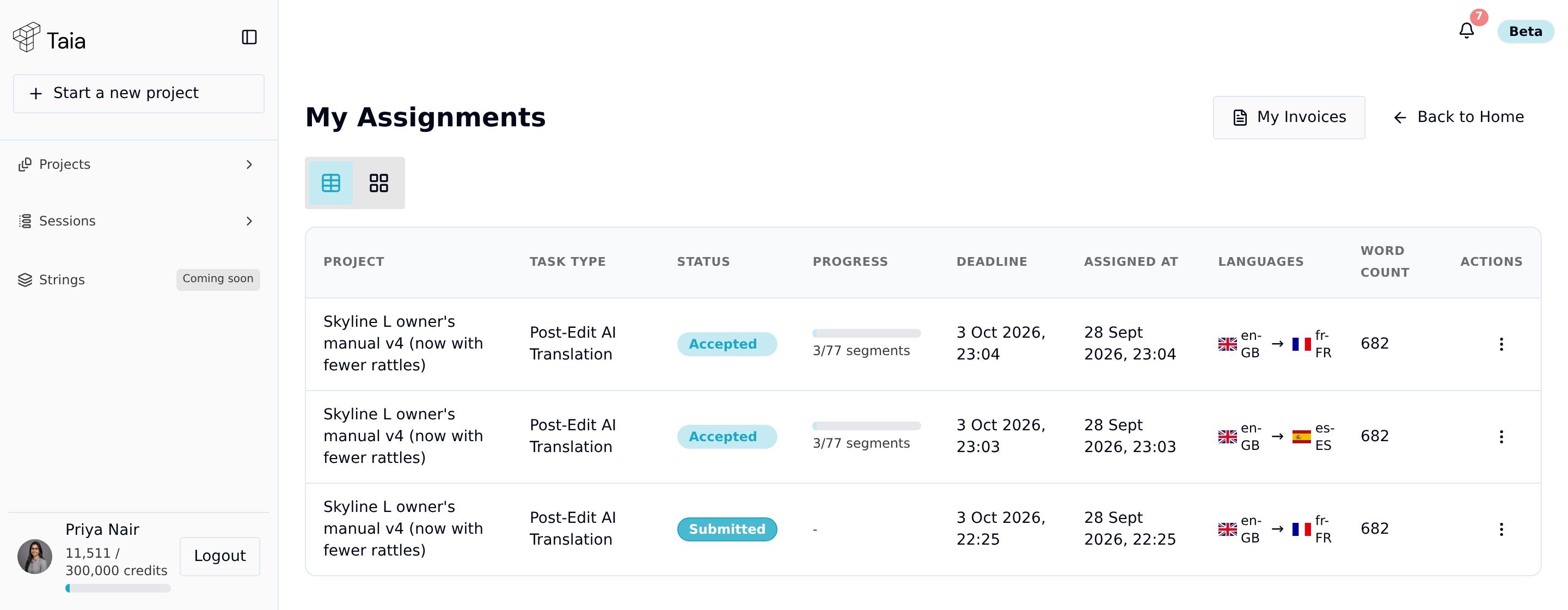
The assignments list shows every piece of work assigned to you, with its project, task type, status, progress, deadline, languages, and word count.
Steps
-
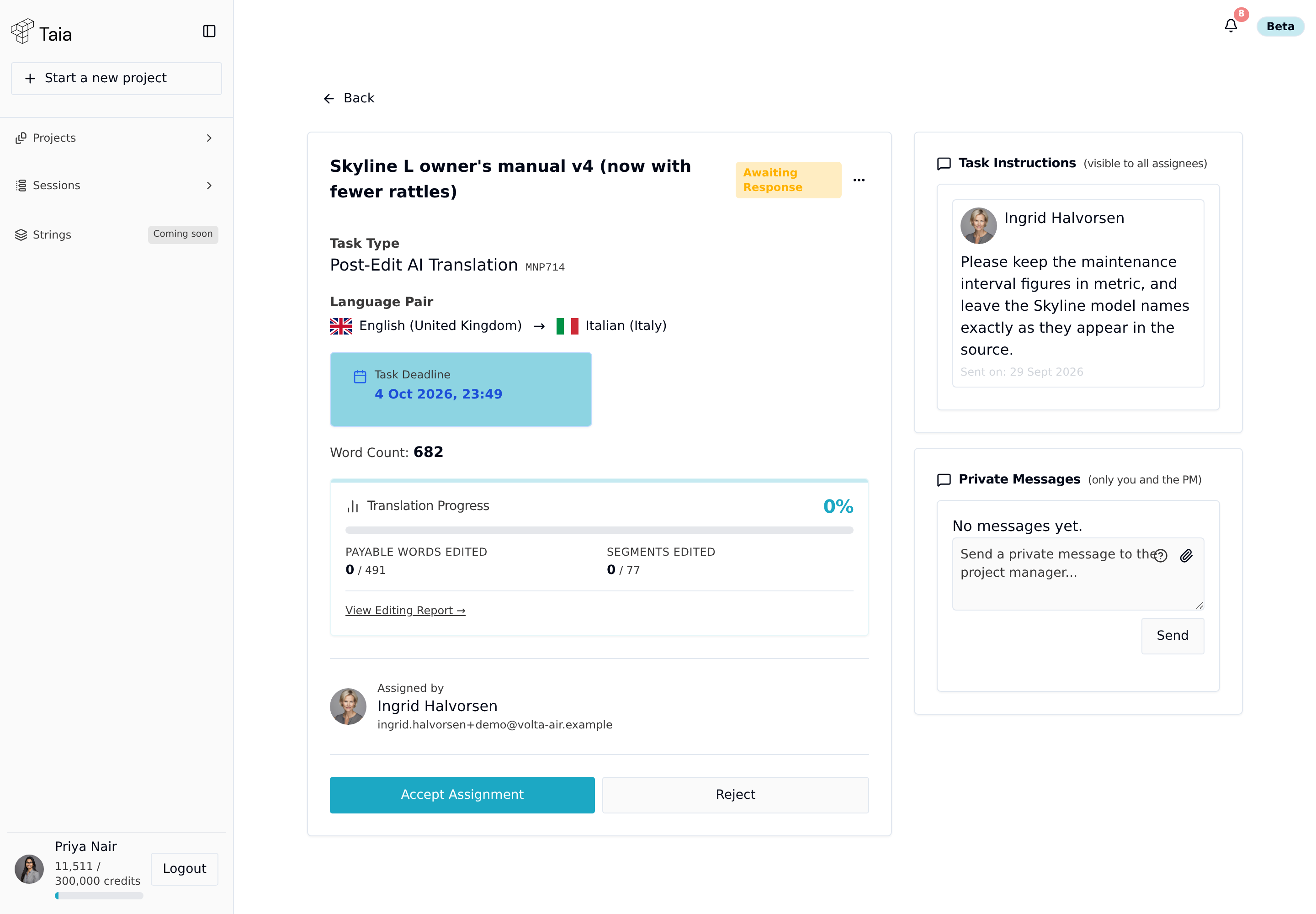
Open the assignment. The details page shows the project, the language pair, the word count, your translation progress, and who assigned it.
If deadlines were set, you also see two separate dates:
- Response Deadline — how long you have to accept or decline before the assignment expires.
- Task Deadline — when the finished work is due.
These are different things. Missing the response deadline releases the assignment; missing the task deadline does not. Neither is shown if the person assigning the work left them blank.
-
Read the Task Instructions panel. Whoever assigned the work can leave notes there, including the description they wrote when creating the task, and they are visible to everyone assigned to the task. Below it, Private Messages is a one-to-one channel between you and whoever is running the project.
-
Click Accept Assignment to take the work, or Reject to decline it.
You can also accept or decline without opening the assignment: from the assignments list, use the ⋮ menu on the row and choose Accept or Decline.
The same buttons appear on the project page itself, under the job's task table, if you can already see the project.

What happens when you accept
The assignment moves to Accepted and the editor unlocks. An Open Translation Editor button appears on the assignment, and Start Editing appears on the project page. Whoever assigned the work is notified that you took it.
From here, see submit completed work.
What happens when you decline
The assignment moves to Rejected and the person who assigned it is notified. The task itself stays on the project, showing as declined, so a manager can reassign it to someone else.
Declining does not delete the task and does not affect the translation. Nothing is lost.
The wording is not consistent between screens: the project page and the assignments list call it Decline, while the assignment details page calls it Reject. Both do exactly the same thing.