Your first AI translation
Goal: By the end of this guide you will have a translated file you can download.
Time: About 5 minutes.
You'll need: A free Taia account and any document you want to translate (DOCX, PDF, PPTX, HTML, XLIFF, and 60+ other formats are supported).
Step 1 — Sign in
Go to translate.taia.io and sign in. If you don't have an account yet, click Sign up — no credit card required.
Step 2 — Upload your file
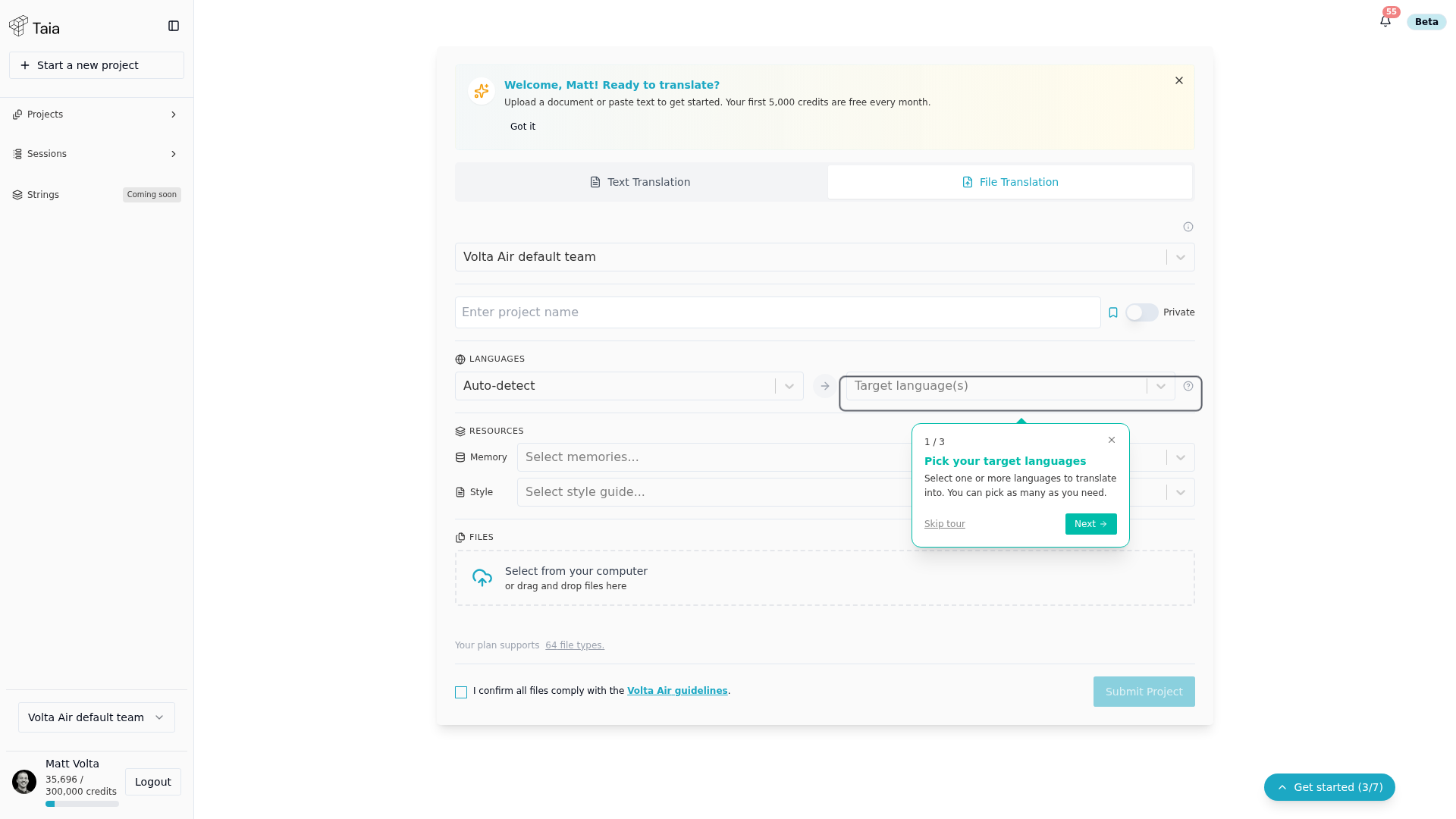
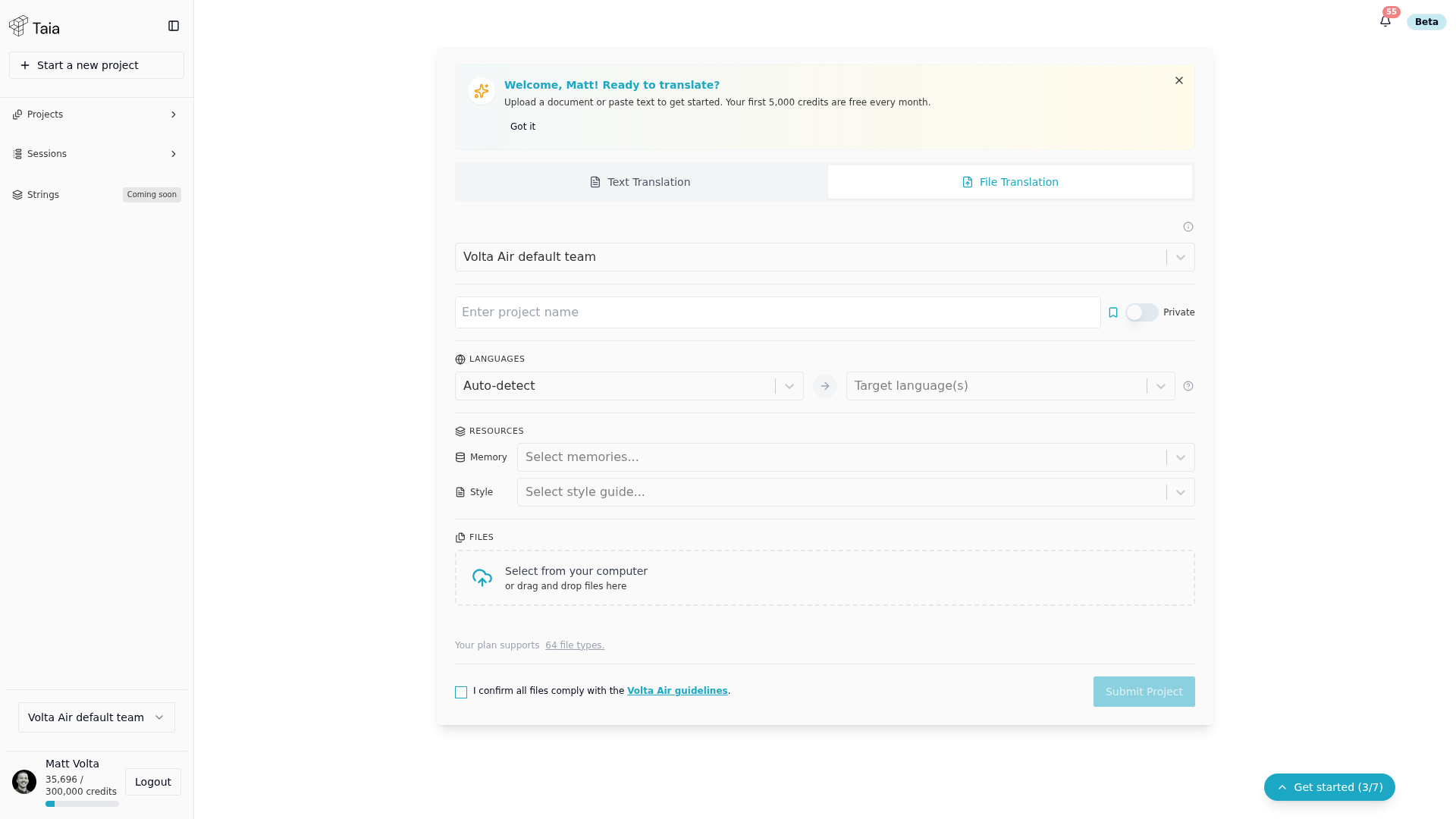
On the Home page you'll see a file upload area with the File Translation tab active by default.
Drag your file onto the upload area, or click anywhere in the box to browse for a file. Taia accepts most document, presentation, spreadsheet, and localisation file formats.
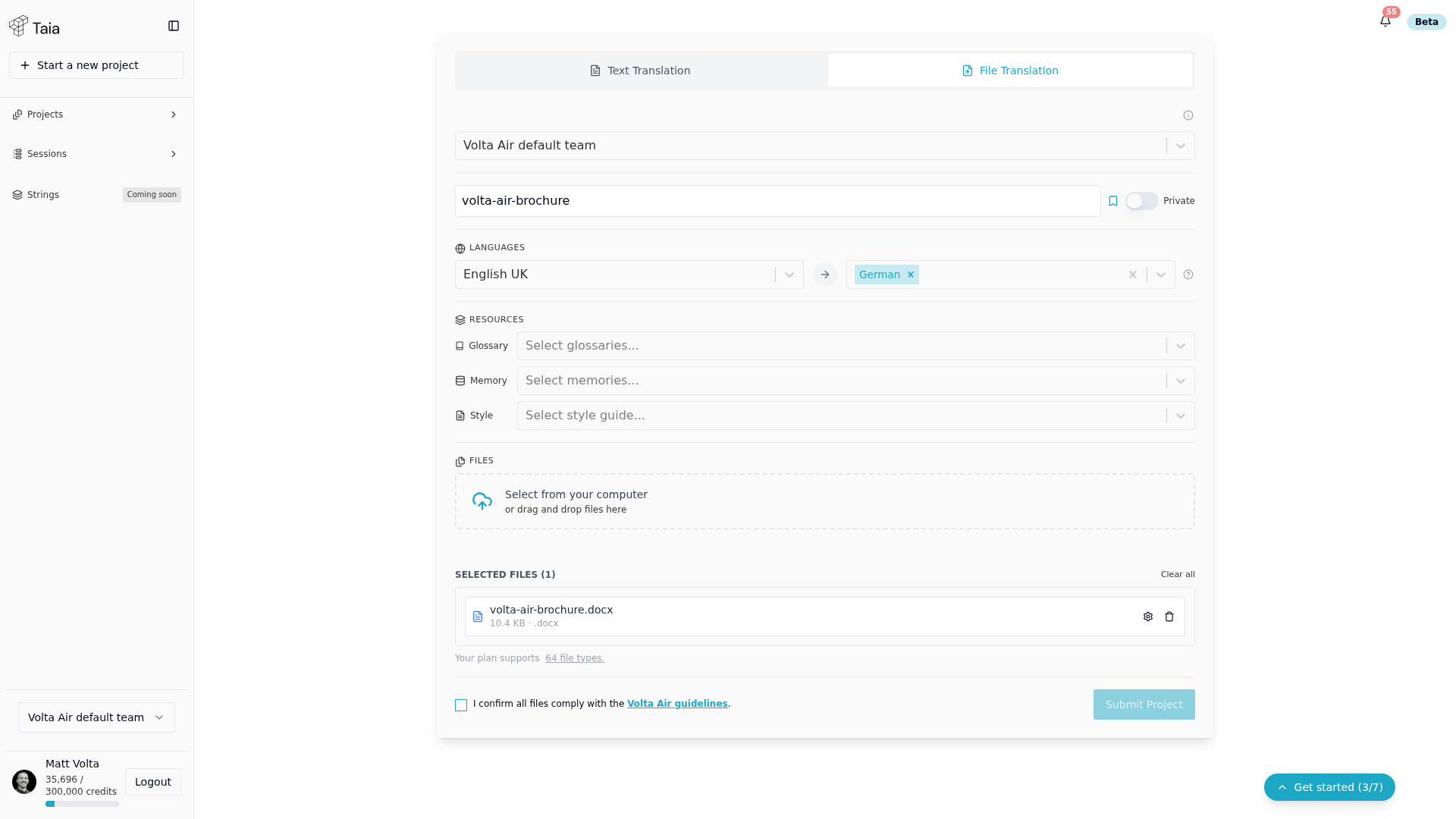
Yes — there's no fixed limit on the number of files in a project. The only hard limits are a 100 MB total upload size and at least one file.
Step 3 — Set your languages
After uploading, set two things:
- Source language — the language your file is written in. Leave it on Auto-detect and Taia will identify the language automatically. If detection fails for your file format, you'll be prompted to choose manually.
- Target language(s) — the language(s) you want to translate into. You can select multiple. Free and Basic plans select from 50 languages; Pro and Enterprise select from the full 204.
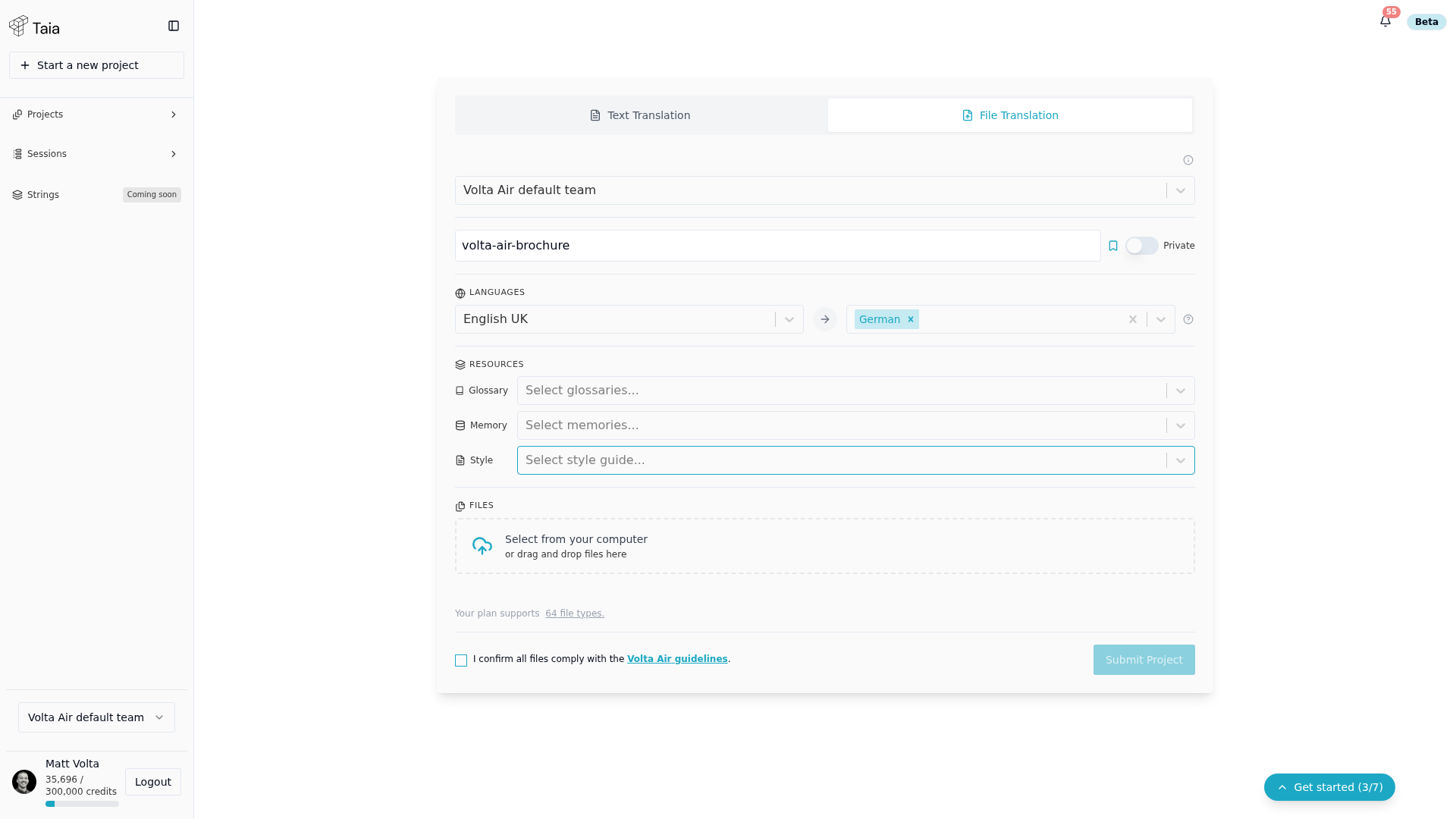
Optionally give the project a name. Taia pre-fills it from your filename — you can leave it or change it.
Step 4 — Click "Submit Project"
Click the Submit Project button. Taia creates your project and runs a word count analysis in the background. You'll be taken to the project page automatically.
Step 5 — Choose AI translation
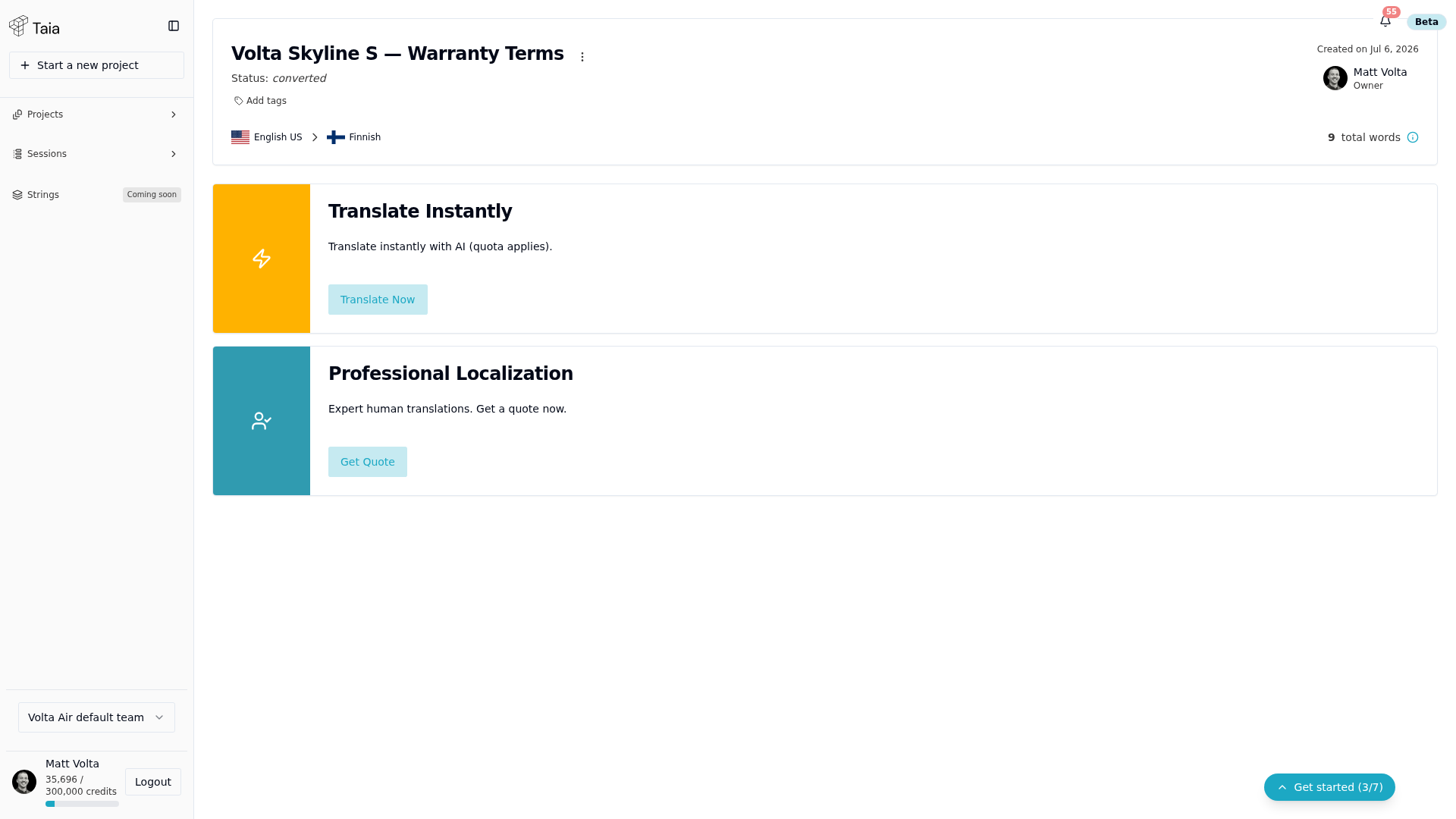
On the project page you'll see two options:
- Translate Instantly — AI translation, fast and free from your monthly quota
- Professional Localization — human expert translation with a price quote
Click Translate Instantly.
A confirmation dialog opens showing the word cost that will be deducted from your quota and your remaining balance. Click Confirm to start the translation.
Step 6 — Wait for the translation to complete
Taia translates your file in the background. You'll see a progress indicator for each language. Most files finish within a minute or two; larger files may take longer.
[SCREENSHOT: Translation progress bar per language]
You can leave the page and come back — Taia continues translating and sends a notification when done.
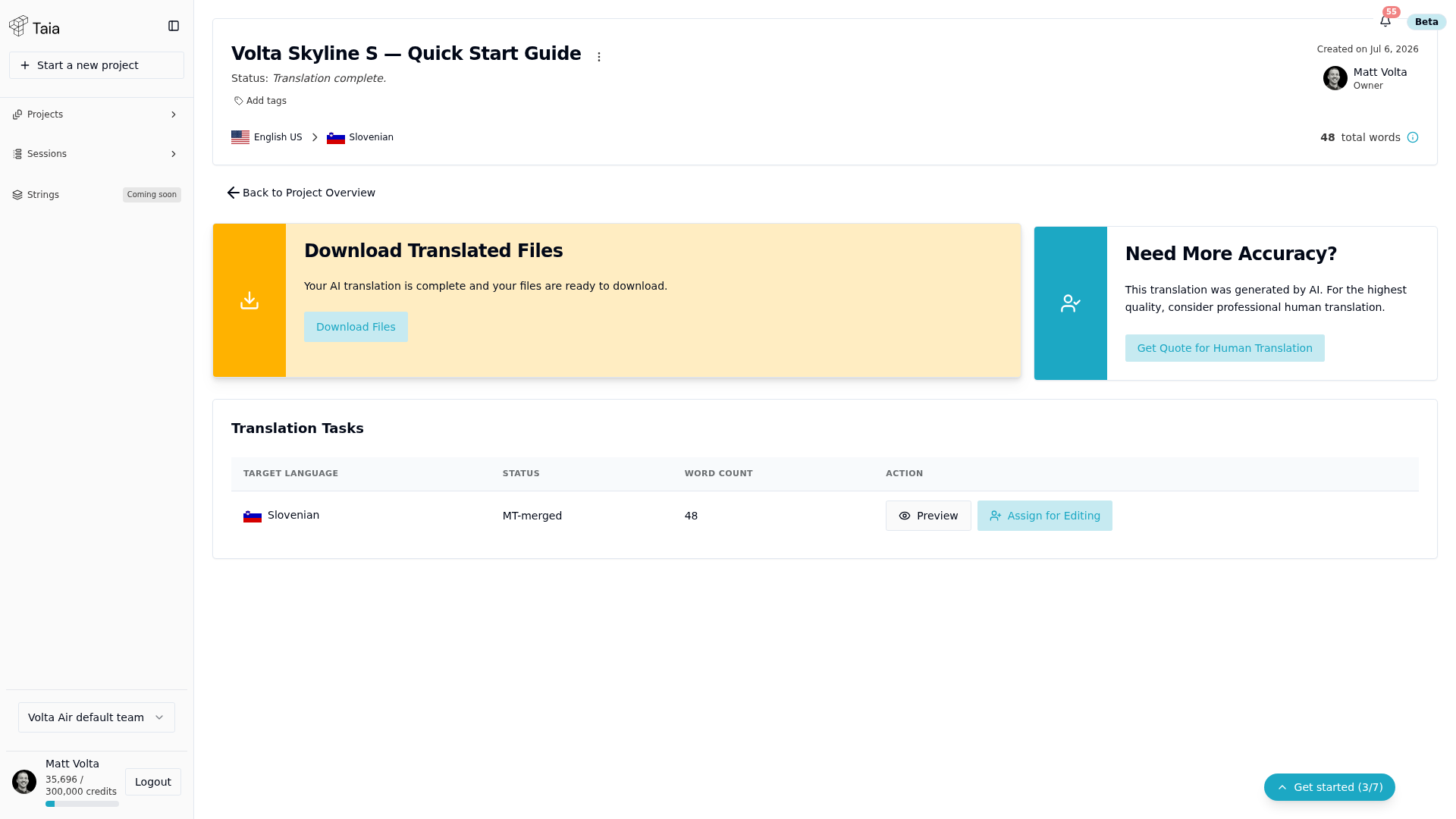
Step 7 — Download your translated files
Once all languages show Completed, click Download next to the language you want. You'll receive a translated file in the same format as your original, with all formatting preserved.
What's next?
- Improve consistency — Create a glossary to lock in brand terminology across every translation.
- Reuse previous work — Set up Translation Memory so Taia automatically re-uses segments you've already translated.
- Have your own team review it — assign the translation to a teammate and they can correct it segment by segment in the editor, then hand it back.
- Need human quality? — Run a professional project for certified human review.
- Work as a team? — Set up your organization to share projects, glossaries, and billing with colleagues.