Tour of the translation editor
The translation editor is where you review and polish a translation, one sentence at a time. Taia splits your file into segments, usually one sentence each, and shows the original on the left and the translation on the right. You fix what needs fixing, save, and move on. When you download the file, your edits are in it with the formatting intact.
This page is a map: what each part of the screen does, and where to read more. The editor is part of the Pro and Enterprise plans.
How you get here
The editor opens from a task. Once a project has been translated, someone assigns a review task, and the person doing it clicks Start Editing on their task. Project managers can also open a job read-only with Preview. See Edit segments and accept suggestions for the ways in.
The four parts of the screen
Header
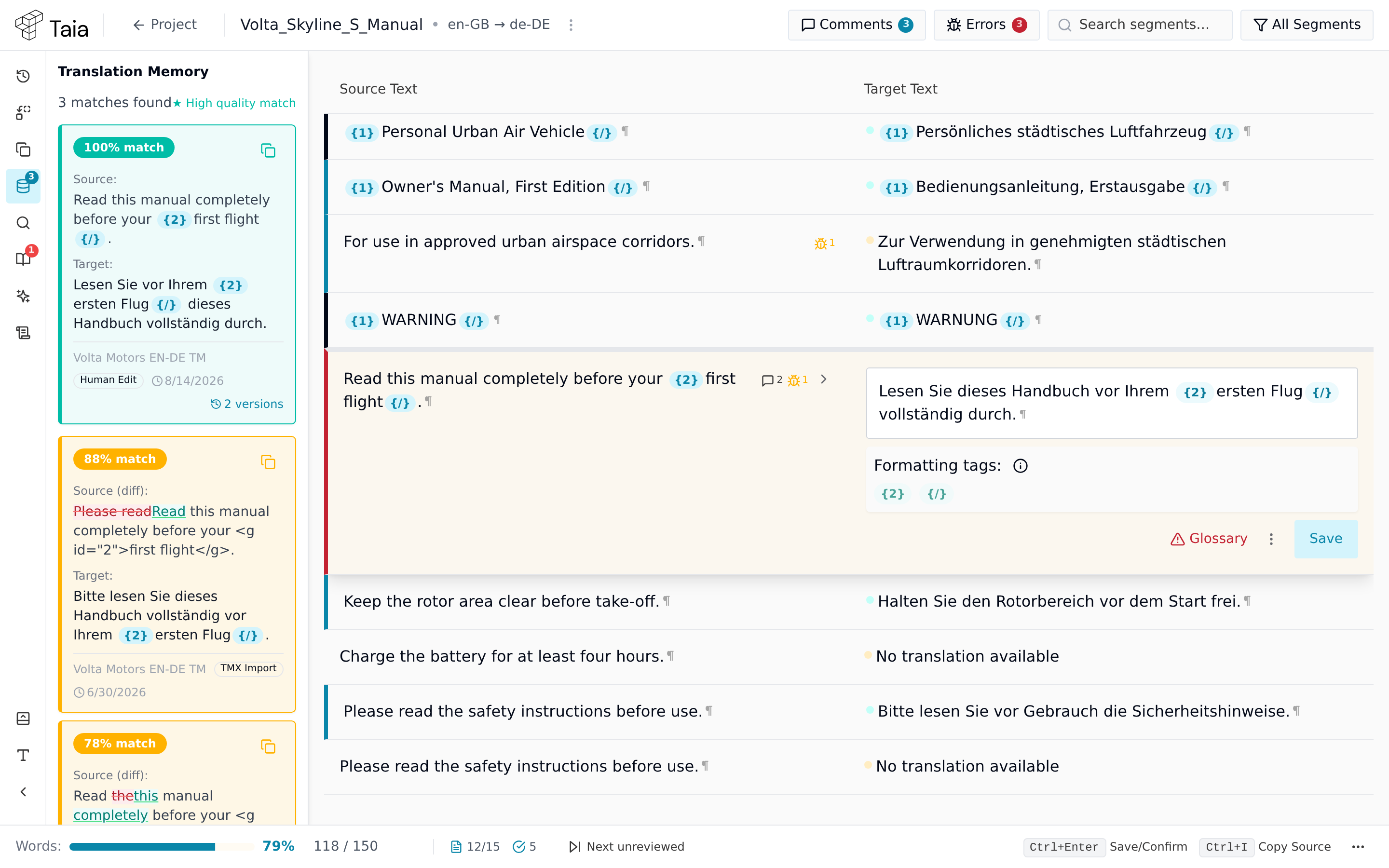
Along the top you'll find:
- Comments: every comment in the job, grouped by segment. Click one to jump there.
- Errors: every annotation (flagged error) in the job. See Review annotations.
- Search segments…: type to find text in the source or the translation.
- Segment filter (shows All Segments by default): show only Unedited, Edited, Not confirmed or Confirmed segments. See Filter and find segments.
- The ⋮ menu next to the project name, with Job Details, Jump to file (when the job has more than one file) and the Auto-propagate identical switch.
Segments
The middle of the screen is the list of segments. Click one to open it for editing. Formatting such as bold text or links shows up as small numbered tags, like {1} and {/}, which you keep in place so the formatting survives.
A coloured bar on the left of each row tells you its state at a glance: edited, confirmed, locked, changed by auto-propagation or Find & Replace, missing a glossary term (red), or matching your search (yellow).
Icon rail and panels
The column of icons on the left opens the panels that help you translate. From top to bottom:
| Icon | Panel | What it's for |
|---|---|---|
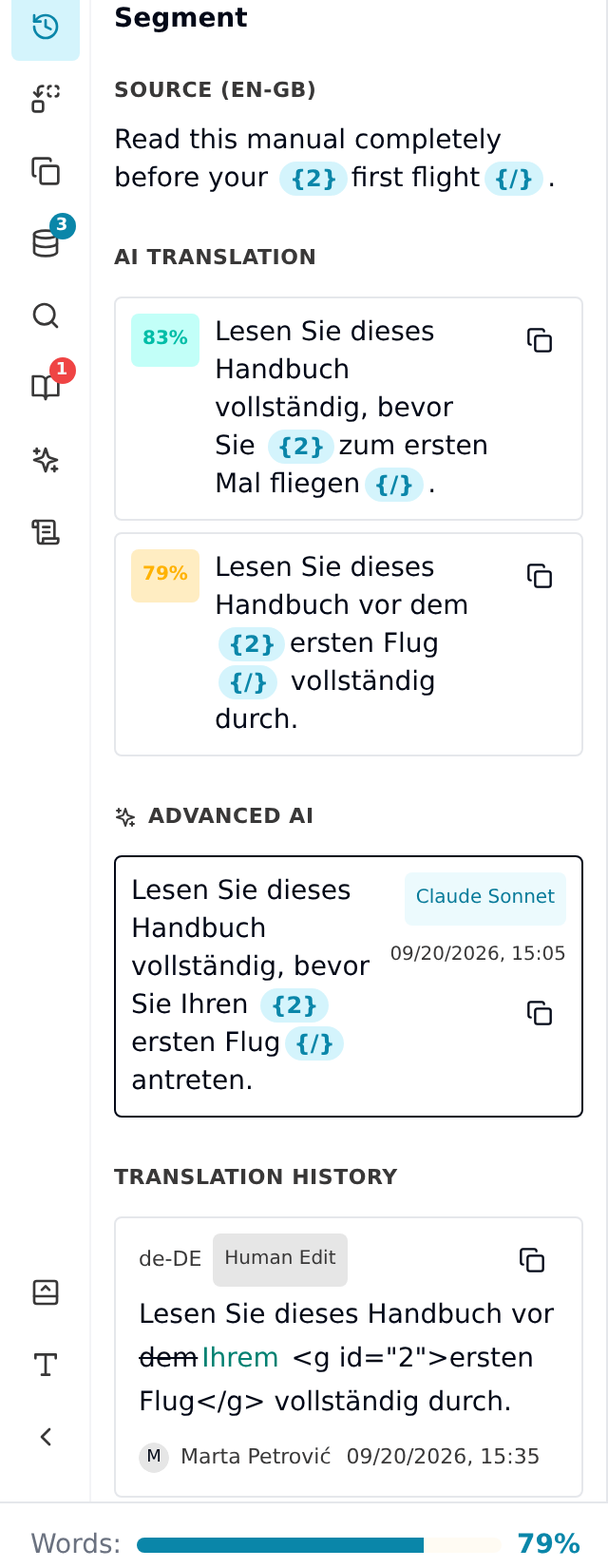
| Clock | Segment & Translation History | Every earlier version of the selected segment: the machine translation, any AI suggestions, and each person's edits, with the changes highlighted. You can insert an older version. |
| Replace arrows | Find & Replace (Ctrl+H) | Search the whole job and replace in bulk, with a preview of how many segments will change before anything does. |
| Two pages | Identical segments | Sentences that appear more than once, and which ones are translated inconsistently. See Translate repeated segments once. |
| Database | Translation Memory | Matches from your earlier translations for the selected segment. See Use Translation Memory matches. |
| Magnifying glass | TM Search | Look up any word or phrase in your translation memories. |
| Book | Glossary | Your approved terms for this segment, and a warning when one is missing. A red number on the icon counts the missing ones. See Apply glossary terms. |
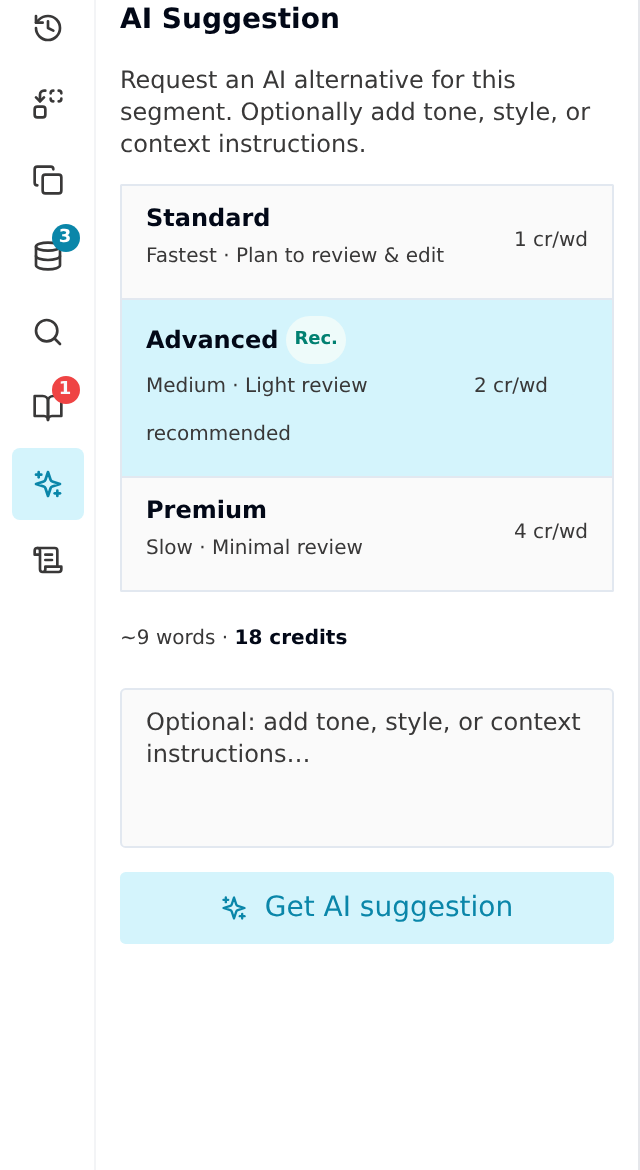
| Sparkles | AI Suggestion | Ask for a fresh AI translation of the selected segment, with an optional instruction such as "more formal". It replaces the current translation and uses credits; the panel shows the cost first. Taia's professional linguists don't see this panel. |
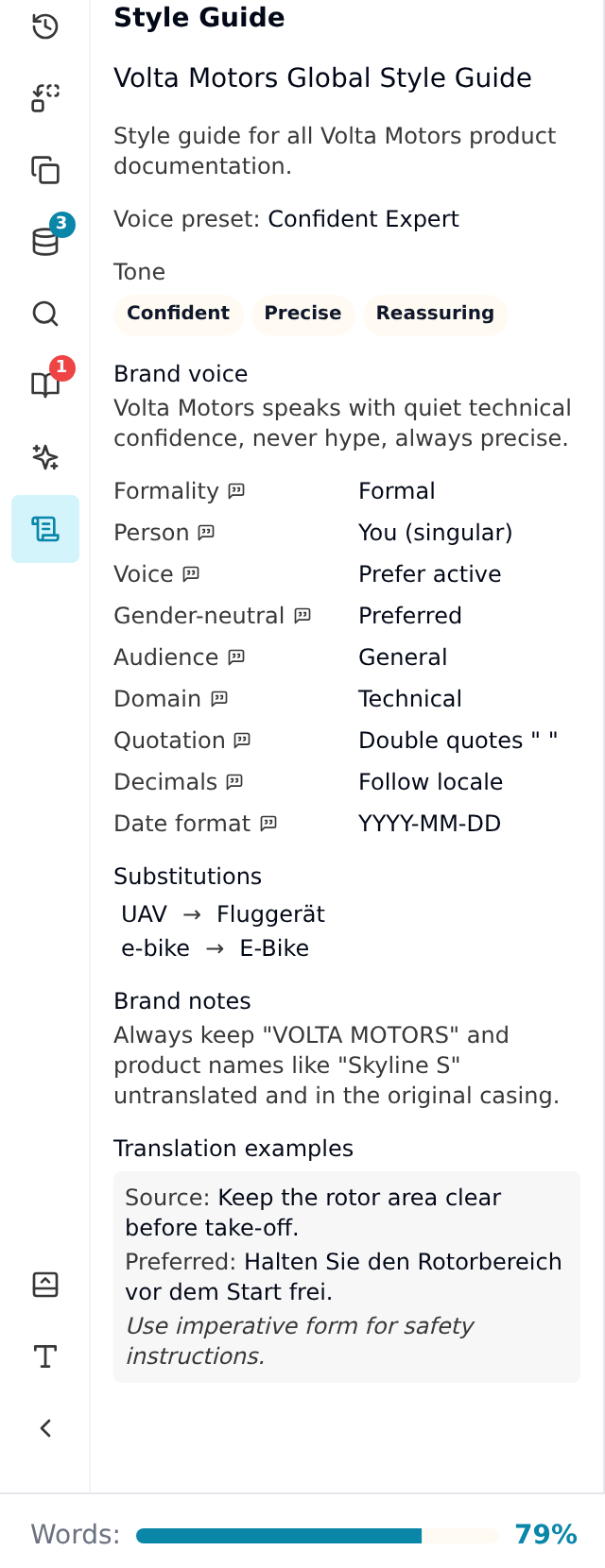
| Scroll | Style Guide | The project's style guide: formality, tone, date and number formats, words to replace. Read-only, so you can check the rules without leaving the editor. |
At the bottom of the rail you can move the panels to the bottom of the screen, change the text size (Extra Small to Large), and hide or show the open panel with Ctrl+B.
Footer
The footer shows your progress in words or segments, how many segments are confirmed, and Next unreviewed (Ctrl+U), which jumps to the next segment you haven't edited or confirmed yet. The ⋯ button at the far right opens the full list of keyboard shortcuts.
What you can do, by task
Translate and review
- Save with Ctrl+Enter to save and move to the next segment, or Ctrl+Shift+Enter to save and stay. Saving an unchanged segment marks it Confirmed, approved as it is. See What counts as a reviewed segment.
- Copy the source into the translation with Ctrl+I, handy for product codes and names.
- Saved segments go into your translation memory when one is attached to the project, so the next project can reuse them.
- Right-click in the translation for spelling suggestions and to change letter case (Shift+F3). See Use the right-click menu.
Keep the formatting intact
- Formatting tags below the segment show which tags are in place, which are missing and which are out of order. Click a missing one, or press Alt+T, to insert it.
- Drag a tag to move it, or right-click it to move it one word at a time.
- A segment with a missing or out-of-order tag won't save until it's fixed. That rule is what keeps your file's formatting intact on download.
- Formatting marks make spaces, non-breaking spaces, tabs and line breaks visible. See Show formatting marks.
Stay consistent
- Translation memory matches appear automatically. Insert one with a click, or press Ctrl+1, Ctrl+2 or Ctrl+3 for the first three.
- Glossary terms are checked as you type, so a product name translated the wrong way doesn't slip through.
- Auto-propagate copies your translation to every identical sentence in the job when you save. It's on by default. If someone has already worded one of those differently by hand, Taia asks first.
- Find & Replace changes a word everywhere at once. It tells you first how many segments will change, how many approved ones will go back to unapproved, and how many matches in locked segments it will skip.
Work with other people
-
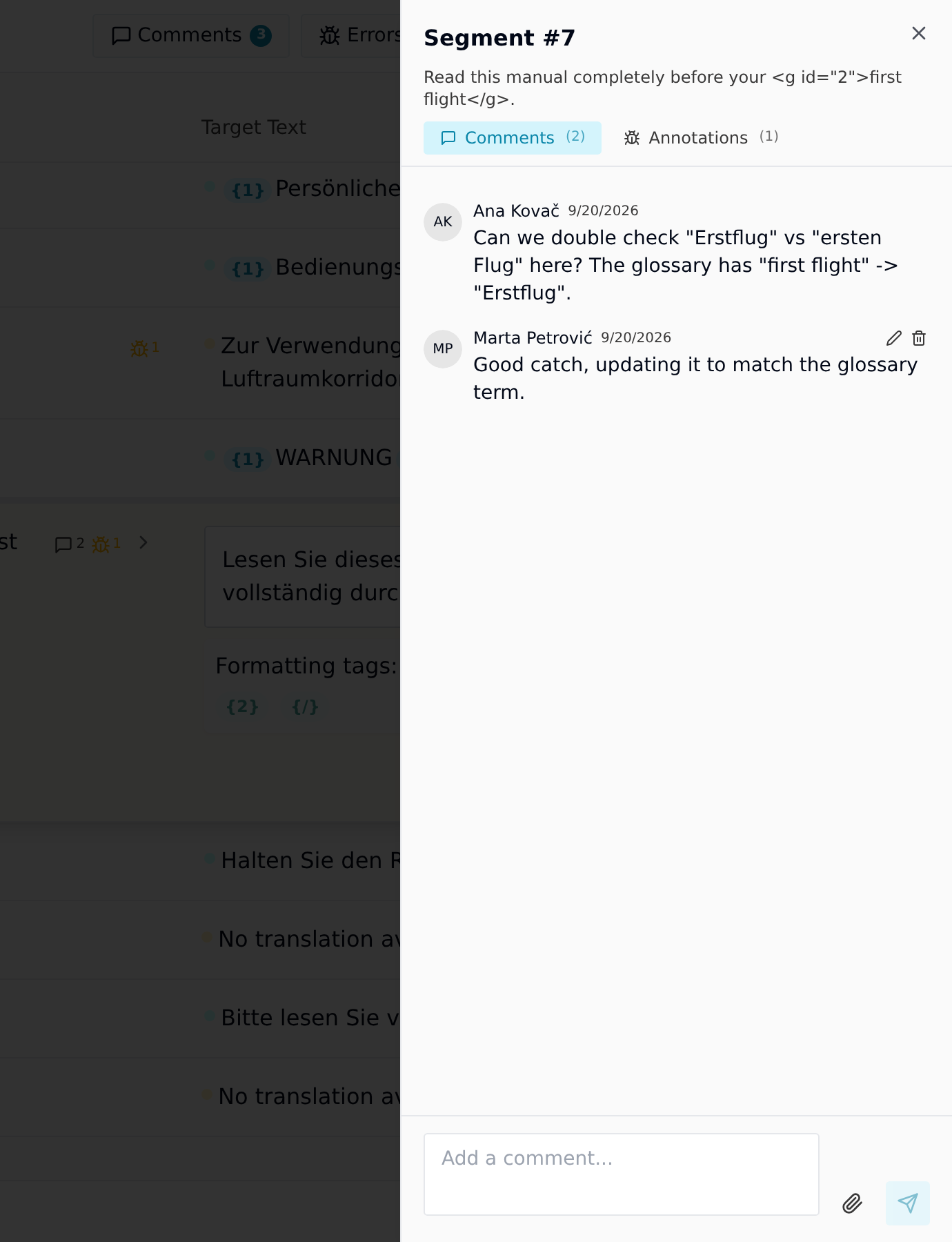
Comments sit on the segment they're about, and you can attach files. Comments are visible to everyone on the job. In a client review task, new comments default to Client, which hides them from the linguists; switch to Everyone to share one with the whole job.
-
Annotations flag an error with a category and a severity, using the industry-standard MQM scheme. See Review annotations.
-
Locked segments can't be edited. A segment is locked when it's marked as not for translation, or when a Taia project manager, or a linguist whose assignment allows it, has locked it.
Keyboard shortcuts
You can work through a whole file without touching the mouse. The most useful ones:
| Shortcut | What it does |
|---|---|
| Ctrl+Enter | Save and go to the next segment |
| Ctrl+U | Jump to the next segment you haven't edited or confirmed |
| Ctrl+↓ / Ctrl+↑ | Next or previous segment |
| Ctrl+I | Copy the source into the translation |
| Alt+T | Insert the next missing tag |
| Ctrl+1 / 2 / 3 | Insert translation memory match 1, 2 or 3 |
| Ctrl+H | Find & Replace |
The full list is in Keyboard shortcuts.