Filter and find segments
The CAT editor's filter and search tools help you quickly navigate to specific segments — whether you're looking for a particular phrase, reviewing only unedited segments, or checking all flagged QA issues.
Search for text
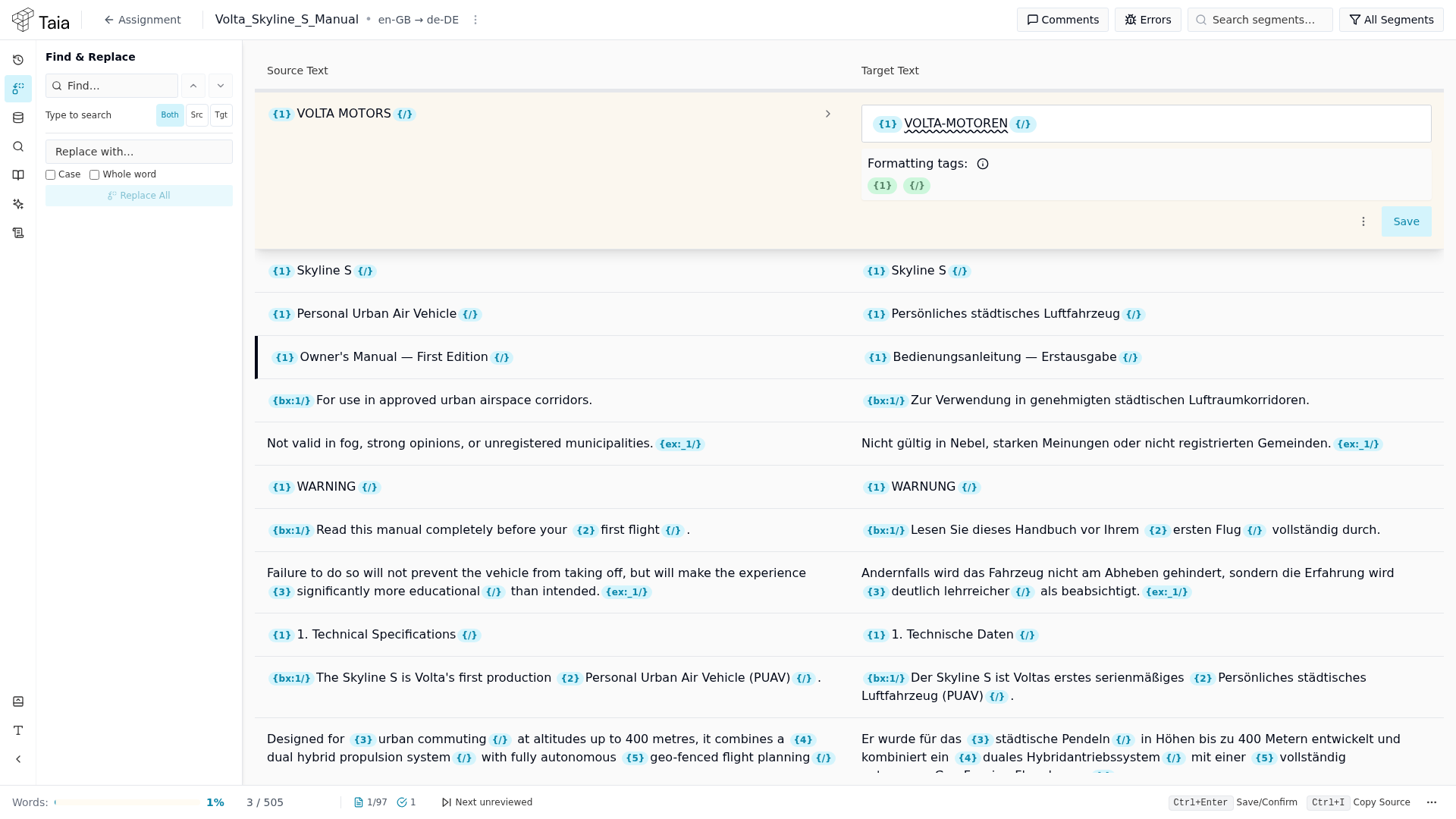
There are two ways to search, and they aren't the same tool:
- Quick search — the Search segments... box in the editor header searches both source and target text. There's no scope toggle here.
- Find & Replace — in the left icon rail, open Find & Replace for a Search Scope toggle (Both / Src / Tgt) plus a Replace All option.
Filter by segment status
- Click the Segment Filter dropdown in the editor header.
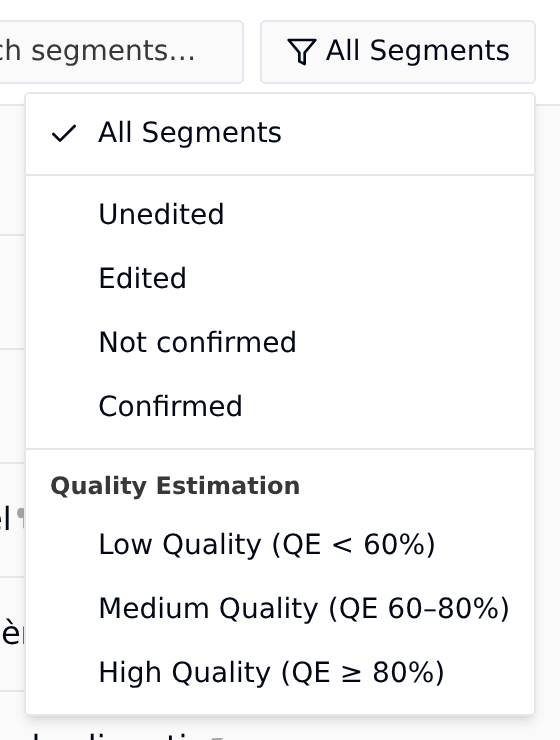
- Choose a status to filter by:
- All Segments: show every segment
- Unedited: nothing has been saved to these in your task yet
- Edited: changed in your task and not yet confirmed. This includes changes made for you by auto-propagation or Find & Replace.
- Not confirmed: Unedited and Edited together, so everything not yet signed off in your task
- Confirmed: saved without any changes, approved as they were, wherever the text came from
- QE Low / Medium / High: segments grouped by the machine translation quality estimate
- The table updates to show only matching segments.
These states belong to your task. When a reviewer picks up the job after the translator, every segment starts as Unedited again for the reviewer.
Navigate between segments
Use keyboard shortcuts to move without the mouse:
| Shortcut | Action |
|---|---|
| Ctrl+↓ | Next segment |
| Ctrl+↑ | Previous segment |