Keep translations within a length limit
Some text has to fit: a button, a menu item, a line in a text box on a printed page. Translations often come out longer than the source, so a layout that worked in English breaks in German.
Length limits let you decide how much longer a translation may be. Taia then shows translators the limit while they type, refuses to save text that goes over it, and can ask the AI to shorten anything that doesn't fit.
Length limits are off by default. Switch them on for a project when the layout matters.
How the limit works
The limit for a segment is worked out from its source text:
- The translation may be up to Extra length allowed longer than the source. The default is 10%.
- It always gets at least 5 extra characters, so a short source like "Save" doesn't end up with a limit nobody could meet.
For a 40-character source with the default 10%, the limit is 45 characters (the 5-character minimum is bigger than 10% of 40). For a 200-character source it's 220.
Characters are counted the way a reader sees them. Formatting tags and placeholders that the editor shows as tags don't count, and a space counts as one character.
Whoever manages the project can also set a fixed limit on a single segment, or on every segment of one language. See Raise or set a limit yourself.
Switch length limits on
You need to manage the project: be its owner, a team manager, an organization manager or an administrator.
- Open the project and click the three dots next to the project name.
- Choose Manage resources, or Show resources once translation has started. The Project Resources dialog opens.
- Turn on Length limits.
- Set Extra length allowed, a whole number from 0 to 100. Leave it at 10 if you're not sure.
- Click Save.
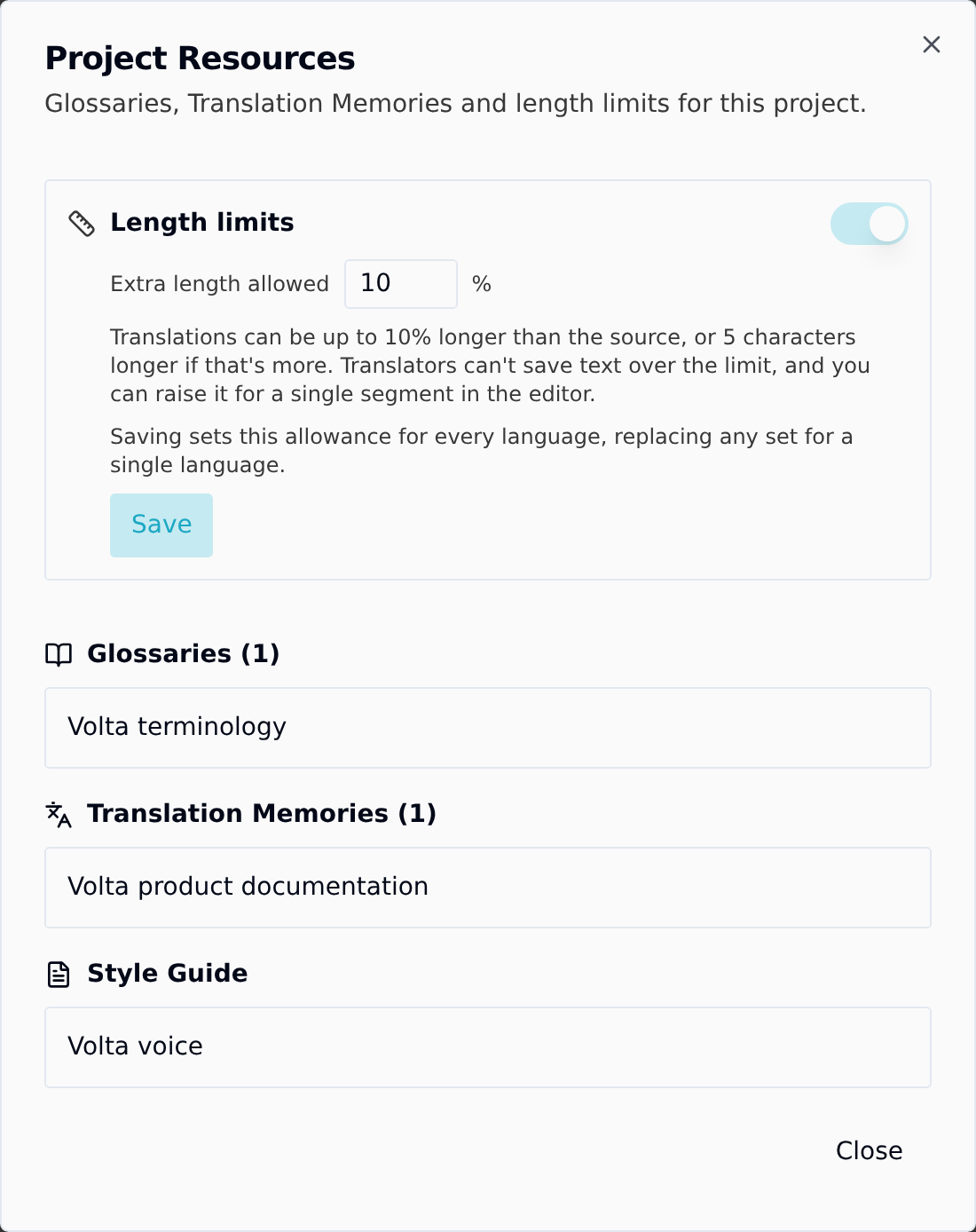
The setting covers every language in the project. Saving it replaces any allowance that was set for a single language.
Turning the switch off removes the automatic limits. Fixed limits you set on a segment or a language stay until you remove them. Anyone who can't manage the project sees the same dialog, but the switch is locked.
What translators and reviewers see
Once limits are on, the segment you're editing shows a counter next to its menu, such as 38 / 42. It turns yellow when the translation is close to the limit and red once it's over. Hover it to see where the limit comes from.
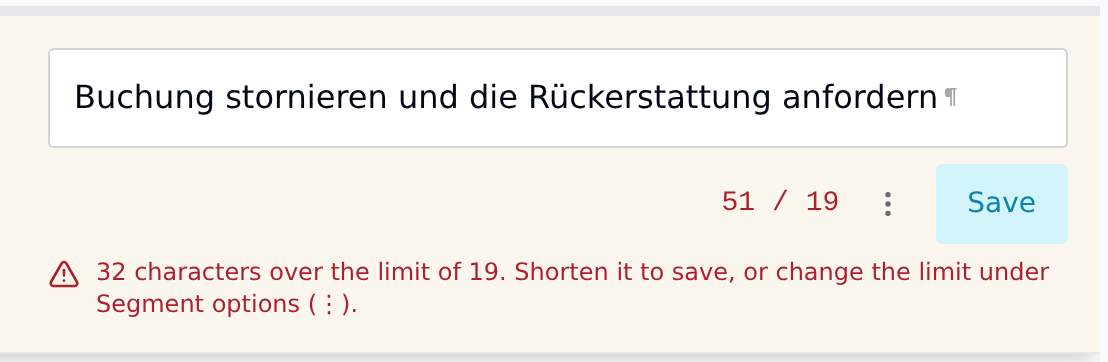
When a translation is over, a red line under the editor says by how many characters, and what to do about it.
Saving is refused while the text is over the limit. The toast reads Over the length limit, with the length and the limit. Shorten the text and save again.
Any other segment that is over its limit is marked Over limit in the segment list. This also applies to text the AI wrote: a segment the AI left too long can't be confirmed as it is. It has to be shortened, or its limit raised.
Find & Replace and auto-propagation skip any segment where the new text would go over its limit, and tell you how many they skipped.
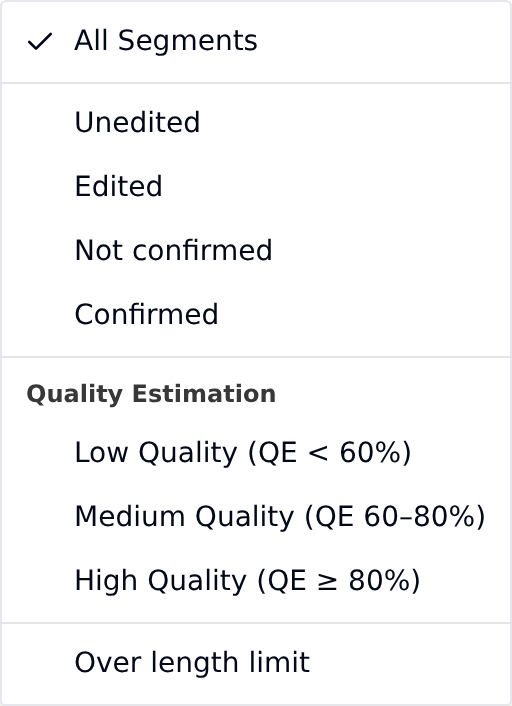
To see only the segments that need attention, open the Segment Filter and choose Over length limit. See Filter and find segments.
Raise or set a limit yourself
Sometimes a limit is wrong for one segment. Whoever manages the project can change it from the editor.
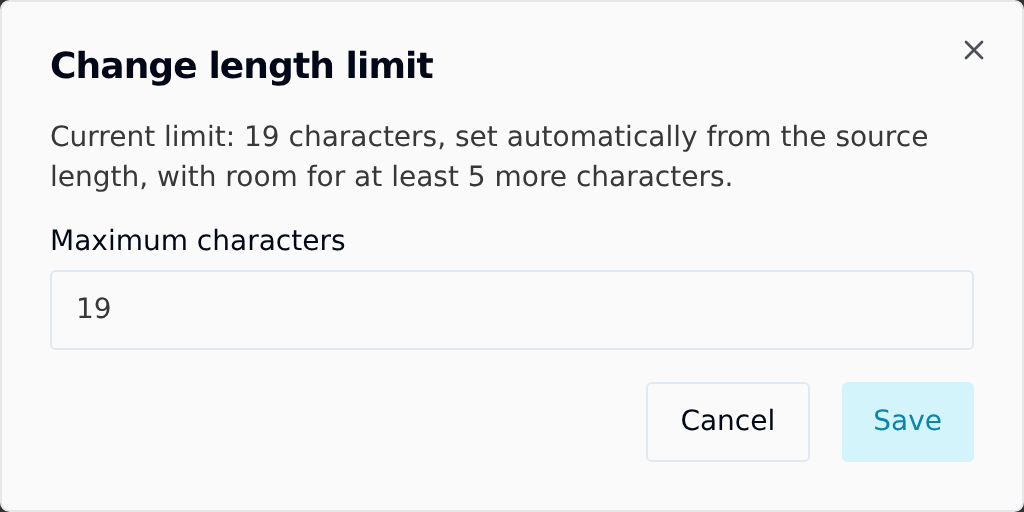
For one segment: open the segment's options menu (the three dots), choose Change length limit, enter Maximum characters and save. If the segment has a fixed limit, the same dialog can remove it (Use automatic limit, or Remove fixed limit if length limits are off).
For a whole language: open the job options menu (the three dots in the editor header) and choose Length limits. You can:
- change the allowance for this language (when length limits are on),
- set one fixed limit for every segment, or
- remove fixed limits, so every segment goes back to the automatic limit (or to no limit, if length limits are off).
A fixed limit replaces any limit set on single segments. A limit you set on a segment is exact: it is not stretched by the allowance or the 5-character minimum.
If your integration sends a max_length for a Strings entry, the Strings editor enforces it and offers no way to raise it.
Have the AI shorten translations (Fit to length)
Without Fit to length, the AI translates normally and some segments come back longer than their limit. With it, Taia checks every translation after the AI has written it and asks for a shorter version of the ones that run over.
Fit to length works with Advanced and Premium translation. It isn't available with Standard.
- Start an AI translation as usual: Translate Now on the project's Translate Instantly card, or Translate next to one language or one file on the project's AI translation page.
- In the confirmation dialog, choose Advanced or Premium.
- Open Translation settings at the bottom of the dialog and turn on Fit to length. It's never on by default, even when limits are already on.
- Check the credits shown, then confirm.
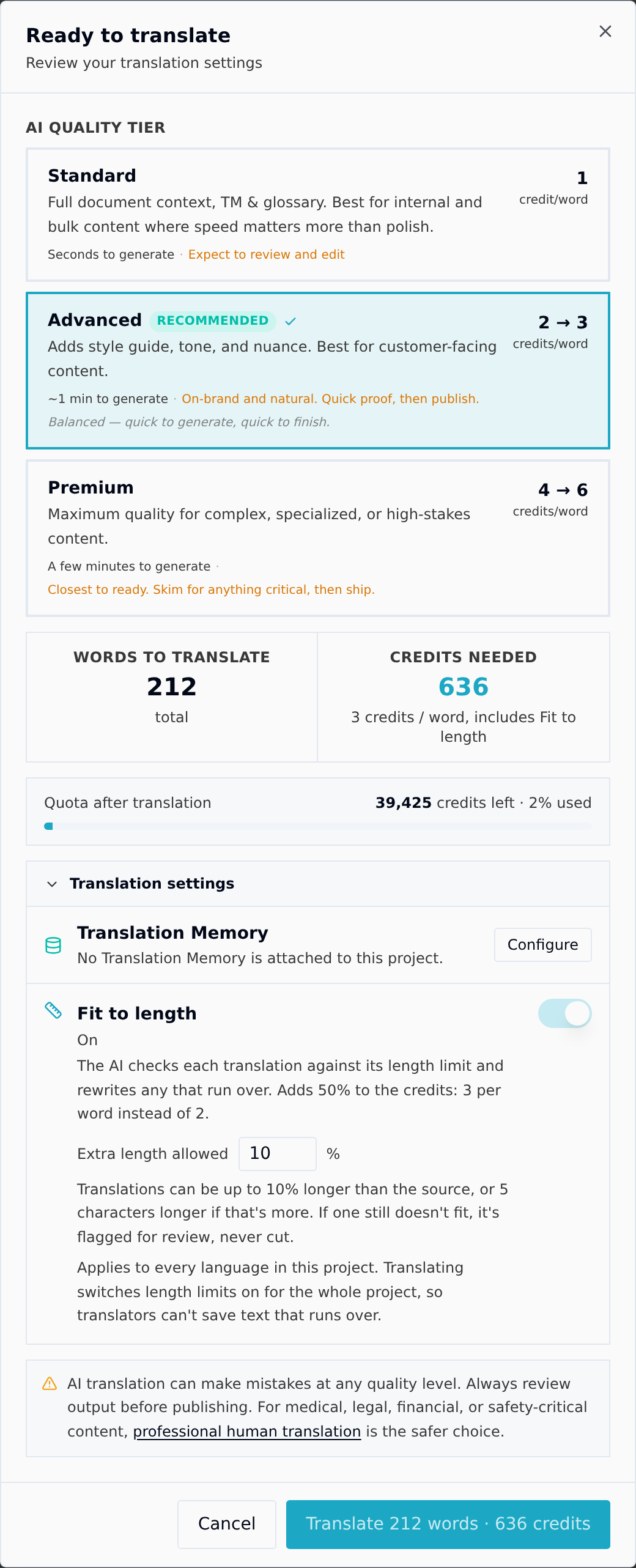
Fit to length adds 50% to the credits: Advanced costs 3 credits per word instead of 2, and Premium 6 instead of 4. The dialog shows the new rate before you confirm. See How credits are calculated.
What happens next:
- The AI translates the project as normal.
- Taia measures every segment against its limit.
- Segments that are over go back to the AI to be shortened, up to two more times. Each time, only the segments still over are sent.
- Nothing is ever cut off. If a segment is still too long after that, it's delivered as the AI wrote it. If length limits are on for that language, it's marked Over limit.
Short brand names and two-word headings are the usual ones that stay over, because there is little room to shorten them.
What the dialog does to your project settings
It depends on where you start the translation and who you are.
| You start it from | If you manage the project | If you don't |
|---|---|---|
| The whole project | The dialog has an Extra length allowed field. Translating switches length limits on for every language and uses that allowance for all of them. | The translation is fitted. Limits stay as they are: only someone who manages the project can switch them on. |
| One language | Same, for that language only. | Same as above. |
| One file | Each language is fitted to its own limit. Nothing is switched on and no settings change. | Same: nothing is switched on. |
So if you want the limit enforced for translators after a Fit to length run, order it from the whole project (or the language) while managing the project, or switch Length limits on in Project Resources first.
Segments that are still over
When limits are on and any segments are over, whether or not you used Fit to length, the project's AI translation page shows an amber banner: N segments are over their length limit, with a count for each language. Each language row also shows how many are over. If you can open the editor, the banner tells you to open it and use the Over length limit filter.
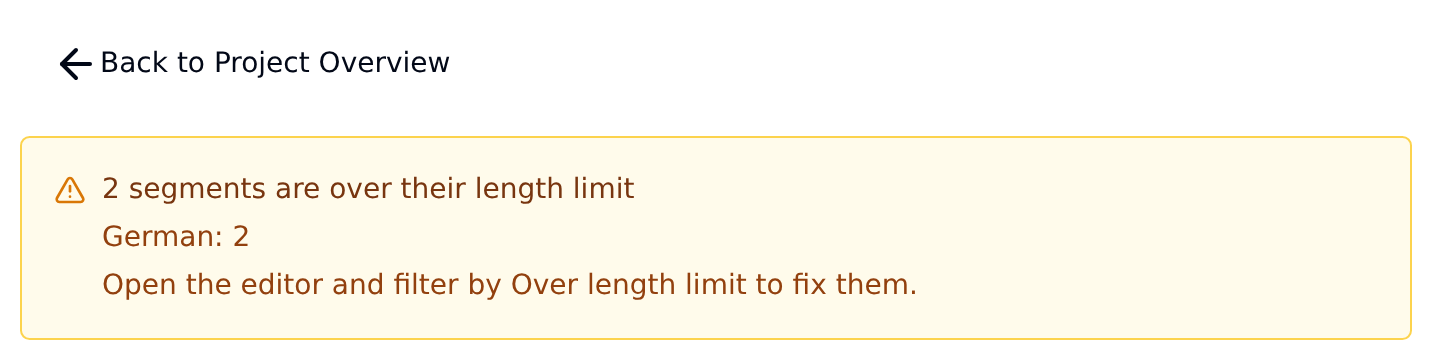
Open the editor, filter by Over length limit, and shorten each one by hand, or raise its limit if the longer text is fine.