Save project settings as a template
If you regularly translate similar content — same language pairs, same glossary, same TM — you can save those settings as a template to pre-fill future projects in one click. A template only stores the setup (languages, glossary, TM, style guide) — it doesn't clone a project, and it doesn't save the project name or any files.
Save your current setup as a template
- On the Home page, set your source language (anything other than Auto-detect) and at least one target language. Optionally attach a glossary, TM, or style guide.
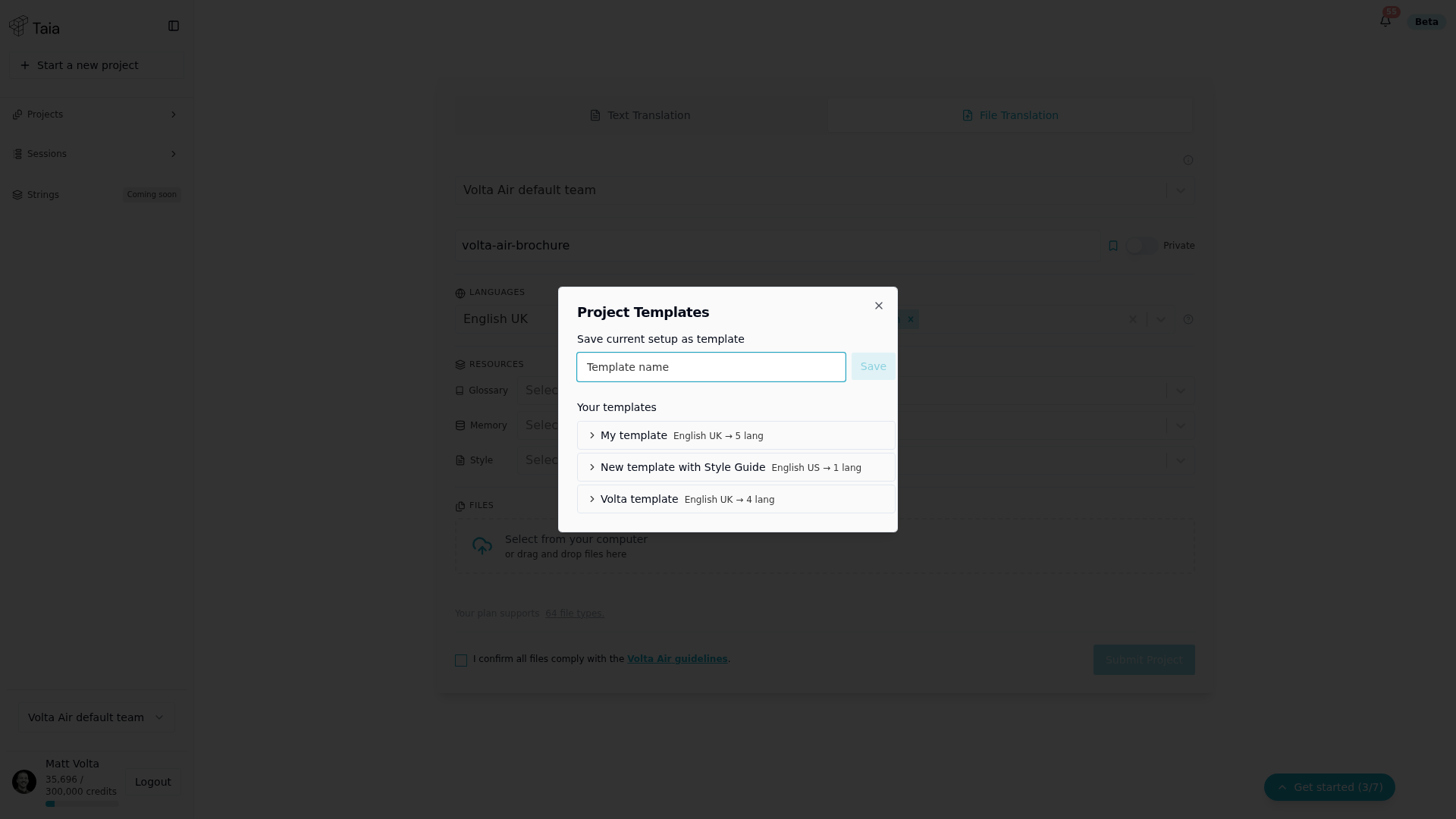
- Click the bookmark icon next to the project name field. This opens the Project Templates dialog.
- Under Save current setup as template, enter a template name and click Save.
Apply a saved template
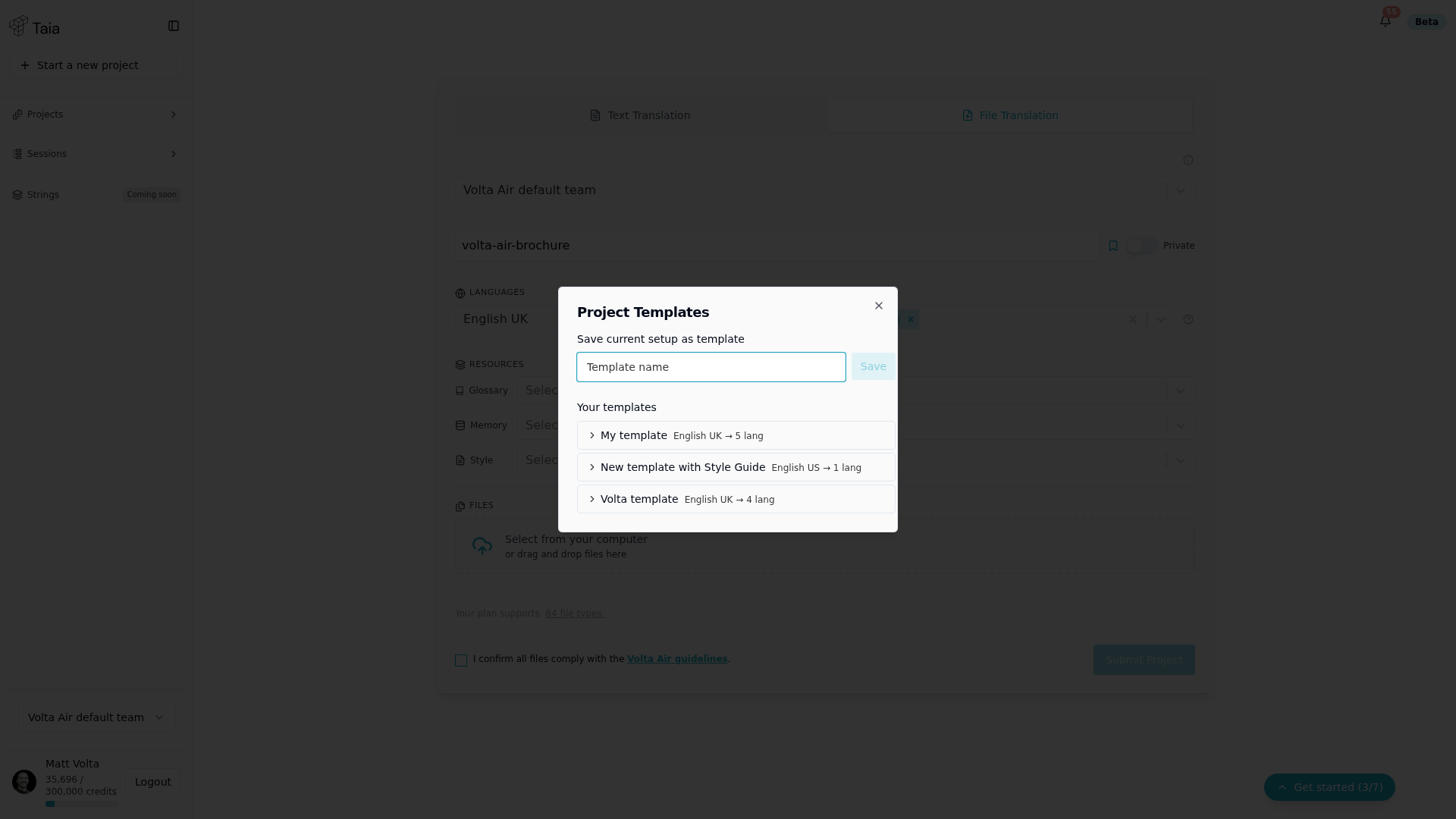
- On the Home page, click the bookmark icon next to the project name field to open the Project Templates dialog.
- In Your templates, click the template you want to apply.
- The source language, target languages, glossary, TM, and style guide are pre-filled. If applying would overwrite fields you've already set, you'll be asked to confirm.
- Upload a file and click Submit Project.
Notes
- Templates save: source language, target language(s), attached glossaries, attached TMs, attached style guide.
- Templates do not save: project name or uploaded files (you provide those for each new project).