Translate Adobe Illustrator files
Product manuals, labels, packaging and datasheets are often laid out in Illustrator. Taia
doesn't open .ai files directly, so the text travels as an XLIFF file, the standard
exchange format for translation. Two free scripts do the round trip inside Illustrator: one
exports the text, the other puts the translation back where it came from.
You keep the layout, the fonts and the formatting, and the translator never needs Illustrator.
What you need
- Adobe Illustrator (tested on Illustrator 2024).
- A Taia plan that includes XLIFF files. XLIFF upload is part of the Pro plan; the Free and Basic plans cover the 15 most common formats.
- The scripts: download Taia Illustrator XLIFF (zip). They're free to use on your own files; the license in the download says what needs our permission.
Don't want to do any of this yourself? Get in touch and send us
the .ai file. We run the scripts, have it translated, fix the layout and hand back finished
files.
1. Install the scripts
Unzip the download, then:
- Windows: open the
installfolder and double-clickinstall-windows.bat. Windows asks for administrator rights, because Illustrator keeps its scripts under Program Files. - macOS: open the
installfolder, right-clickinstall-mac.commandand choose Open. Enter your password if it asks. We've tested the scripts on Windows; nothing in them is Windows-specific, but if the installer doesn't find Illustrator on your Mac, use the Other Script... route below.
Restart Illustrator. The scripts now appear under File > Scripts as Taia Export XLIFF and Taia Import XLIFF.
You can also skip the installer: in Illustrator choose File > Scripts > Other Script... and
pick the script from the dist folder each time.
2. Export the text
- Open the original
.aifile. - Choose File > Scripts > Taia Export XLIFF.
- Set the source language, for example
en. The target is optional; you choose it in Taia. - Leave Join words that are split across separate text objects switched on.
- Click Export.
The .xlf file is saved next to the .ai file, with the same name. The message at the end
tells you how many segments and roughly how many words it contains.
The export takes care of the things that usually make Illustrator files painful to translate:
- A bold or italic word inside a sentence becomes a tag, so it keeps its formatting when it moves in the translation.
- A heading cut into several text objects, which happens with hand-kerned titles, is joined into one segment so it can be translated as a whole.
- Every paragraph is its own segment, in reading order, with a note saying what kind of text it is and in which font and size.
- Empty text objects and text with no letters at all (
12 34,±2,5) are left out.
3. Translate it in Taia
- On the File Translation tab, enter a project name and set the source and target languages. You can pick several target languages at once.
- Add the
.xlffile and click Submit Project. - On the project page, click Translate Now, choose a quality tier and confirm.
- If you want a person to check the AI translation before it goes into the layout, open it in the Translation Editor. The tags show as tag markers there; keep each one around the same word it wrapped in the source.
- Click Download Translated Files. You get one
.xlfper target language.
Your glossary, translation memory and style guide work on XLIFF files the same way they do on any other file. See Create an AI translation project for the full project steps.
4. Import the translation
- Open the same original
.aifile you exported from. If you've changed anything in it, save it first: the import won't run on a document with unsaved changes. - Choose File > Scripts > Taia Import XLIFF and pick the translated
.xlf. - Check the target language and the file name it will save as. By default that's the original
name plus the language code, for example
manual_de-DE.ai, in the same folder. - Click Import.
The translation goes back into each text object, the bold and italic words get their
formatting back, and the hyphenation language is set to the target language wherever Illustrator
has a dictionary for it. The result is
saved as a new file before a single word changes, so the original is never written to.
If a file with that name already exists, from an earlier import, the new one gets a -2 on
the end instead of replacing it.
After the import, the open window is the translated copy. To import another language, open the original again first.
5. Check what the scripts flag
Translations are rarely the same length as the original. German, for example, often runs longer than English. After the import, anything a person should look at is outlined in red on a layer called Taia QA (not printed):
- Text that no longer fits its box. Make the box taller or wider, or shorten the text.
- Point text that got much wider than the original, which may now run into something next to it.
- Text with a logo on top. Some files keep invisible placeholder text under a logo, so the sentence has the right gap. The logo doesn't move when the translated sentence reflows, so check it still sits in its gap.
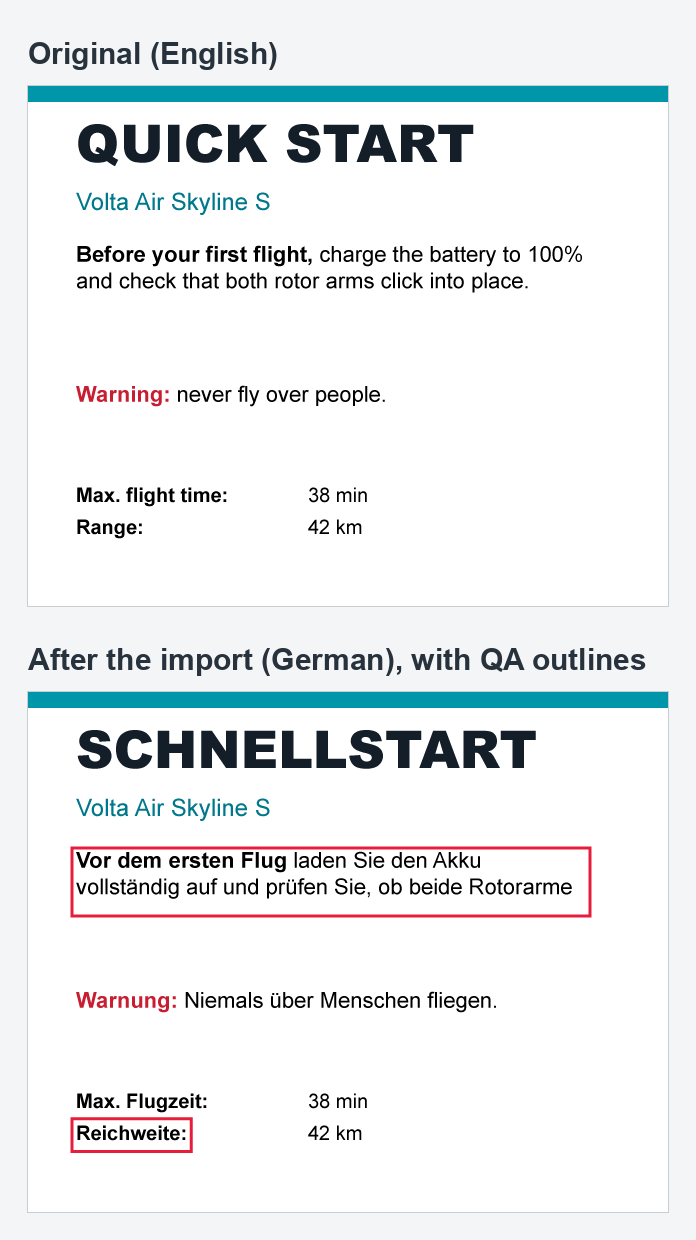
The same list is saved next to the new file as <name>_import-report.txt, along with any
segment that had no translation (the original text is kept) or couldn't be found in the
document.
When everything looks right, delete the Taia QA (not printed) layer. It doesn't print, but it can still show up when you export an image or save a PDF, so remove it before you hand the file on.
Good to know
- Import into the file you exported from. If you edited the
.aifile in between (moved, added or deleted objects), the import finds each segment by its text and the report lists anything it couldn't place. It never guesses. - Text converted to outlines isn't text any more, and neither is text inside a placed image, so neither can be exported. The same goes for text inside symbols and graphs.
- The target language needs a font that has its characters. Missing characters show as pink boxes in Illustrator; change the font after the import.
- Right-to-left languages (Arabic, Hebrew), vertical text and threaded text (one story flowing through several linked boxes) haven't been tested yet.
- The XLIFF works with other tools too. It's standard XLIFF 1.2, so a translator can open it
in their own CAT tool. From Trados, ask for the target file as
.xlf(Save Target As), not the.sdlxliff.