Read your Professional order page
Once you've placed a Professional order, clicking the project opens its order page. It shows when your files are due, what you ordered, what has been added since, and what you've paid.
Sometimes your project manager needs to change an order after you've placed it. Typical cases are a faster delivery date, or extra work such as desktop publishing (DTP) or an additional quality check. Everything that changes shows up on this page.
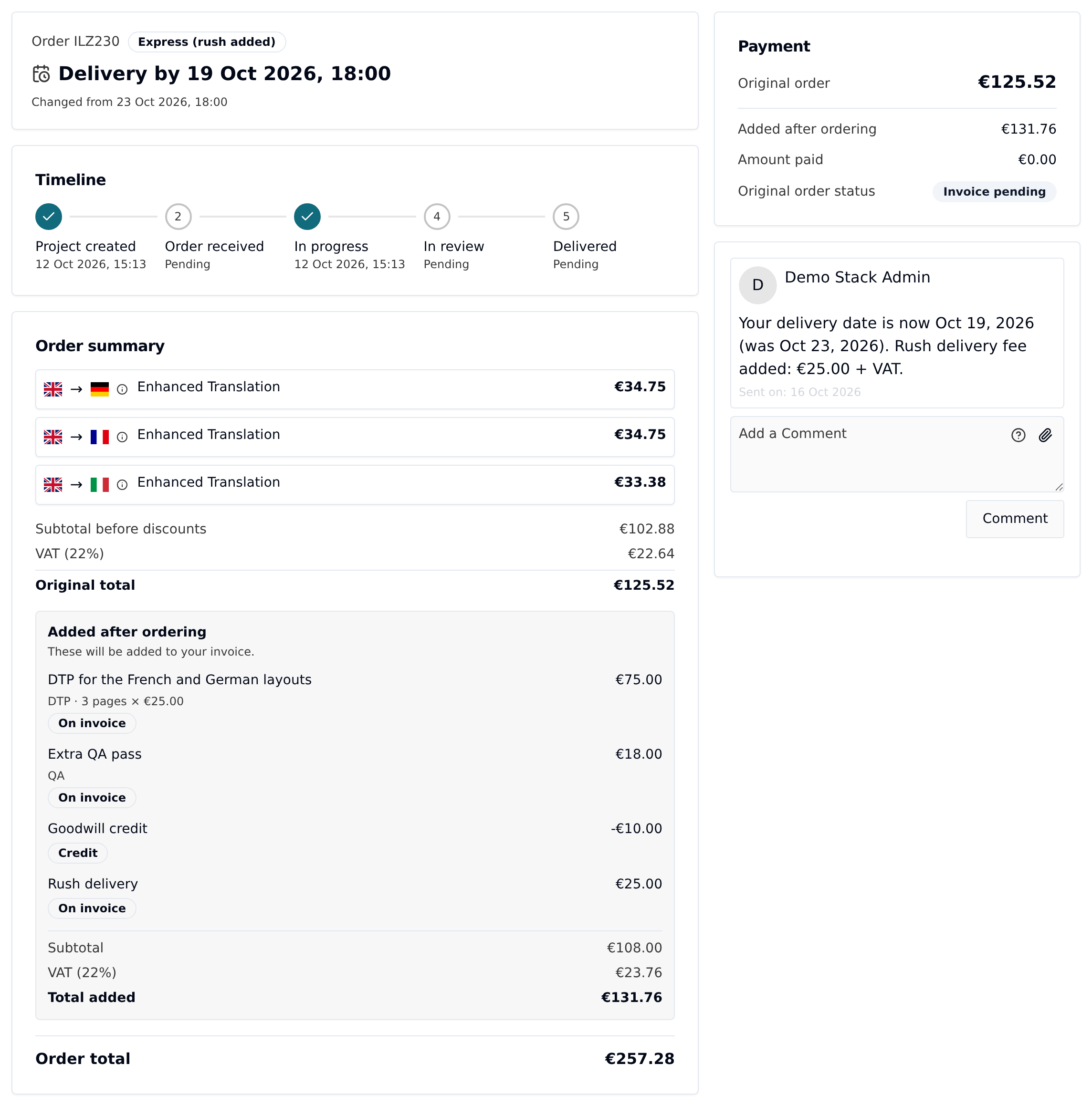
Delivery speed and date
The top card shows:
- Order and your order number.
- A speed badge: Standard means no charge for delivery speed. Express +N% means you chose a faster date at checkout, which added N% to the price of the translation. On a Standard order, Express (rush added) means your project manager added a rush delivery fee after you ordered, usually for an earlier date.
- Delivery by with the current due date and time, shown in your local time.
- Changed from, only when the date has moved. It shows the date you originally ordered, so you can see both at a glance.
When the delivery date changes, your project manager also posts a comment on the project, and you get a notification. The comment gives the new date and any rush fee that was added.
The order summary
The Order summary shows the order as you placed it: services and languages, discounts, delivery cost, VAT and the total. It doesn't change when your project manager adds things later. If something has been added, this total is labeled Original total, so it still matches what you were quoted at checkout.
Items added after ordering
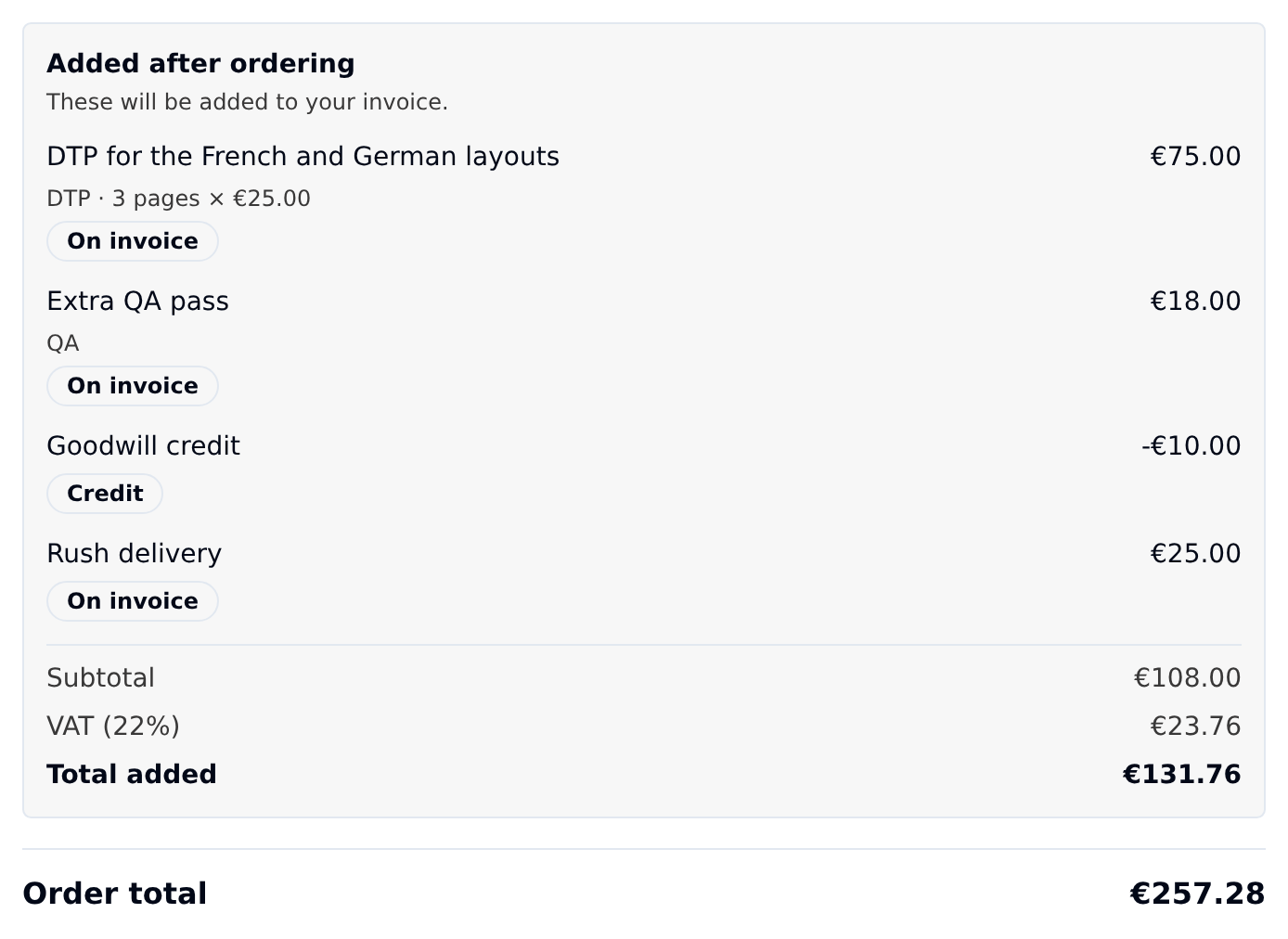
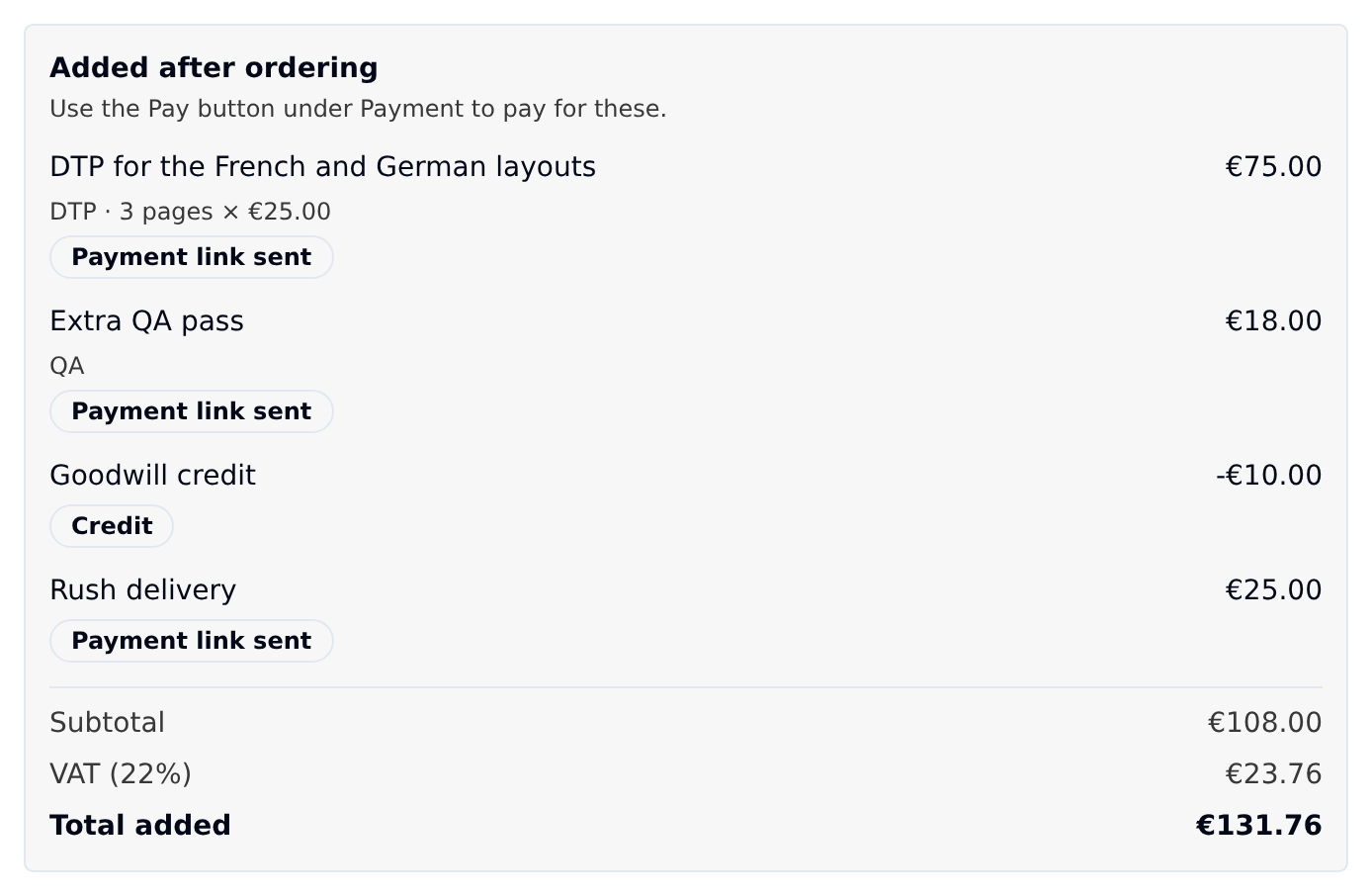
Anything your project manager adds after you've ordered appears in its own Added after ordering section, under the original total. Each item shows its name, what it is (for example "DTP · 3 pages × €25.00") and its price, plus a status:
| Status | What it means |
|---|---|
| Awaiting payment | Added to a card order. You haven't been charged for it yet. |
| Payment link sent | Your project manager sent you a payment link. Pay it from the Payment card. |
| Processing | A payment for this item is being processed. |
| Paid | You've paid for this item. |
| On invoice | The item goes on your invoice. This is what you see on an invoice order. |
A Credit badge instead of a status means a deduction. It reduces what you owe and doesn't need paying.
Below the items you'll see the Subtotal, VAT and Total added, and under them the Order total: the original total plus everything added.
Paying for added items
How you pay depends on how you paid for the order.
Invoice orders
If your order is paid by invoice (or from your account balance), the added items go on the invoice too. The section says "These will be added to your invoice." There's nothing to pay on the page.
Card orders
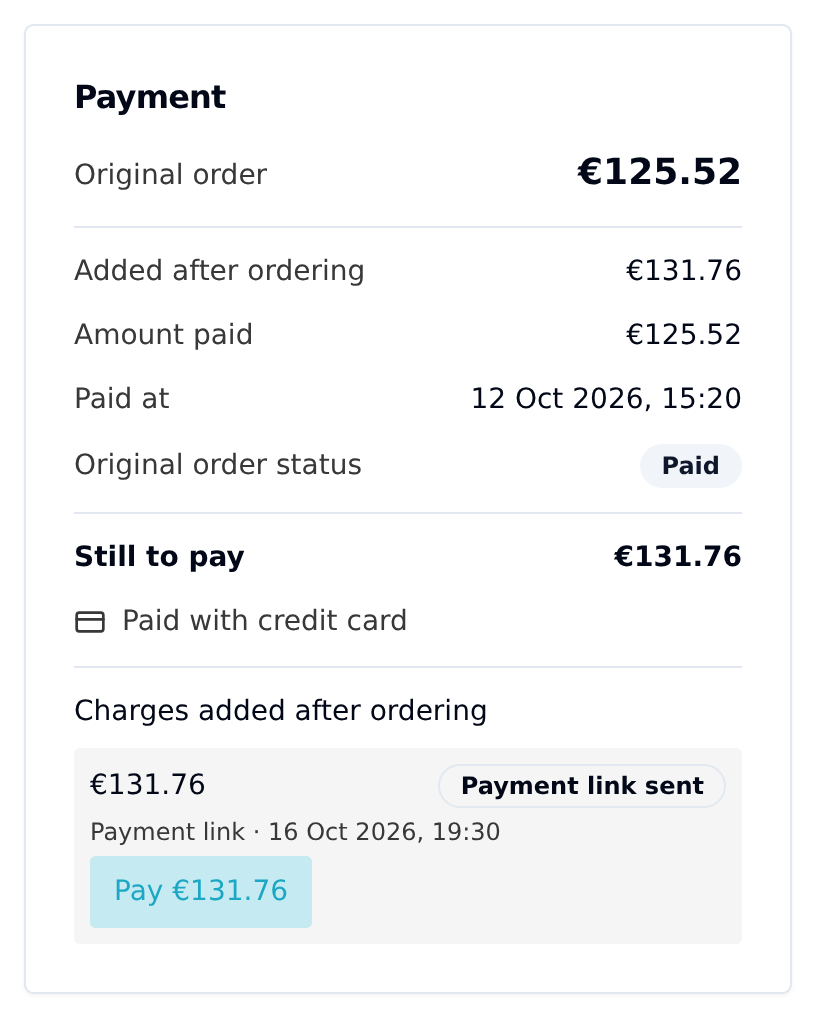
If you paid by card, the Payment card on the right keeps the running tally:
- Original order: the total you paid at checkout.
- Added after ordering: the total of the extra items.
- Amount paid: what you've paid so far, extras included.
- Still to pay: what's left, shown while any added item is unpaid.
When your project manager asks you to pay for the extras, they send a payment link. It shows up as a charge under Charges added after ordering, with a Pay €X button. Click it to open the payment page in a new tab. You also get a project comment and a notification with the amount, and the items in the Order summary change to Payment link sent.
Once a payment goes through, the charge and the items switch to Paid, and Still to pay disappears.
Your card is saved at checkout
When you pay for an order by card, the Stripe checkout page tells you that Taia will keep the card: "We'll keep this card for your future orders and any extras you agree with us, such as rush delivery." For an extra you've agreed, your project manager may charge that saved card directly. It then shows under Charges added after ordering as a Saved card charge. If the card can't be charged, for instance because your bank asks you to confirm the payment, you're sent a payment link instead.