Choose what gets translated in Word, Excel and PowerPoint files
A Word, Excel or PowerPoint file holds more than the text you see on the page: speaker notes, comments, hidden sheets, the text on master slides. Each file in a new project has its own options for which of those get translated.
The first time you add each kind of file, Taia points out where its options are. Click Got it, or open the gear, and it won't show again for that kind of file.
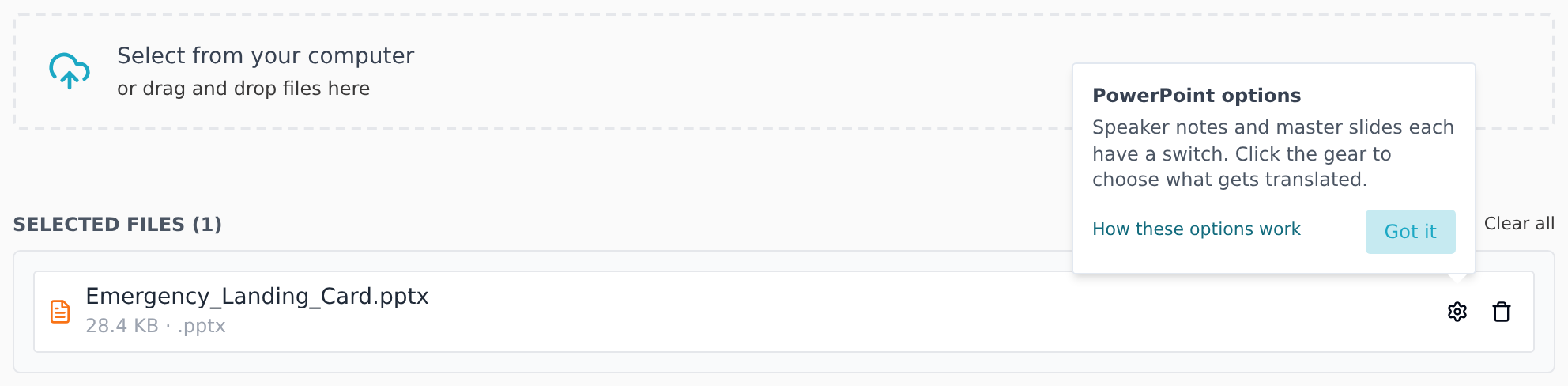
How to change them
- Start a new project and add your file.
- In the Selected files list, click the gear icon next to the file.
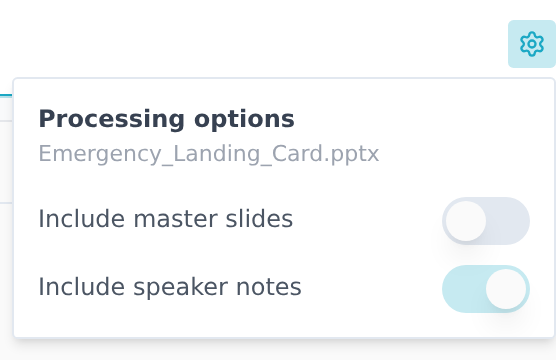
- Switch each option on or off.
- Got several files of the same type? Click Apply to all at the bottom of the options to copy them to the rest.
- Click Submit Project as usual.
Whatever you leave out comes back exactly as it was in your file. Only what you switched on is counted in the word count, so it's in the quote and in the credits the translation uses.
PowerPoint
| Option | Starts | What it covers |
|---|---|---|
| Include speaker notes | On | The notes under each slide, the ones a presenter reads from. |
| Include master slides | Off | Text on the slide master and layouts. Usually placeholder text like "Click to edit Master title style", so it's off. Turn it on if your master carries real text, such as a footer or a disclaimer on every slide. |
Comments on slides are always translated. Hidden slides are left out.
If you only need the slides themselves, switch speaker notes off: notes can easily be as long as the slides, and they count toward the word count.
Word
| Option | Starts | What it covers |
|---|---|---|
| Include reviewer comments | On | Comments in the margin. |
| Include headers & footers | On | Page headers and footers. |
| Include hidden text | Off | Text formatted as hidden in Word. |
| Include document properties | Off | The file's title, subject and similar fields under File > Info. |
| Auto-accept track changes | Off | Accepts every tracked change before the text is extracted, so the translation follows the final version of the document. |
Word files can also be limited to the highlighted or colored parts. See Translate only the highlighted text and Translate only the colored text.
Excel
| Option | Starts | What it covers |
|---|---|---|
| Include hidden cells/sheets | Off | Hidden rows, columns and sheets. |
| Include sheet tab names | Off | The names on the sheet tabs at the bottom. |
| Include shape/drawing text | Off | Text in shapes, text boxes and drawings placed on a sheet. |
| Include SmartArt text | Off | Text inside SmartArt graphics. |
Setting them for your whole organization
An organization manager can change what every member's files start with:
- Go to Profile → Manage Organization → Org settings.
- Select the Advanced tab and open File Processing Defaults.
- Switch the options under Word, Excel and PowerPoint, then click Save Defaults.
Members still see the gear on every file and can change any option before they submit.
Good to know
- Which files have options:
.docx,.docm,.dotxand.dotmfor Word;.xlsx,.xlsm,.xltxand.xltmfor Excel;.pptx,.pptm,.ppsx,.ppsm,.potxand.potmfor PowerPoint. Older formats such as.doc,.xlsand.pptdon't have the gear. Save them in the newer format first if you need an option. - A Word file that still has tracked changes needs Auto-accept track changes on. With it off, the project fails with "Document contains revisions or comments". Start a new project with Auto-accept track changes switched on, or accept or reject the changes in Word first.
- Options are set per file, before the project is created. To change them afterwards, start a new project with the file.
- Projects created through the API use these starting values, not your organization's, except speaker notes, which are left out.