Send each file to only some of your target languages
Some orders come as a bundle: a manual that needs German, a catalogue that needs French, and a price list that needs both. You don't have to split that into separate projects. Put all the files in one project and tell Taia which languages each file goes to.
How to set it up
-
Start a new project and choose all the target languages the order needs.
-
Upload the files. Each file goes to every target language until you change it.
-
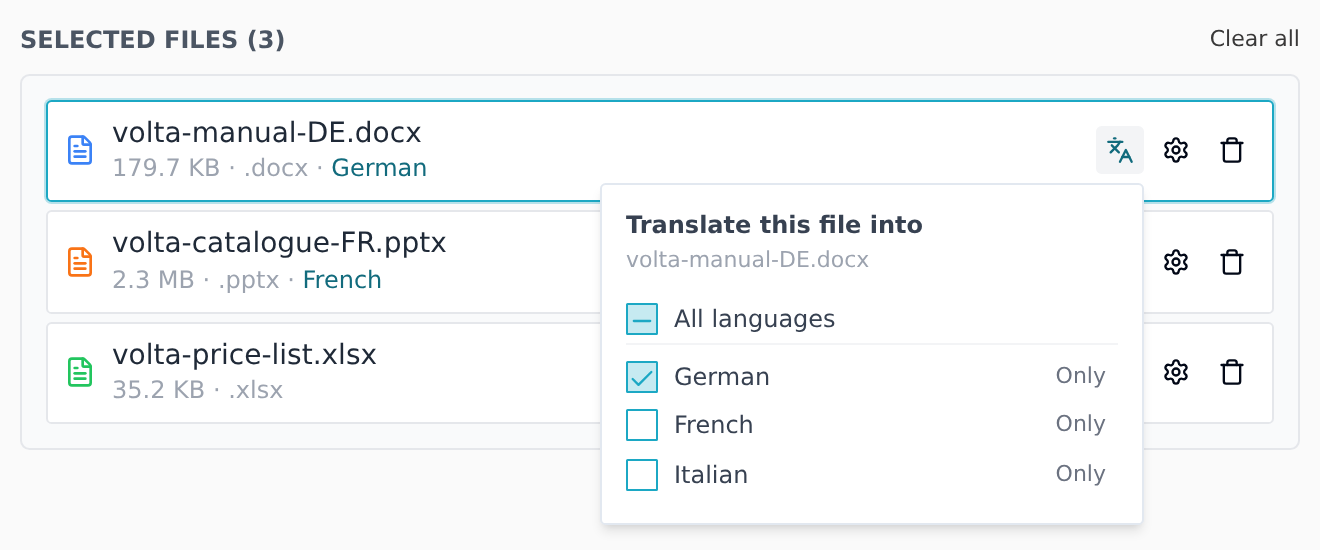
In the Selected files list, click the language icon on a file's row. Its tooltip says Target languages.
-
In Translate this file into:
- click Only next to a language to send the file to that language alone, or
- tick and untick languages to choose several.
All languages puts the file back to every language.
-
Repeat for the other files that don't go everywhere, then click Submit Project.
A file you have limited shows its languages on its row: the language names, or 3 of 12 languages once there are more than two. A file with no languages listed goes to every language.
The language icon only appears when the project has at least two target languages. With one, every file goes to it anyway.
What you get
One project, with one job per target language. Each job contains only the files you chose for that language, so German gets the manual and the price list, and French gets the catalogue and the price list. Word counts, quotes, AI translation and downloads all work per language, so every language is priced on its own files.
Before you can submit
Taia checks that the project makes sense and blocks Submit Project until it does:
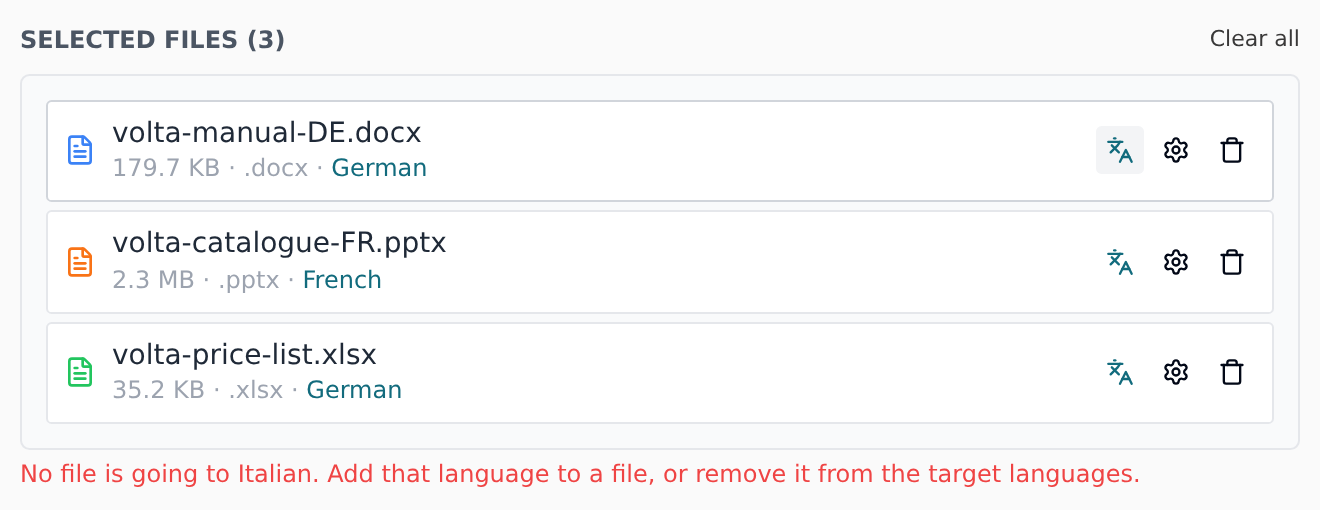
- A file with no language. If a file loses its only language (you untick everything, or remove its one language from the target languages at the top), its row says No language selected and you'll see "Pick a target language for file". Pick a language for it, or remove the file.
- A language with no file. If every file is limited to other languages, you'll see "No file is going to language". Add that language to one of the files, or remove it from the target languages.
- Two files with nearly the same name. If you have limited the languages of a file such as
manual DE.docxand also uploadedmanual_DE.docx, the two end up with the same name once uploaded, so Taia can't tell which languages belong to which. Rename one of them.
Changing things after the project is created
A file's own languages are fixed once the project exists. Until you place an order, you can still use Manage source files and Manage languages in the project menu:
- Adding a target language sends every file to it, including files you had limited.
- Removing a target language also removes any file that was going only to that language.
- Adding a file sends it to every target language.
- Removing a file isn't possible if it's the only file for one of the languages. Remove that language instead.
If a file needs to go to a different set of languages, the simplest way is to create the project again.
Good to know
- Big language lists stay tidy. With more than eight target languages, the list gets a Find a language box.
- Going down to one target language resets the choices. If you remove target languages until only one is left, every file goes to it, and the per-file choices are not restored when you add languages back.