Show formatting marks
Whitespace problems are the hardest kind to catch by eye. A double space, a tab where a space belongs, or a missing space at the end of a segment all look fine on screen but show up in the delivered file.
The CAT editor can draw these invisible characters as small visual marks, the same way Word or Matecat does.
Turn the marks on
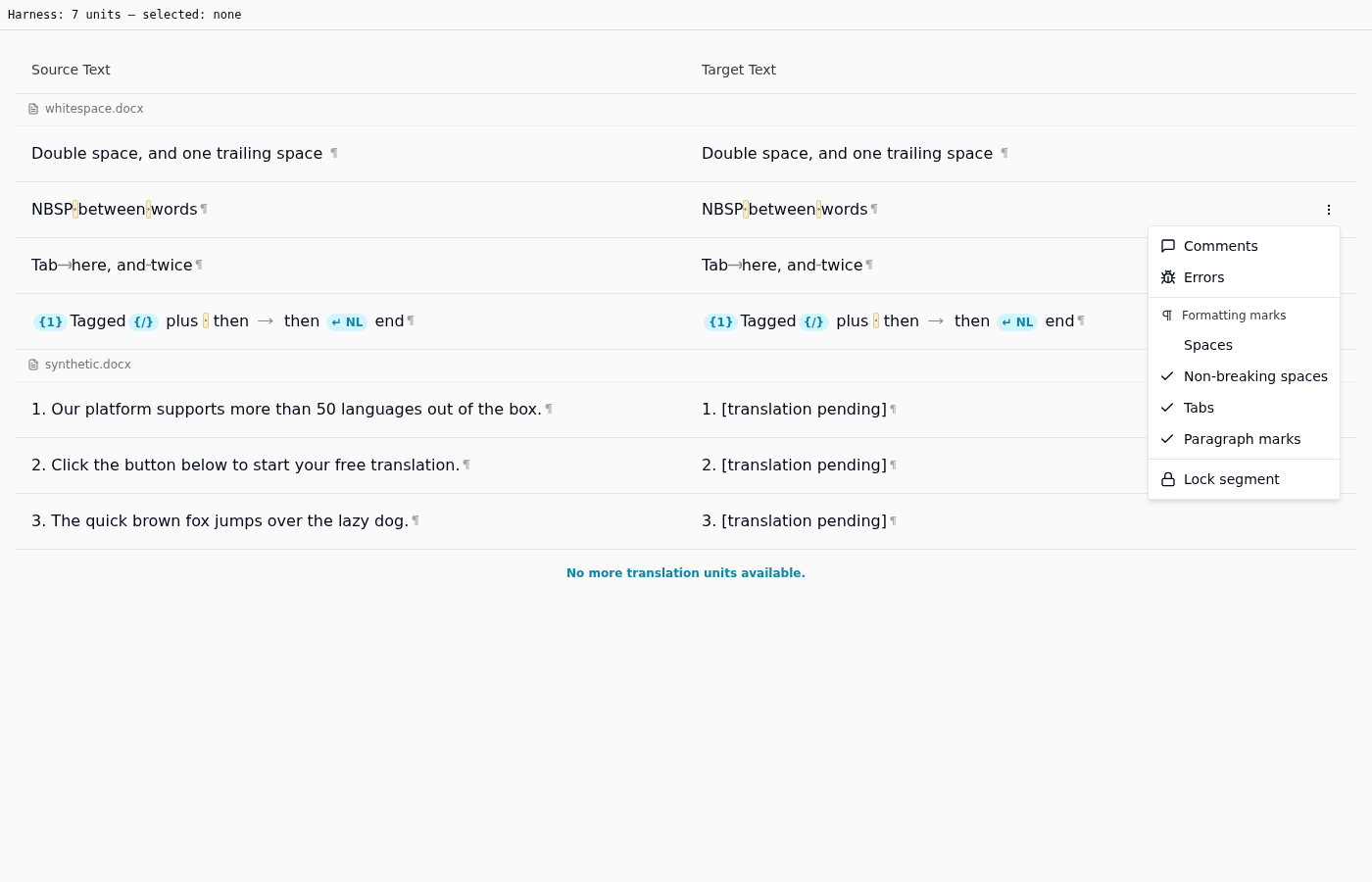
Hover any segment row and click the three-dot menu at the right of the target column. The menu includes a Formatting marks group with four options:
| Mark | What it shows | On by default |
|---|---|---|
| Spaces | Ordinary spaces between words | No |
| Non-breaking spaces | Spaces that must not break across a line | Yes |
| Tabs | Tab characters | Yes |
| Paragraph marks | Line breaks and paragraph ends | Yes |
Click a mark to switch it on or off. The menu deliberately stays open so you can set all four in one visit.
Spaces are off by default because marking every single space is noisy on a full document. Turn them on when you are specifically hunting for a double space or a missing one, then turn them back off.
Where the marks appear
The setting applies everywhere segment text is shown:
- the segment grid, for both source and target
- the segment editor, while you are typing
- the sidebar panels for translation memory matches and segment history
That last point is the useful one when comparing against a TM match: if a stored translation has a trailing space your new one is missing, you can now see it rather than guess.
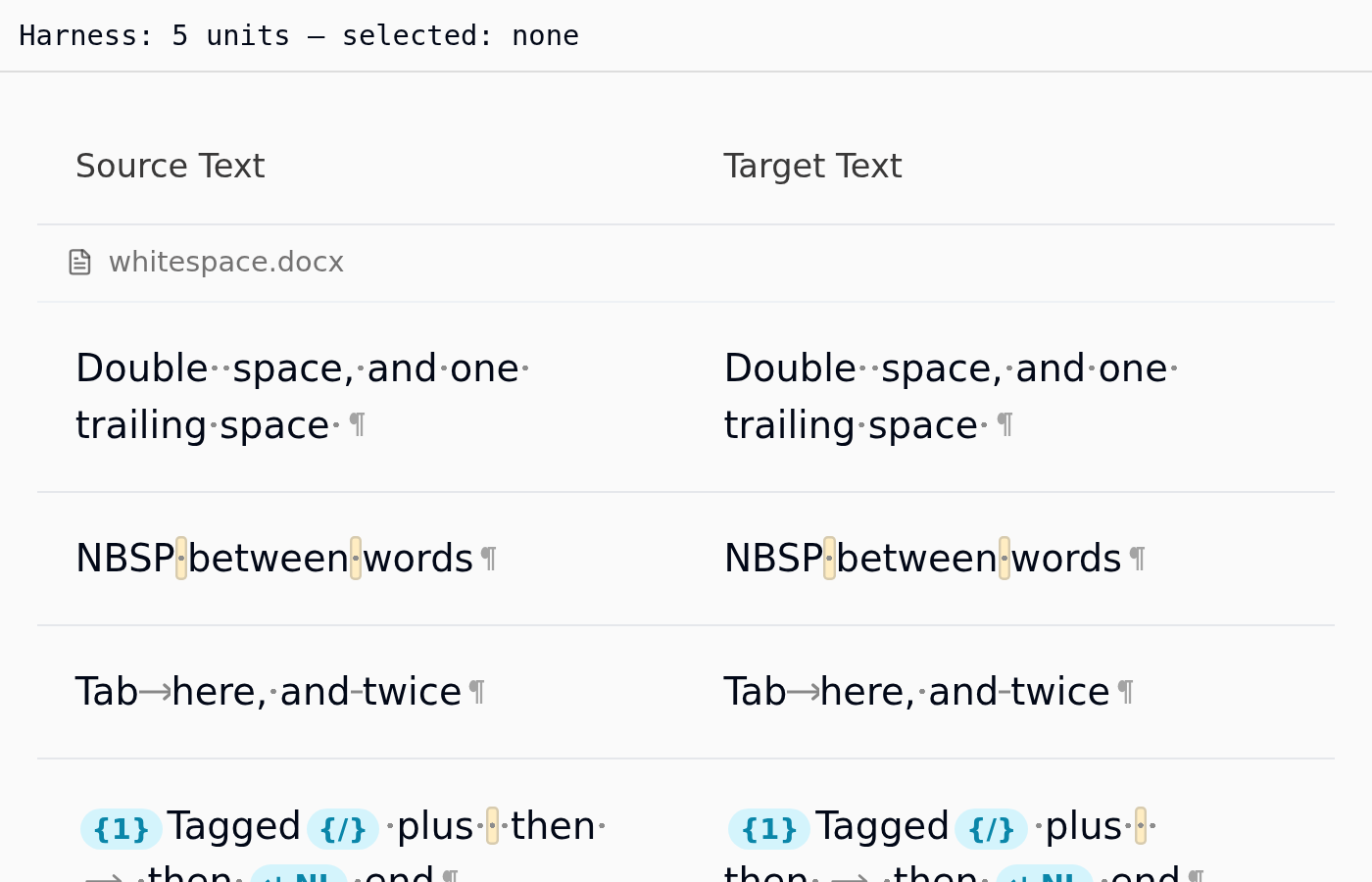
The marks are never part of your translation
The marks are drawn on top of the text, not inserted into it. They cannot be typed, selected, copied, or saved into the target, and they never reach the delivered file. Switching them on is purely a change to what you see.
The setting is per browser
Your choice is remembered in the browser you made it in. If you switch machines, or use a different browser, or clear your browser data, the marks return to their defaults. It is not tied to your Taia account.