Use the right-click menu in the segment editor
The target text editor has its own right-click menu. What it shows depends on where you click: on text you get spelling and case tools, on a formatting tag you get tag tools.
The menu works in the segment you are editing. Click a segment row first so the target text opens in the editor, then right-click inside it.
Right-click on text
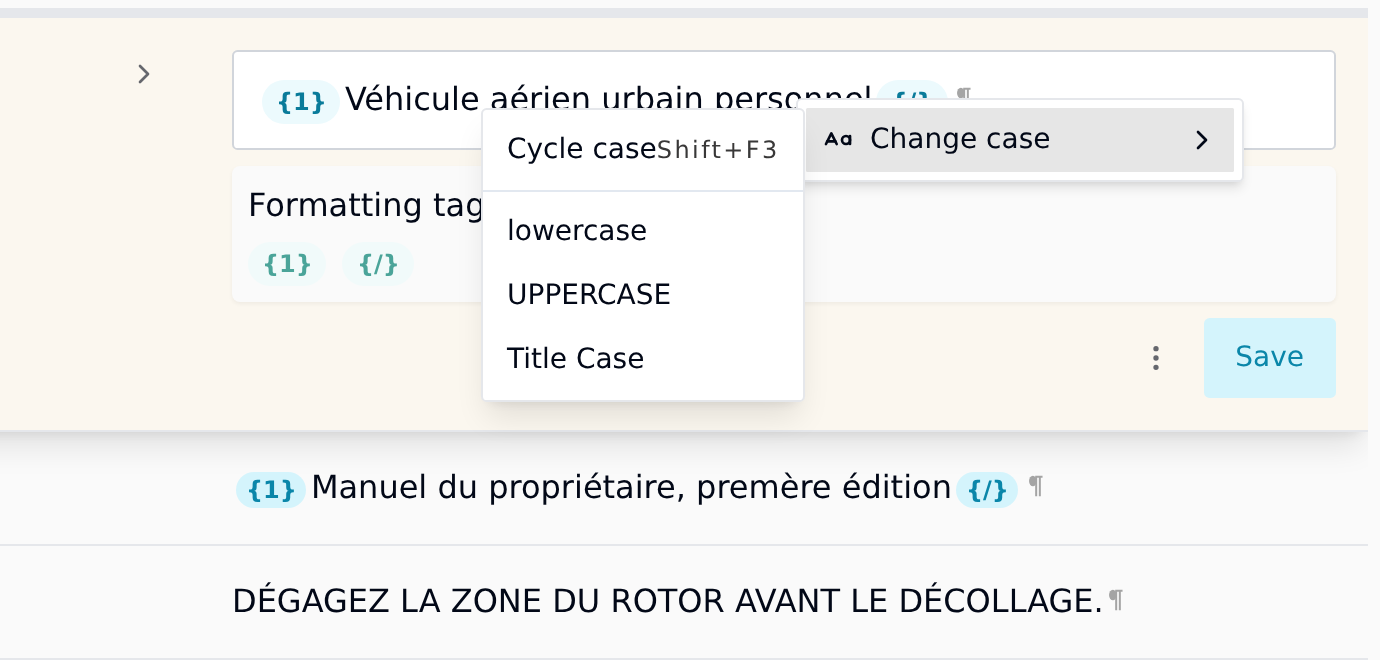
| Item | When it appears | What it does |
|---|---|---|
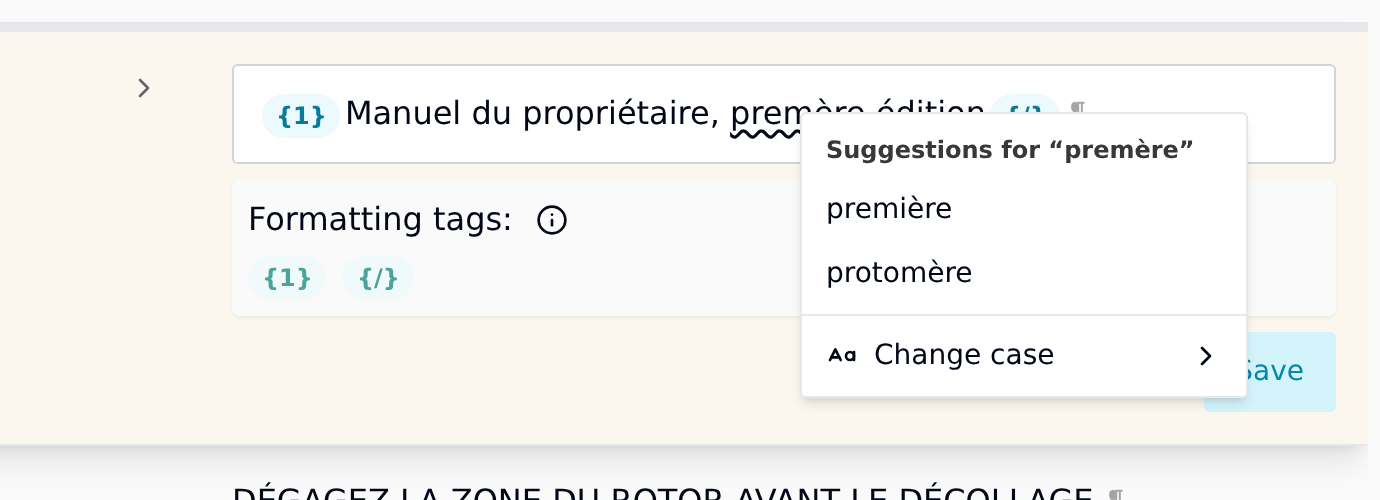
| Spelling suggestions | The word under the cursor is misspelled | Replaces the word with the suggestion you click |
| Copy selection | You have text selected | Copies the selected text to your clipboard |
| Change case | Always | Opens the case options below |
Change case
Change case has four options:
- Cycle case steps through lowercase, UPPERCASE and Title Case, one step per click. Its shortcut is Shift+F3, so you can keep pressing it without opening the menu.
- lowercase, UPPERCASE and Title Case jump straight to that case.
It changes the text you have selected. If nothing is selected, it changes the whole segment. Formatting tags are left exactly where they are.
A few things worth knowing:
- Cycle case starts from what is already there. Text that is all capitals goes to Title Case next, and text in Title Case or mixed case goes to lowercase.
- Title Case capitalises every word, including short ones like "de", "du" or "the", and the letter after an apostrophe or hyphen too: "l'avion" becomes "L'Avion". Select only the words you want changed if your style guide says otherwise.
- Case only exists in some scripts. In Chinese, Japanese, Arabic or Hebrew text, the case options leave the text as it is.
- Changed your mind? Ctrl+Z undoes it.
A common use: a heading arrives from the source file in capitals, and your language or style guide wants sentence case. Press Shift+F3 until the segment is lowercase, then fix the first letter.
Spelling suggestions
The editor checks spelling in the target language as you type, and underlines words it does not recognise with a wavy line. Right-click an underlined word to see up to six suggestions, and click one to replace the word.
Taia has built-in dictionaries for about 50 languages, plus regional variants such as British English and Brazilian Portuguese, covering most European languages.
For other languages the editor falls back to your browser's own spellchecker. You'll still get underlines if the language is installed in your browser's spellcheck settings or your operating system, but the suggestions in this menu only come from Taia's built-in dictionaries. For those languages, right-clicking an underlined word shows the menu without suggestions.
The dictionary loads the first time you open a segment in that language, so underlines can take a moment to appear.
Right-click on a formatting tag
Right-click a tag inside the target text, such as {1} or {/}, to work on that tag. The menu title tells you which tag you clicked and whether it is an opening tag, a closing tag or a standalone tag.
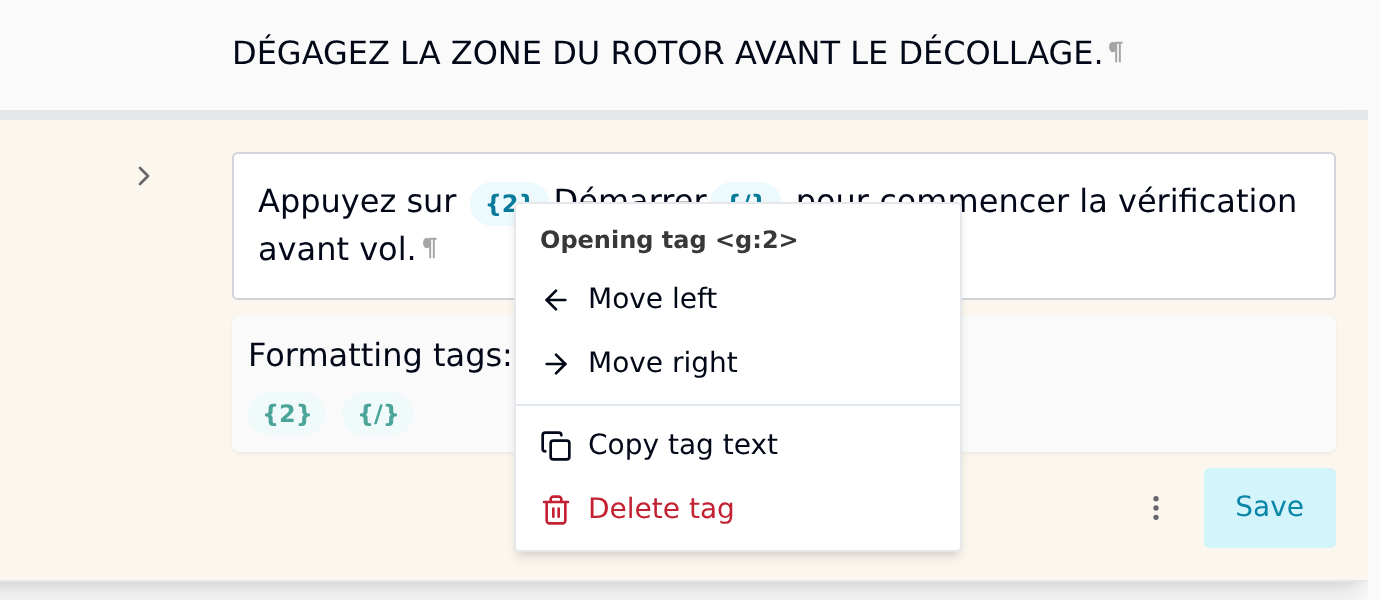
| Item | What it does |
|---|---|
| Move left / Move right | Moves the tag past one word of text in that direction |
| Copy tag text | Copies the tag's code, for example {2} or {/} |
| Delete tag | Removes the tag from the segment |
Moving a tag word by word is often quicker and more precise than dragging it, especially in long segments. It moves past text only: to get a tag past another tag right next to it, drag it instead.
Tags the segment needs
Some tag changes stop the segment from saving. That rule protects the file: a missing or scrambled tag is what breaks the formatting when the translated file is rebuilt.
- Deleting a tag the source has blocks the save. Press Ctrl+Z to bring it back, or Alt+T to insert the next missing tag.
- Opening tags and standalone tags have to stay in the same order as in the source. If the source has
{1}before{2}, putting{2}first stops the segment saving until you swap them back. - Closing tags can move past words and the segment still saves. That makes them easy to get wrong, so check the tag still wraps the words it should. Dragging a closing tag past another tag can block the save.