Review annotations (QA flags)
Reviewers flag issues directly on segments as annotations, using the industry-standard MQM (Multidimensional Quality Metrics) categories and severity levels. This guide explains how to add them, view them and work through them.
Annotations are separate from the automatic checks: the editor checks formatting tags on every save and highlights missing glossary terms as you type, but it doesn't scan for other errors. That's what annotations are for.
View annotations
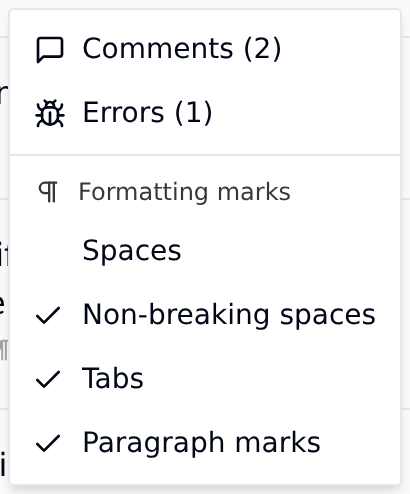
- In the CAT editor header, click Errors (a bug icon with a count badge if any annotations exist).
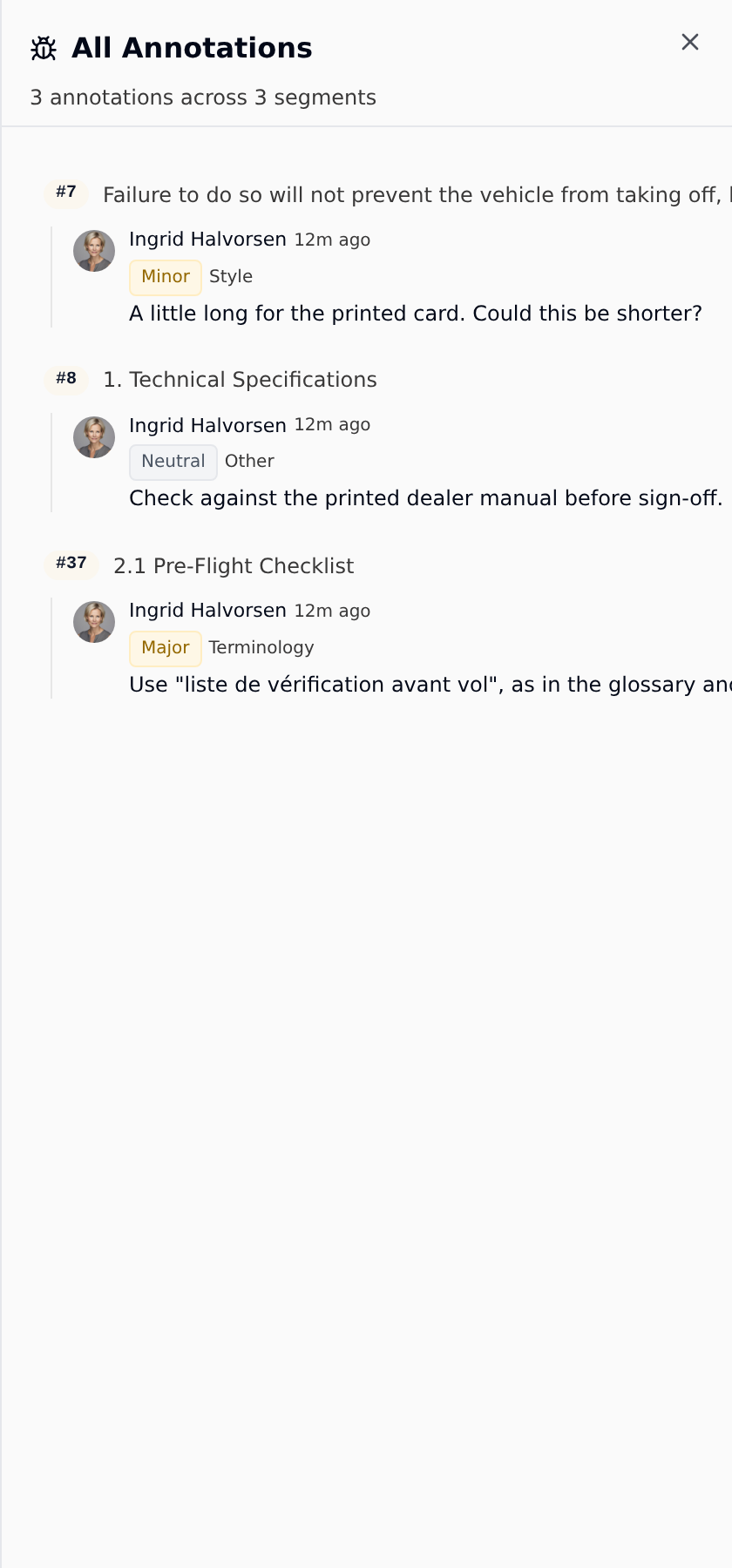
- The All Annotations panel opens on the right, listing annotations grouped by segment.
- Each annotation shows an MQM category and a severity badge:
- Critical
- Major
- Minor
- Neutral
- Click a segment in the list to jump to it. If nothing has been flagged yet, the panel shows "No annotations yet on any segment."
A segment with annotations also shows a bug icon and count directly on its row, and "Errors (N)" in the row's ⋮ menu.
Add an annotation
-
On the segment's row, open the ⋮ menu and choose Errors. A drawer opens with two tabs, Comments and Annotations.
-
Under Add annotation, pick a Category (Accuracy, Fluency, Grammar, Terminology, Style, Locale Convention, Design or Other) and a Severity.
-
Add a note if it helps whoever fixes it, then press Enter or click the warning-triangle button.
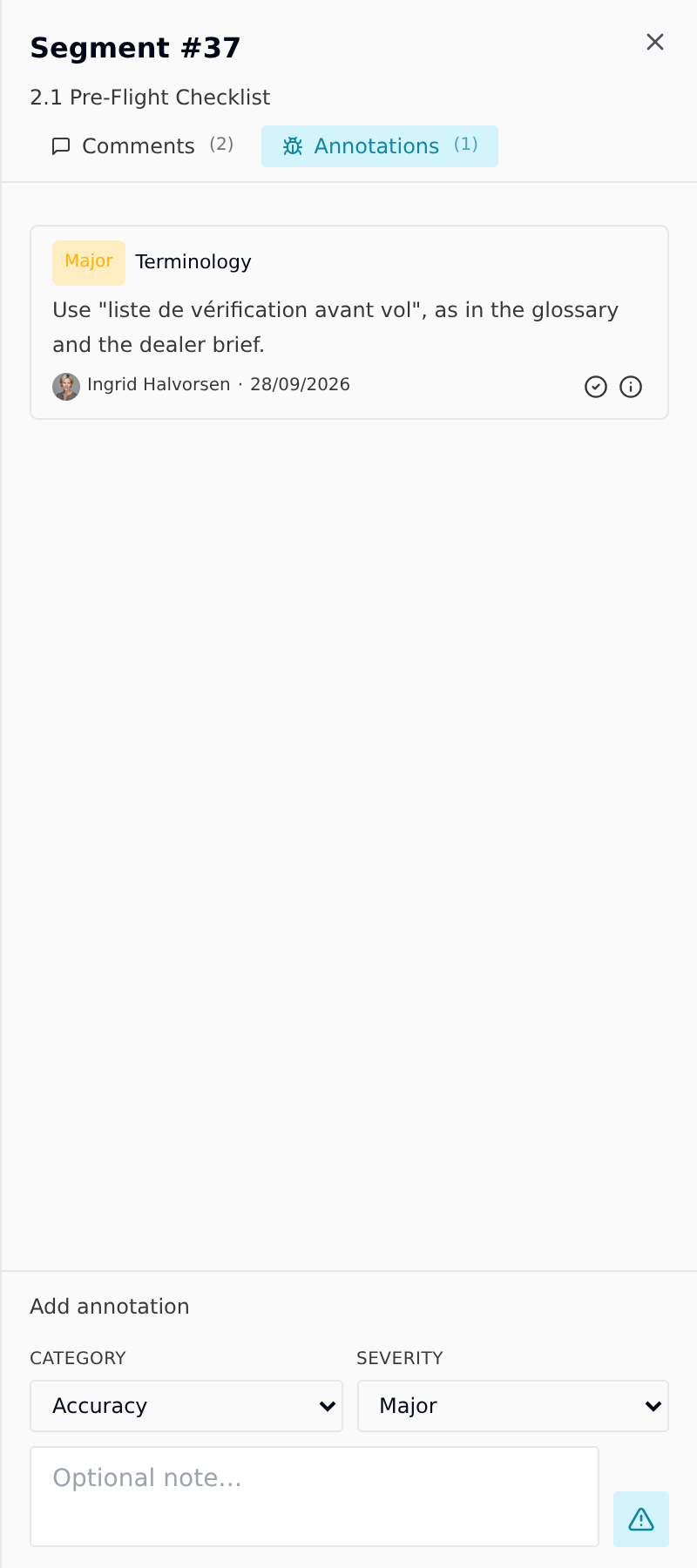
The same drawer holds the segment's comments, so a question about a sentence and a flagged error on it sit side by side.
Resolve a flagged segment
- Click an annotation (or the segment's bug icon) to jump to that segment.
- Edit the target text to fix the issue.
- Save the segment with Ctrl+Enter.
- Leave a comment on the segment to say it's fixed. Only the person who added an annotation (or Taia support) can mark it resolved, dismiss it, reopen it or delete it, so the reviewer closes it once they've checked your change.
Submit your work
There is no submit button inside the editor. Once the flagged issues are resolved, go back to the project page or your assignment page and submit from there. See submit completed work.