Use Translation Memory matches
When you open a segment in the CAT editor, Taia automatically searches your Translation Memories for similar previous translations. This guide explains how to view and insert these matches.
Prerequisites
- The project has one or more Translation Memories attached.
- You're in the CAT editor with a segment selected.
View TM matches
- Select a segment in the editor.
- In the left icon rail, click the Translation Memory icon (database icon).
- The panel lists every match of 75% or higher as a card, best match first, under a count such as "3 matches found". When the best match is 95% or higher, you'll also see ★ High quality match.
Below the TM matches you may see a separate group called In-project matches. These aren't from your translation memory: they're similar segments already translated elsewhere in the same job, shown as a helpful extra.
If no translation memory is attached to the project, the panel says No translation memory attached, or shows Suggestions from this project when there are similar segments in the job.
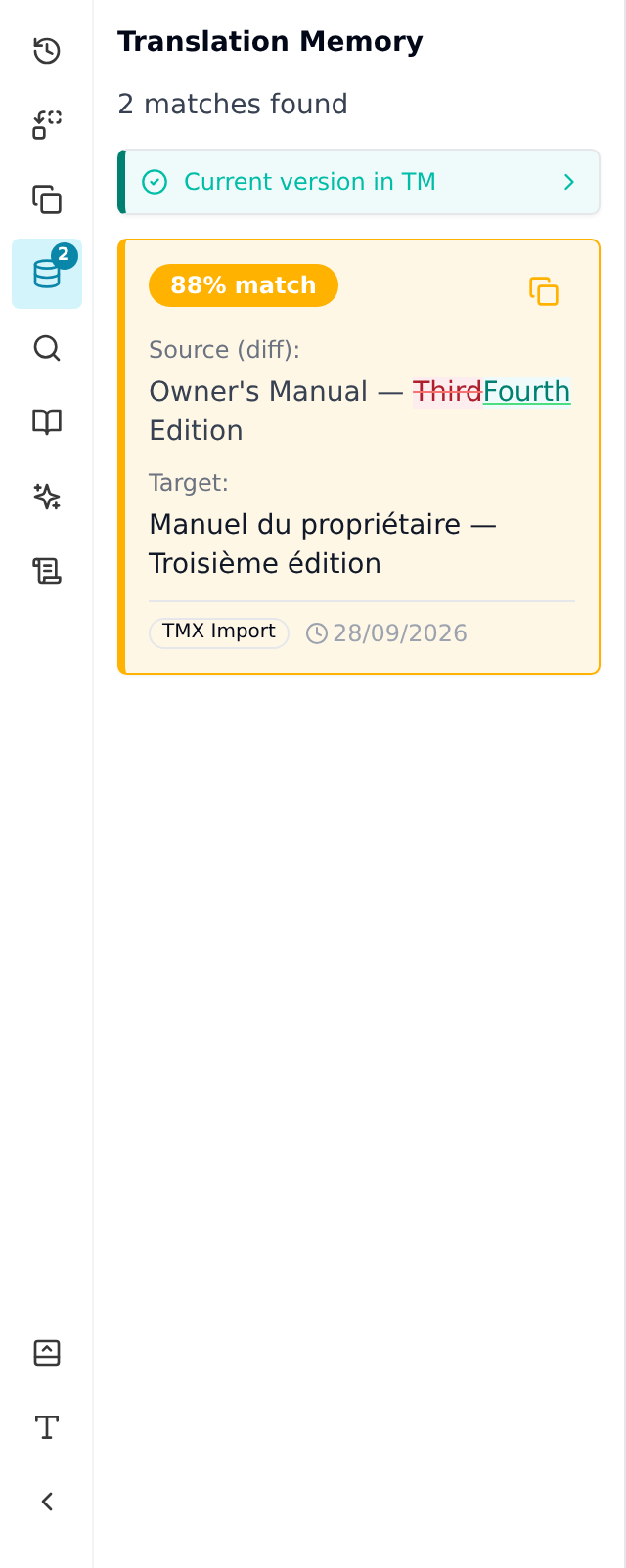
Each match card shows:
- The match score (for example 97%), coloured green for 100%, blue from 95% and yellow from 75%
- The stored source text (highlighted to show differences from current segment)
- The stored target translation
- Metadata: which TM it came from and when it was saved
If the segment's own saved translation is already in the TM, its card says Current version in TM instead of offering it as a suggestion. Identical entries stored several times are collapsed into one card with a count.
Insert a match
- Hover over the match card you want to use.
- Click the small copy icon (tooltip: "Insert translation") to paste it into the target text editor. It replaces what's in the target. You can also press Ctrl+1, Ctrl+2 or Ctrl+3 to insert the first, second or third translation memory match without the mouse. The shortcuts don't reach in-project matches.
- Edit the target text to correct any differences (especially for fuzzy matches where words have changed).
- Press Ctrl+Enter to save and move on.
Search the TM yourself
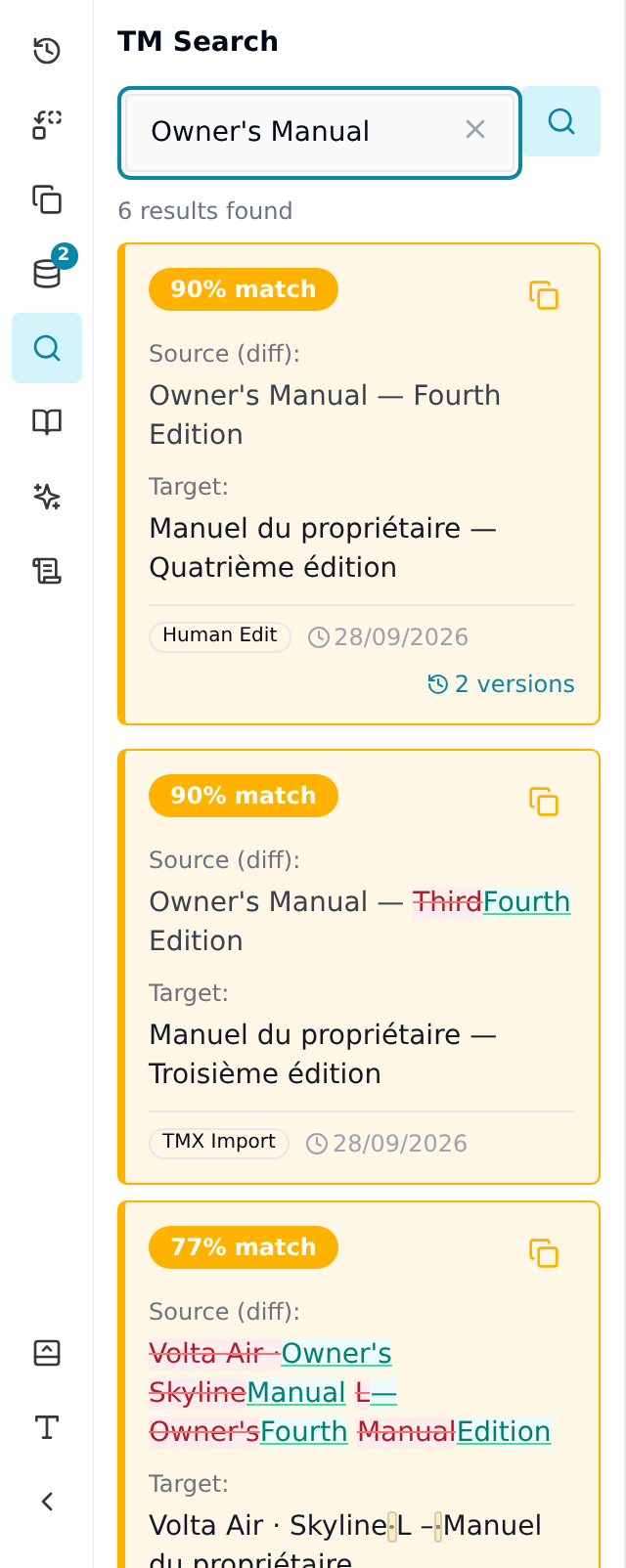
The automatic matches only look at the segment you're on. To look up any word or phrase, open TM Search (the magnifying glass in the icon rail, just below Translation Memory), type, and press Enter. It searches source and target text across every TM attached to the project, and it shows weaker matches too, which is handy for checking how a term was translated before.
Tips
- 100% matches can usually be confirmed as-is with minimal review.
- Fuzzy matches need editing. Look at the highlighted differences in the source text to see what changed.
- If multiple matches appear, choose the one from the most relevant context. You can hover to compare them.