Apply glossary terms
When a glossary is attached to a project, the CAT editor's sidebar shows which glossary terms apply to the segment you're working on. This guide explains how to check and apply those terms.
Prerequisites
- The project has one or more glossaries attached.
- You're in the CAT editor with a segment selected.
View glossary terms for a segment
-
In the left icon rail, click the Glossary icon (book icon).
-
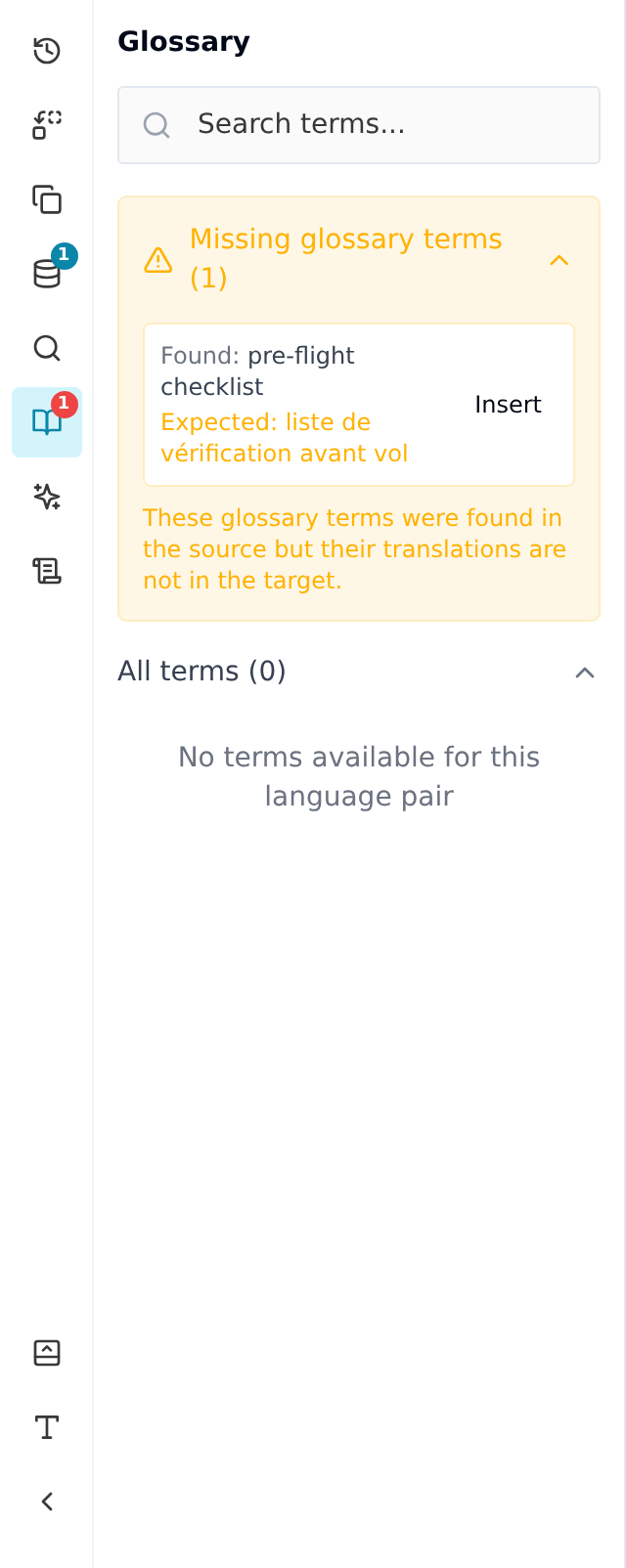
The sidebar shows up to three groups for the selected segment:
- Missing glossary terms — required terms not yet used in your target text. Click Insert to paste the required translation at the cursor.
- Correctly matched — terms already applied correctly. Has a Copy button, not Insert.
- All terms: every term in the project's glossaries for this language pair, with Copy and Insert on hover. This list is currently empty because of a bug we're fixing. Until then, type in Search terms at the top of the panel to find any term; the groups above work as normal.
Correctly matched only appears once a segment already uses a glossary term.
-
If no glossary is attached, the panel shows "No glossary attached."
Do-not-translate terms
Taia doesn't have a separate "do not translate" toggle — a term is marked untranslated by giving it an identical source and target value in the glossary. See Mark do-not-translate terms for the real workflow.