Mark do-not-translate terms
Some terms should never be translated — brand names, product names, proper nouns, technical strings. There's no separate "do not translate" toggle in Taia — you get the same result with a normal glossary entry where the target term is identical to the source term. Taia's AI matches the source term and outputs your specified translation, so setting them equal keeps the term unchanged.
Prerequisites
A glossary already exists. Don't have one? Create a glossary first.
Steps
- Open the glossary that should contain the term.
- Click Add Term — this adds a blank, editable row at the end of the table.
- Enter the source term (for example, "Taia") in the source-language column.
- In each target-language column, enter the same word as the source.
- Click outside the row (or press Tab past the last field) to save — there's no separate Save button; the row saves automatically on blur.
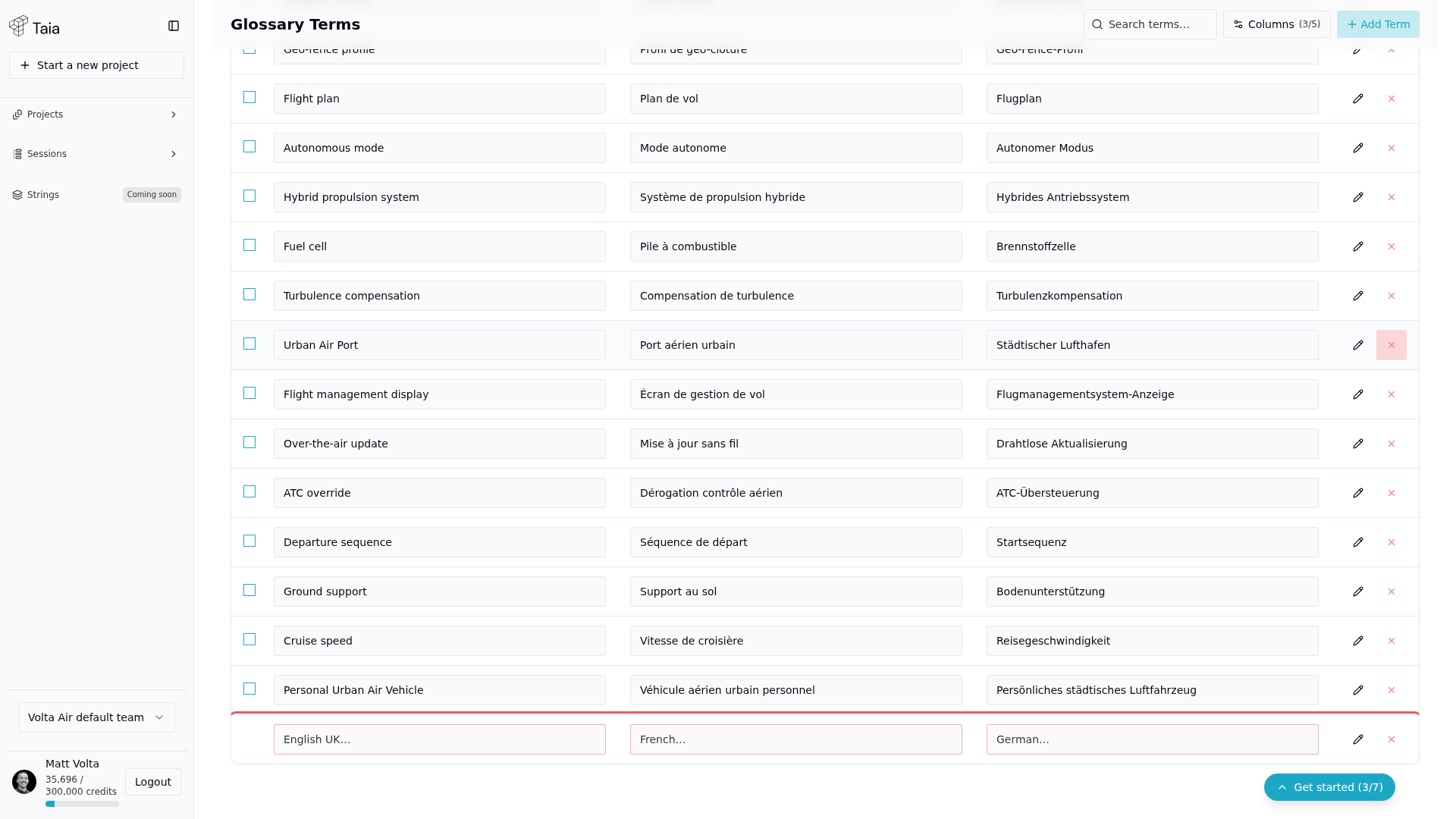
When Taia's AI encounters this term in a file, it copies it unchanged into the translation.
Update an existing term to be untranslated
- Find the term in the glossary list.
- Edit the target-language cells directly — they're editable inline, no separate edit mode needed.
- Set each target value equal to the source term, then click outside the row to save.
Tips
- This applies per language pair — set the same value in every target-language column you want it to hold for.
- In the CAT editor, a warning badge appears on segments where a glossary term (including one used this way) was not applied correctly.