Comment on a task
Every task has its own comment thread. It's the place to leave context for the person doing the work, ask a question about a specific job, or record why something was translated the way it was.
Prerequisites
- A project with at least one task. See assign editing work to a teammate.
- You are either a manager on the project or someone assigned to the task.
Steps
- Open the project and expand the job row to show its tasks.
- Click the speech bubble icon on the task row.
- Type your comment. Line breaks and simple bullet lists (lines starting with
-or*) are preserved. - To attach a file, use the paperclip. Images are shown inline in the thread; anything else appears as a download link.
- Click Add Comment.
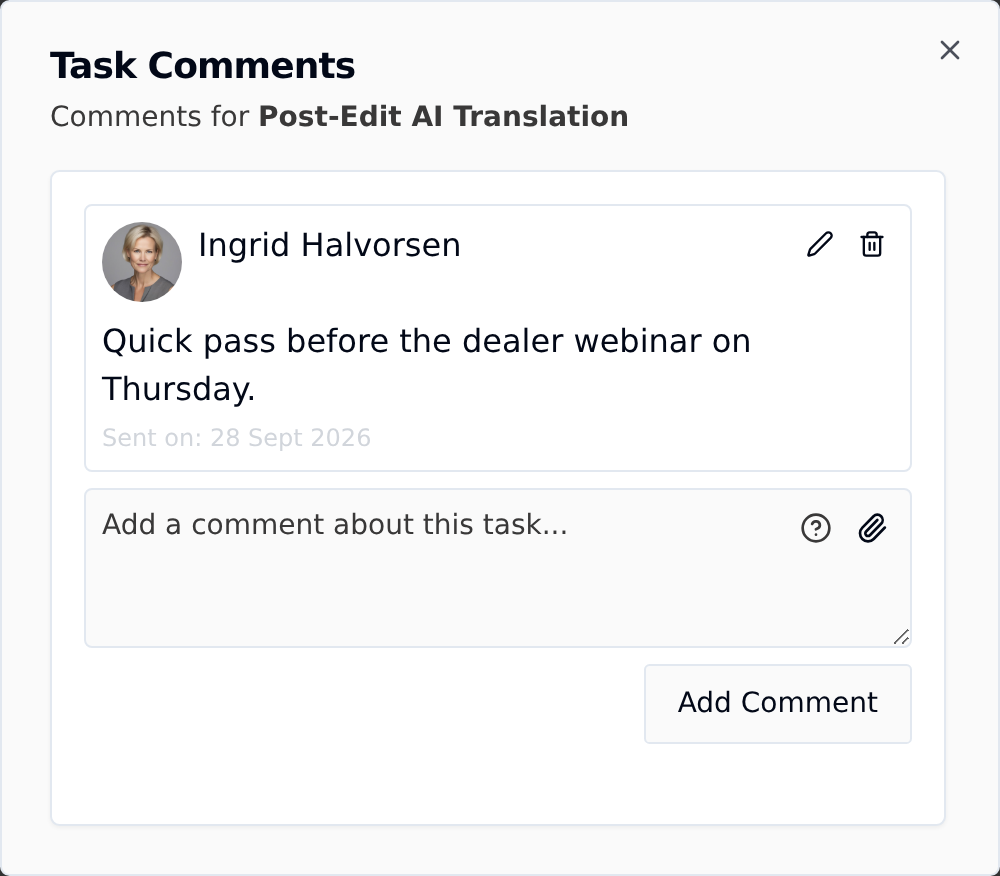
Everyone on the task is notified. Assignees see the same thread on their assignment page, under Task Instructions.
Editing and deleting
Your own comments can be edited or deleted from the thread. An edited comment is marked as edited, and a deleted one leaves a placeholder rather than vanishing, so the conversation stays readable.
Task comments vs segment comments
These are two different threads and it's worth knowing which one you want.
| Task comments | Segment comments | |
|---|---|---|
| Where | The project page and the assignment page | Inside the translation editor, on a single segment |
| Scope | The whole job — one language, one task | One specific segment |
| Use it for | Instructions, deadlines, questions about the file as a whole | "This term is wrong here", a note about one sentence |
Reach for task comments when the point applies to the job. Use segment comments when it applies to one line of text.
Task Instructions vs Private Messages
On the assignment page the assignee sees two separate threads:
- Task Instructions (visible to all assignees) — the same thread as the task comments above. Anyone assigned to the task sees it.
- Private Messages (only you and the PM) — a one-to-one channel between the assignee and whoever is running the project.
Use Task Instructions for anything the whole team should see, and Private Messages for something meant for one person.
Instructions when you assign
If you already know what you want to say, type it into Description when you create the task. Taia posts it as the first comment on the task thread and includes it in the assignment email, so it is waiting for the assignee before they even accept.
Use comments afterwards for anything that comes up later.