Track progress and reassign work
Once work is out with your team, everything you need to follow it lives on the project page.
Prerequisites
- You are an organization manager or team manager.
- The project has at least one task. See assign editing work to a teammate.
Steps
-
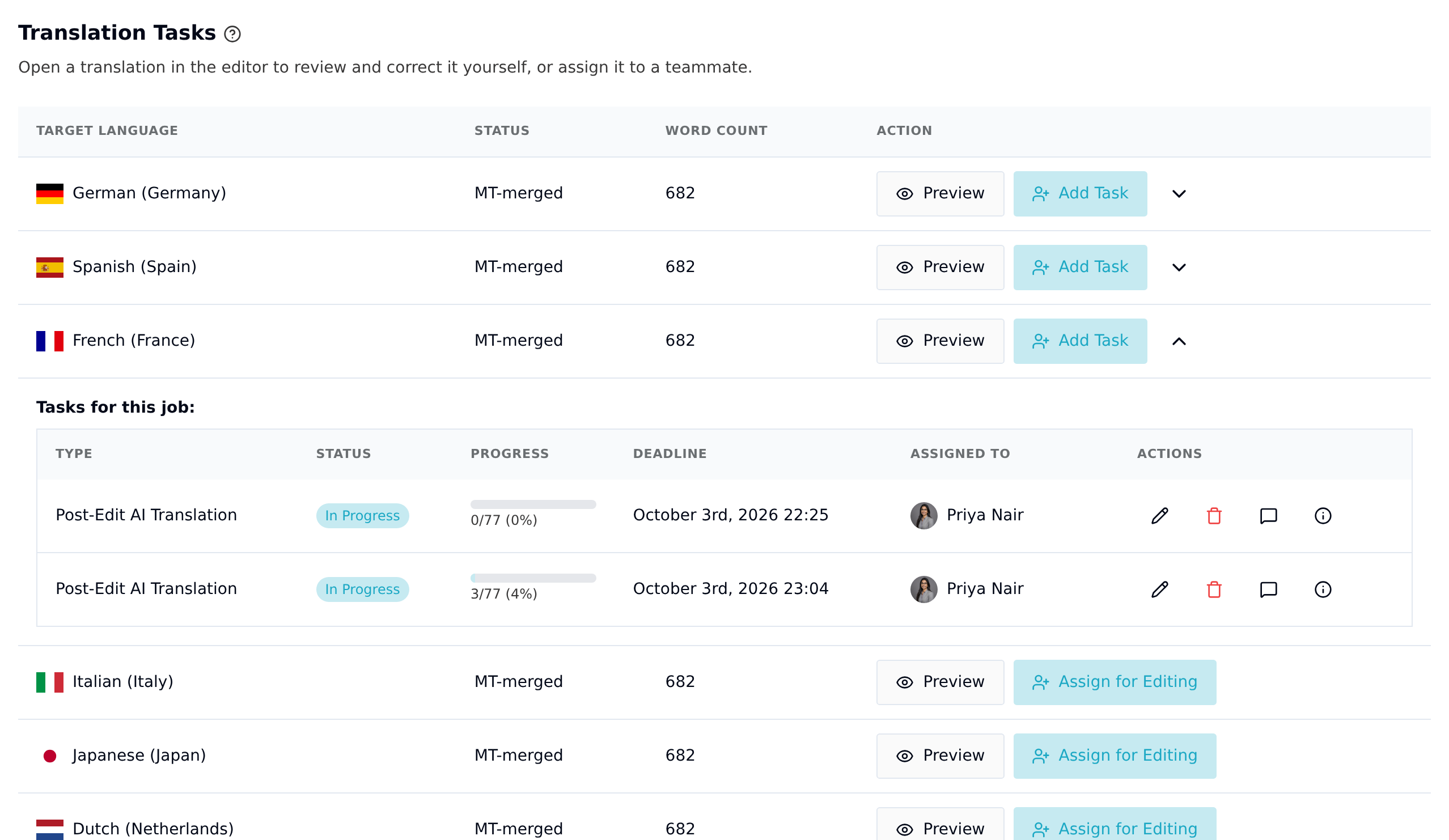
Open the project and click the chevron on a job row to expand its tasks.
-
Read the task table:
Column What it tells you Type Post-Edit AI Translation, Revision, or Proofreading Status Ready to Start until the assignee accepts, then In Progress, then Submitted (with a tick) once they hand the work in Progress Segments the assignee has saved, plus locked ones, out of every segment in the job Deadline When the work is due Assigned To Who has it, with a red ✕ if they declined A task you add from this card only moves between those statuses (Submitted is shown on top of In Progress, not a separate step). Completed and Awaiting Previous Task are also labels the table can show, but they come from a task being completed or sequenced elsewhere, not from anything you do on this card.
When the assignee submits, the task reads Submitted, with a tick icon, so you can see at a glance that the work is waiting on you. It only shows while nobody else still holds the task: if another assignment on it is still live (assigned, accepted or queued), the row keeps showing the task's own status, for example In Progress. Open Assignment History to see who submitted and when.
-
To see the translation itself without disturbing anyone, click Preview on the job row. The editor opens read-only: you can read every segment and the TM and glossary panels, but you cannot change anything.
-
The Actions column on a task row gives you four icons:
Icon What it does Pencil Edit the task — change its type, deadline, or description Trash Delete the task Speech bubble Open task comments Info Open Assignment History Assignment History lists every assignment the task has had, with its status and the times it was assigned, accepted, and rejected or submitted. It is the record of who was asked and what they did.

Reassigning a declined task
If someone declines, a Reassign button appears on the task row. Click it, pick a different team member or external linguist, and confirm. The new assignee is notified the same way as the first.
The old assignment stays in Assignment History, so the trail of who was asked and when is preserved.
Reassign only appears once an assignment has been declined. To hand over work someone has already accepted, ask them to decline it first, or add a fresh task for the new person.
Reading progress correctly
The Progress column is a plain fraction: segments the assignee has saved, divided by every segment in the job. It shows both, like 184/340 (54%). Locked segments count as done, because the assignee can't edit them unless you've given them unlock rights, so locking part of a job never keeps a task short of 100%.
Saving is what marks a segment reviewed, whether the assignee changed the text or approved it as it stood. What does not count is reading a segment and moving on. Taia has no way to see that, so a reviewer who reads everything but only saves their corrections will finish well short of 100%.
That makes a low percentage a prompt to ask, not evidence that nothing happened. It is also worth telling reviewers up front to save every segment they have looked at, so the number means what it appears to mean. See what counts as a reviewed segment.
The percentage is not a status ladder. It does not step through assigned, accepted, in progress and submitted at 25% intervals. Where the work stands is the Status column and the assignment status; the percentage only ever counts segments.
When work comes back
When an assignee submits, you get an email and an in-app notification, the task row reads Submitted (see above for when it does not), and Assignment History shows the assignment as submitted.
From that moment the assignee can no longer change the translation, so what you review is what you download. Review the result with Preview, and talk to the assignee through task comments if something needs another look. When you're happy, download the edited files.
If a correction turns up after submission, click Add Task on the same job row and assign a second pass. The submitted work stays as it was and the new round is tracked separately. See what happens after a task is submitted.
Translation Studio is deliberately simple: there is no formal approve or reject step on a submission. Reviewing means reading it in Preview and, if it's good, downloading the files. If it isn't, comment on the task or add another task for a second pass.