Teams and tags: how to organize work and costs
A common question when setting Taia up: we publish four different things, should each one be its own team?
Usually not. Teams and tags answer different questions, and reaching for a team when you wanted a tag leaves you managing people you never needed to separate.
The rule
Split into teams where billing splits. Use tags to break work down inside a team.
If two departments pay from different budgets and each wants its own invoice, they are two teams. If they come out of the same budget and you only want to see how the spend divides, they are one team with two tags.
Teams: the billing and access boundary
A team is a real boundary. It controls:
- Billing. A team sits under a billing account, which is what gets charged and invoiced.
- Access. Team members see their team's projects and its shared glossaries, TMs and style guides.
- Reporting. Organization reports can be grouped by team, so you get per-team totals with no extra setup. (Tags get you a filtered total too, see where the money shows up, but only a team gives you a standing subtotal in the grouped view.)
That makes a team the right unit when the split is structural: separate budgets, separate invoices, or people who genuinely should not see each other's work.
People can belong to more than one team. Pick several teams when you invite someone, or add them to another team later from their details.
One team for everyone is completely fine when none of that applies. Most organizations need fewer teams than they first assume.
A project belongs to whichever team was active in the sidebar when it was created, and there's no self-serve way to move it afterwards. See choose which team a new project belongs to.
Tags: the lightweight breakdown
A tag is a label you put on a project. Nothing more, and that is the appeal: creating one costs nothing and getting one wrong costs nothing.
Tag by whatever distinction you actually care about: the publication, the document type, the campaign, the quarter.
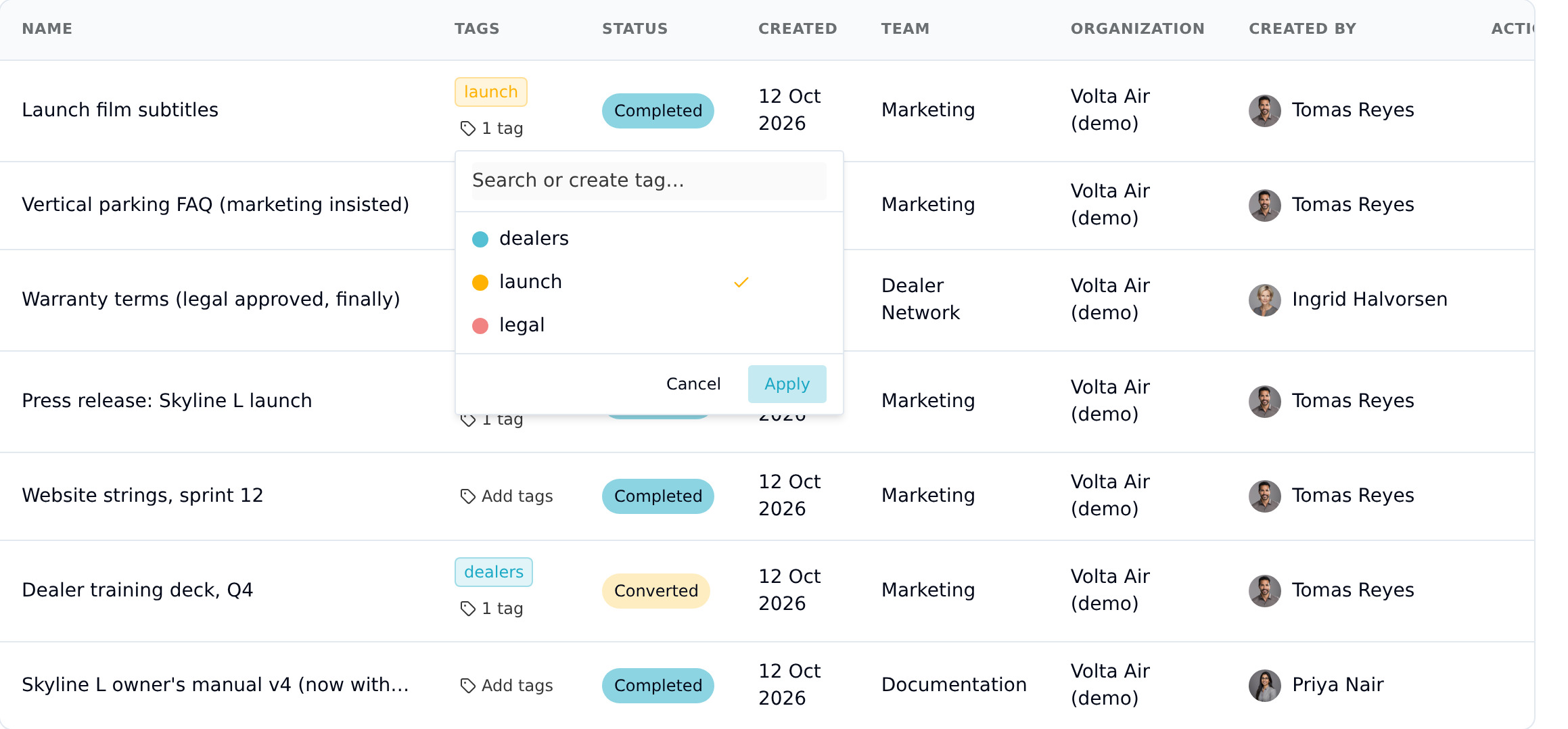
To tag a project: open your Projects list and click Add tags on the project (it reads "2 tags" and so on once some are applied). Type in Search or create tag… to find an existing tag or create a new one, select the ones you want, and click Apply. Each tag carries a color so they're easy to scan down the list, and a project can have as many as you like.
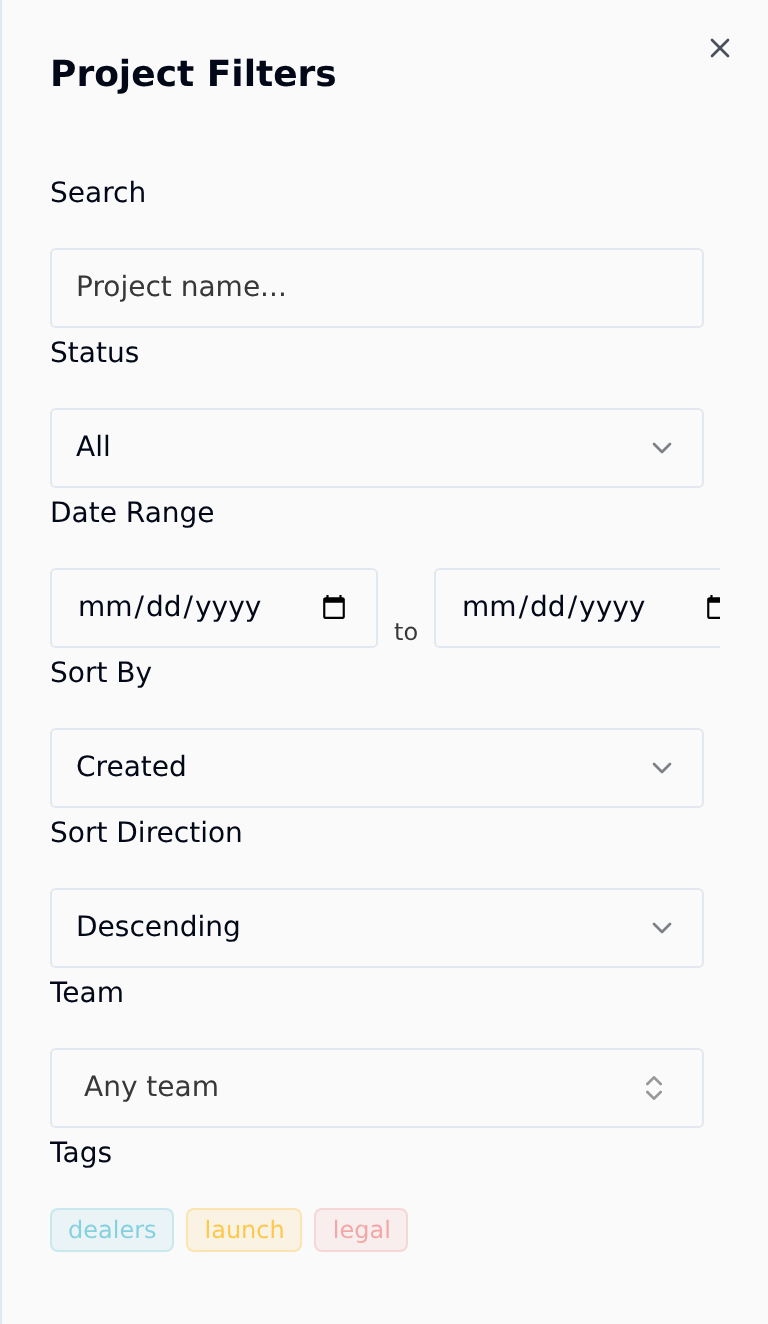
To filter by tag: open the filter panel on the Projects list and select one or more tags. You get every project carrying any of them.
This is the tool for "show me everything we did for the quarterly newsletter" when the newsletter is not, and should not be, its own team.
Where the money shows up
Cost reporting lives in Manage Organization → Reports. It lists every project with its jobs, tasks, word counts and totals over a time range you choose (this month, last month, this quarter, this year, all time, or custom dates), and exports to XLSX.
Group by offers three options: None, User, and Team.
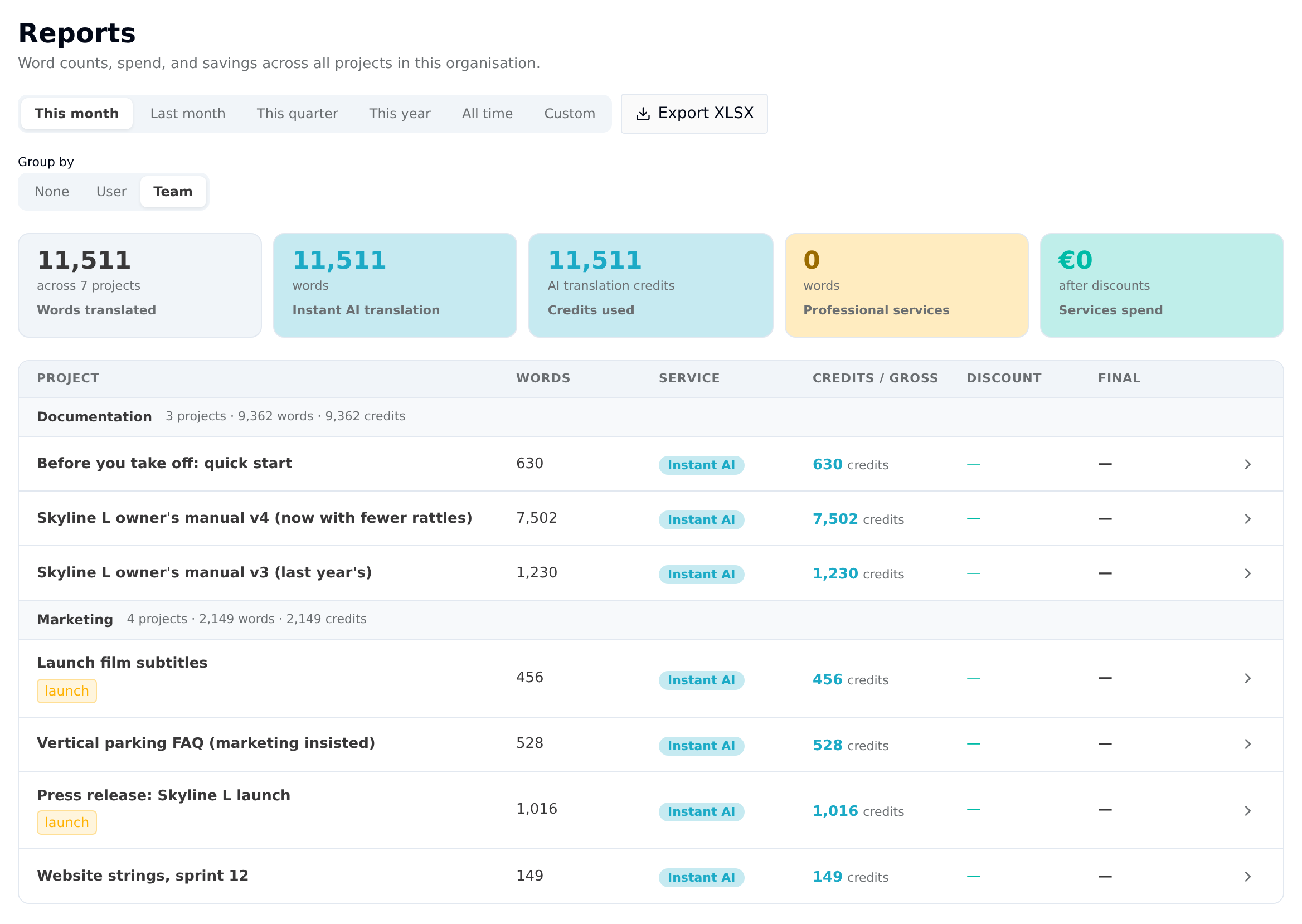
This screenshot was taken before the tag filter shipped. Filter by tag now sits next to Group by.
Next to it, Filter by tag narrows the report to the projects you care about. Select one or more tags and everything follows the filter: the project list, the totals at the top, and Export XLSX. Select several and you get every project carrying any of them. Clear deselects them all.
The control only appears once your organization has at least one tag, so tag a project first if you don't see it.
That makes a tag enough to answer "what did the quarterly newsletter cost us". Pick the tag, and the five figures at the top (words translated, Instant AI words, credits used, professional services words, and services spend) all cover just those projects. Only Services spend is money: AI work shows up as credits used, so an AI-only tag reads zero there and that's correct, not a broken filter.
Why there's no "group by tag"
Group by stays None / User / Team, deliberately.
A project belongs to one team, but it can carry several tags. Grouping by tag would list a project tagged both newsletter and Q3 under each heading, and the subtotals would then add up to more than you actually spent. Filtering can't do that: it narrows the set, so every total stays honest.
So when you want several tags compared side by side, filter to each one in turn and note the figures. The XLSX export also carries a Tags column, but read it as a record of which tags a project had rather than as something to pivot on. The sheet is an outline: the tags sit on the project row, which carries the money totals but no word count, the words are on the task rows underneath, and project, job and task rows all write into the same money columns, so summing a column counts the same spend more than once.
Putting it together
| You want to… | Use |
|---|---|
| Bill two departments separately | Separate teams |
| Stop one group seeing another's projects | Separate teams |
| See spend per department as its own subtotal | Separate teams |
| Track four publications inside one budget | One team, four tags |
| See what one publication or campaign cost | Filter Reports by its tag |
| Find every project of a given type | Tags |
| Sort out a naming mess later | Tags, they're free to change |
Start with the smallest number of teams your billing and access actually require, and use tags for everything else. Adding a team later is easy, and so is adding or removing people in it.