Assign roles
You can change a user's role within your organization at any time. Roles control what a user can see and do.
Prerequisites
You are an organization manager.
Steps
- Go to your Profile page and click Manage Organization.
- On the People tab, click the row of the user whose role you want to change. This opens their detail drawer.
- Click Edit.
- Select the new role from the Role dropdown.
- Save the change.
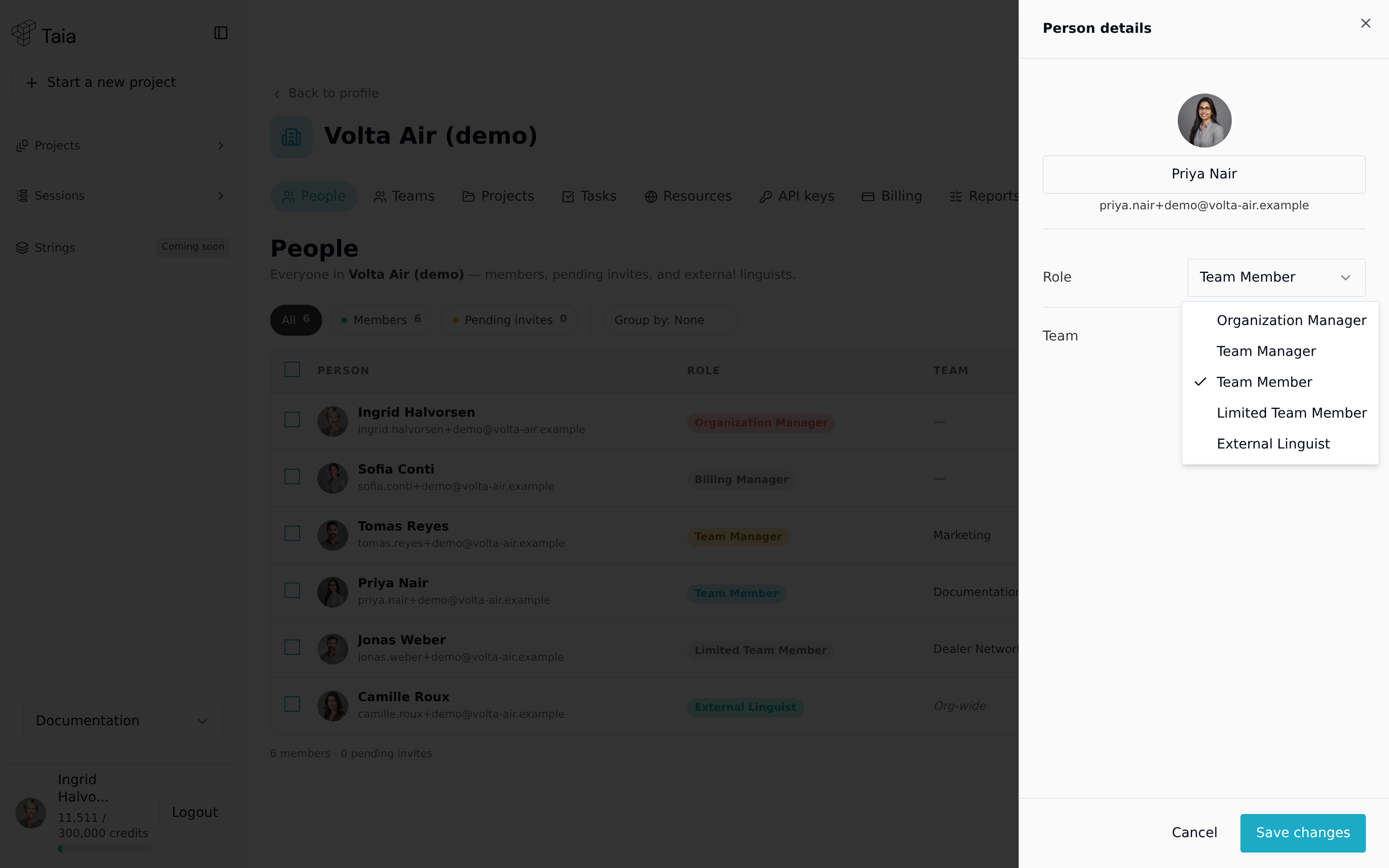
There's no way to change a role directly from the row itself — you have to open the user's detail drawer first.
Available roles
The Role dropdown itself offers: Organization Manager, Team Manager, Team Member, Limited Team Member, and External Linguist. "Billing Manager" doesn't appear as an option in this dropdown. It is chosen when you invite someone, not changed from this drawer.
| Role | What they can do |
|---|---|
| Team Member | Work on projects assigned to them; use shared glossaries, TMs, and style guides |
| Limited Team Member | Can only work on tasks explicitly assigned to them; cannot create projects |
| Team Manager | Create and assign tasks; view all projects in their team |
| Organization Manager | Full access to all teams, users, billing, and shared resources in the organization |
| External Linguist | Vendor role — receives assignments only, cannot create projects |
For a detailed permissions matrix, see User roles reference.
Notes
- Role changes take effect immediately.
- You cannot change your own role (to prevent accidental self-lockout). Another org manager must change it.