Remove or deactivate a user
When a team member leaves your organization, you should remove them to revoke their access and free up a seat on your subscription.
Prerequisites
You are an organization manager.
Steps
- Go to your Profile page and click Manage Organization.
- On the People tab, find the user you want to remove.
- Click the ... menu at the end of their row and select Remove from org.
- Confirm in the Remove from organization? dialog.
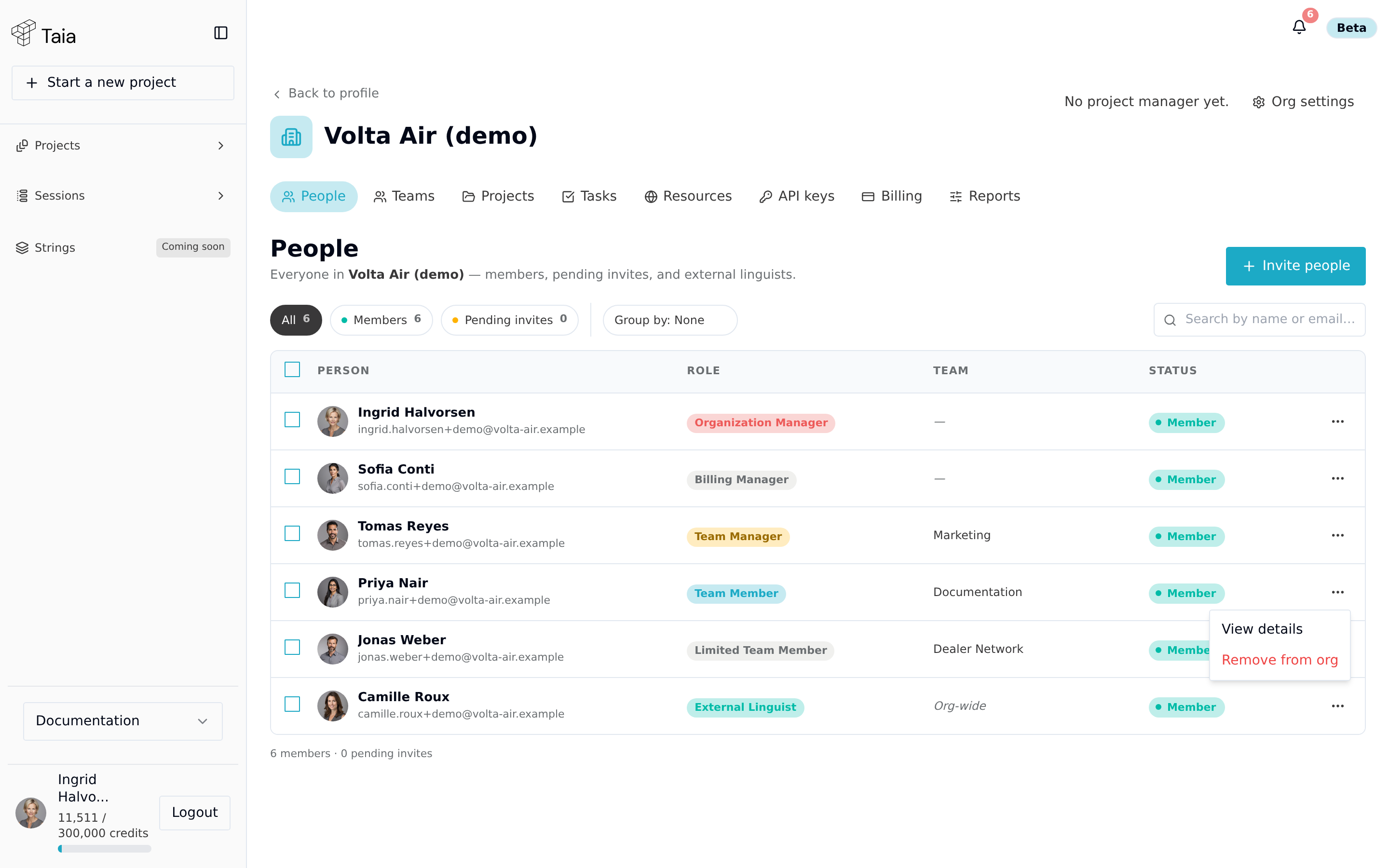
The user is immediately removed from the organization. They lose access to all shared projects, glossaries, translation memories, and the team's subscription quota.
What happens to their work
- Projects they created remain in the team workspace and are accessible to other team members and managers.
- Translations in the CAT editor remain saved.
- Assigned tasks that are in progress — you may need to reassign these to another team member.
Cancel a pending invite
If you sent an invite to someone who shouldn't have been invited:
- On the People tab, filter to Pending invites.
- Find the pending invite.
- Click the ... menu at the end of its row and select Revoke invite. (The same menu has Resend invite.)