Edit TM entries
You can search, review, and correct individual entries in your Translation Memory. This is useful when you notice a mistranslation being suggested repeatedly, or when brand terminology has changed.
Prerequisites
A Translation Memory already exists with at least one entry.
Browse and search entries
- In the sidebar, click Translation Memory and open the TM you want to edit.
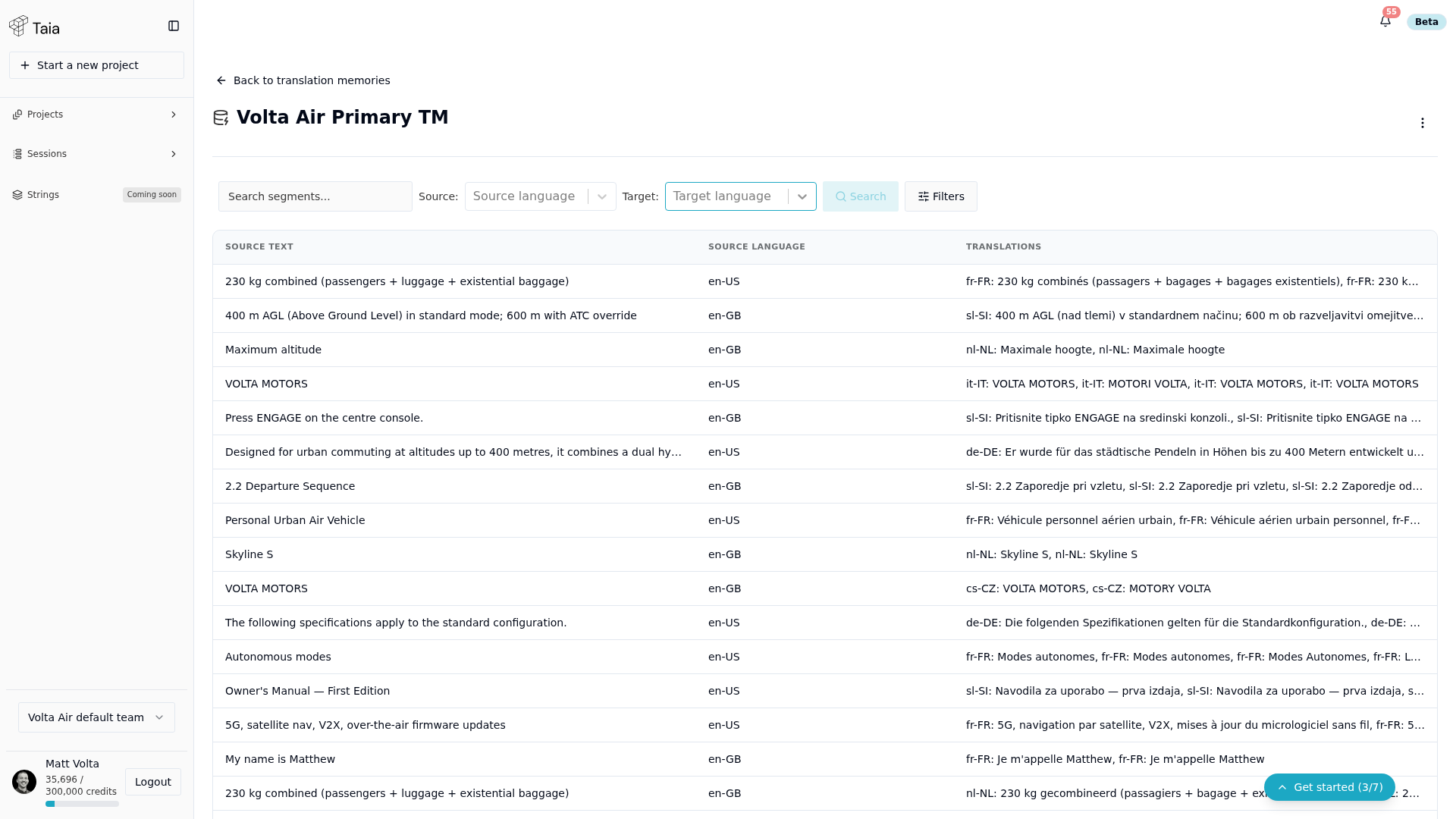
- The TM detail page shows all translation units (segment pairs).
- Use the search bar to find a specific source or target text.
- Use the language filter to narrow entries to a specific target language.
- Use the source filter to see entries by edit type (AI, human, imported).
Edit a single entry
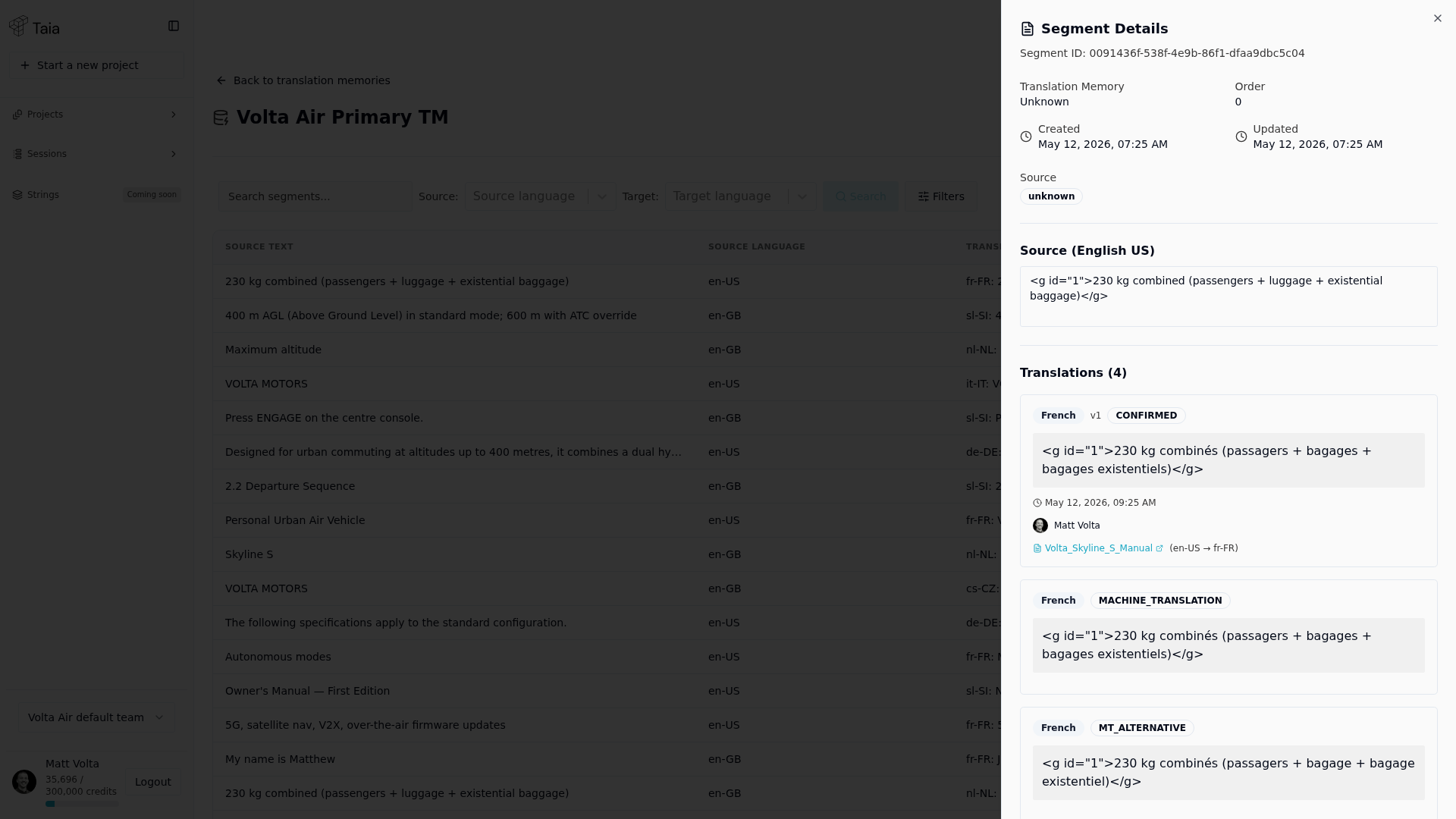
- Find the entry you want to change and click its row. A Segment Details panel slides out from the right.
- Source and target text show read-only at first — click the Edit (pencil) button next to the field you want to change.
- Modify the text in the field that appears.
- Click Save Changes.
Editing source text changes what the TM matches against in future projects. Only do this if the source has genuinely changed.
Delete an entry
- Open the entry's Segment Details panel (click its row).
- Click Delete Segment.
- Confirm in the Delete Segment? dialog.
Deletion is permanent. To recover deleted entries, re-import a TMX backup (see Export the whole TM).
Export the whole TM
- Open the translation memory.
- Click the ⋮ (more actions) menu in the top-right corner and select Export TMX.
- Taia prepares the file and shows its progress in a notification. When it's done, the TMX file downloads automatically.
The export always covers the entire TM, every language pair and every entry. You can't export a selection or a single language pair. Export TMX is greyed out while the TM is empty.
Export a TMX before deleting entries you might want back. Re-importing that file is the only way to restore them.
Bulk changes
Entries are edited and deleted one at a time. There's no way to select several entries and delete them together.
To start over with a TM, delete the whole translation memory from the same ⋮ menu (Delete translation memory) and create a new one.