Update payment details and VAT
You can update your credit card, billing address, and VAT number at any time through the Billing section of your account.
Prerequisites
You must be the account owner or billing manager.
Update your credit card
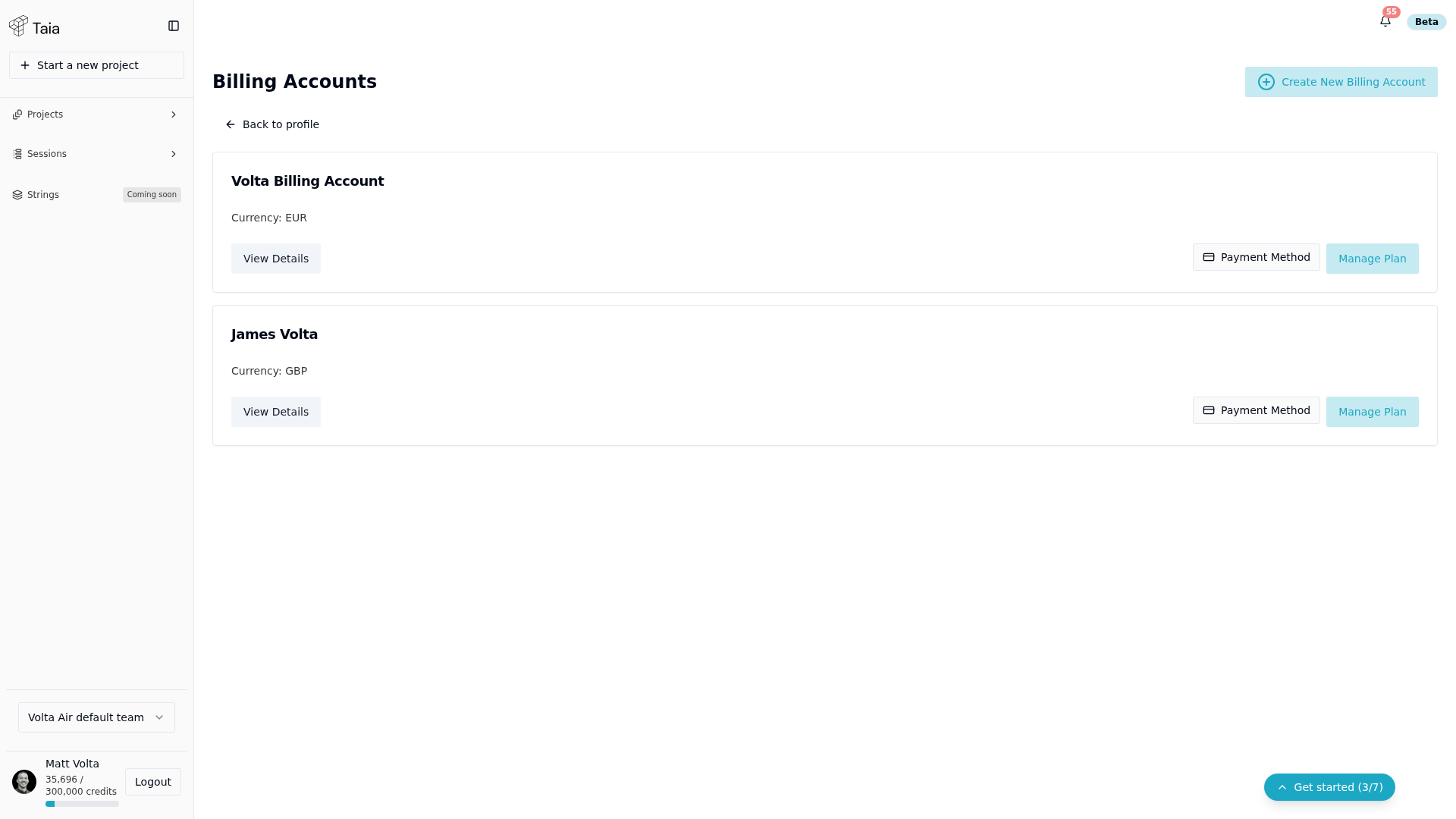
- Go to Profile and click through to Billing Accounts.
- Find the billing account and click Payment Method.
- You'll be taken to the Stripe customer portal.
- Update your card details and save.
note
The Payment Method button only appears once the account has an active Stripe subscription. New billing accounts without one won't show it yet.
Changes take effect immediately. Your next invoice will be charged to the new card.
Add or update your VAT number
- In the Stripe customer portal (accessed via Manage Billing), find the Tax ID section.
- Select your country and enter your VAT number.
- Save the changes.
Your VAT number will appear on future invoices. If you need it added to past invoices, contact Taia support.
Update your billing address
Billing address is managed in the Stripe customer portal alongside your payment method.