Configure a webhook
A webhook makes Taia send an HTTP request to your own URL when something happens, for example when AI translation finishes on a project. Your system then no longer has to keep asking whether a job is ready.
Webhooks belong to an API key, so create a key first.
Prerequisites
- An API key: a team key, for which you need to be an organization manager or a manager of that team, or your own personal key. Your plan needs API access (Pro).
- A public HTTPS endpoint that can receive a
POSTrequest. The examples below usehttps://example.com/taia-webhook, which is a placeholder: use your own address.
Steps
-
Click your name at the bottom of the sidebar to open your Profile, then click Manage API Keys on the Manage Your API Keys card.
-
On the row of the key you want, click Webhooks.
The Webhooks button is on this page only. The API keys tab under Manage Organization lists keys but has no webhook button, so use the Profile route.
-
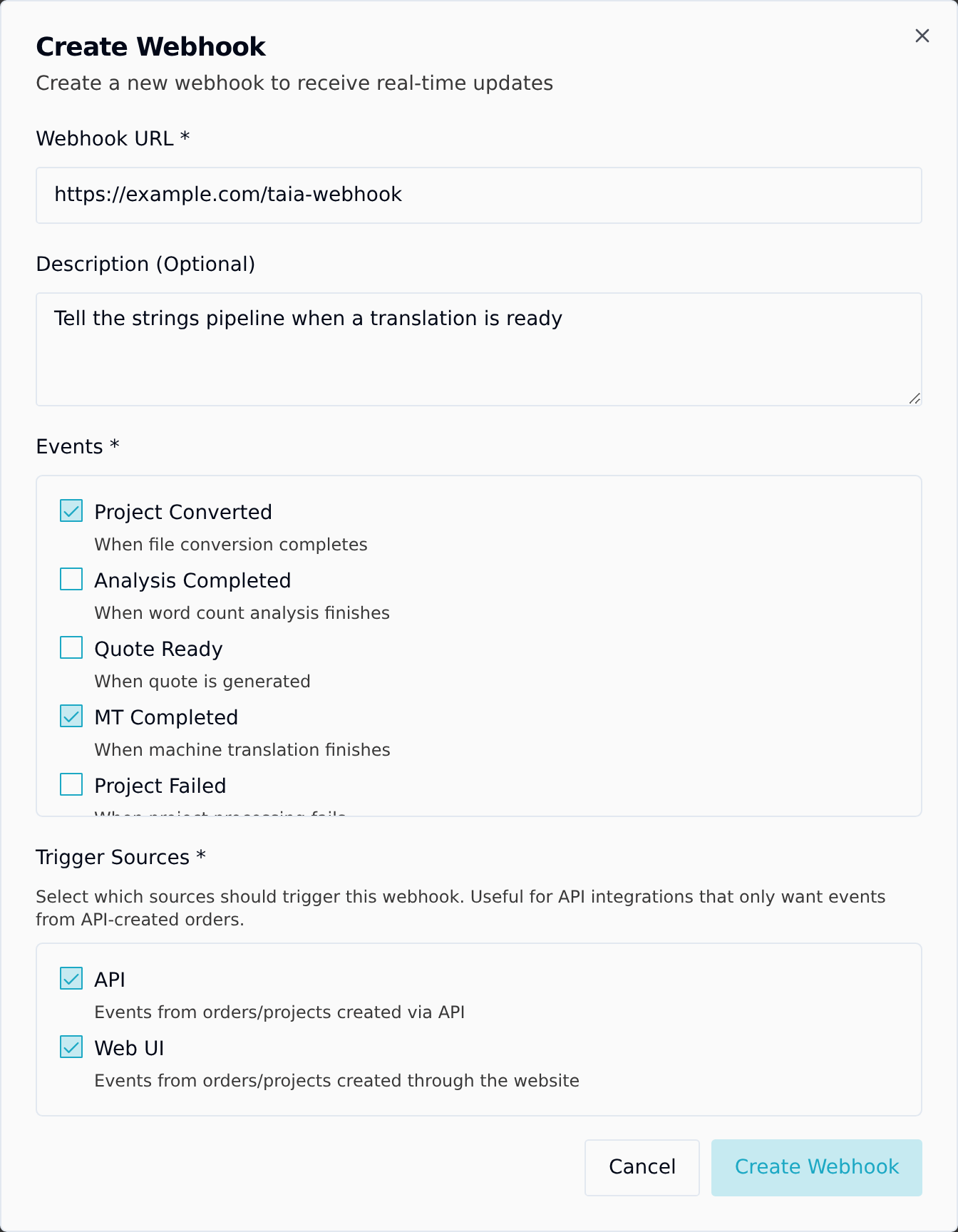
Click Create Webhook and fill in the dialog:
- Webhook URL: the endpoint Taia should call.
- Description (optional): a note for whoever reads the list later.
- Events: tick every event you want. Each one has a one-line description. The full list, with what each sends, is in Webhook events.
- Trigger Sources: API for projects and orders created through the API, Web UI for those created on the website. Both are ticked by default.
-
Click Create Webhook.
-
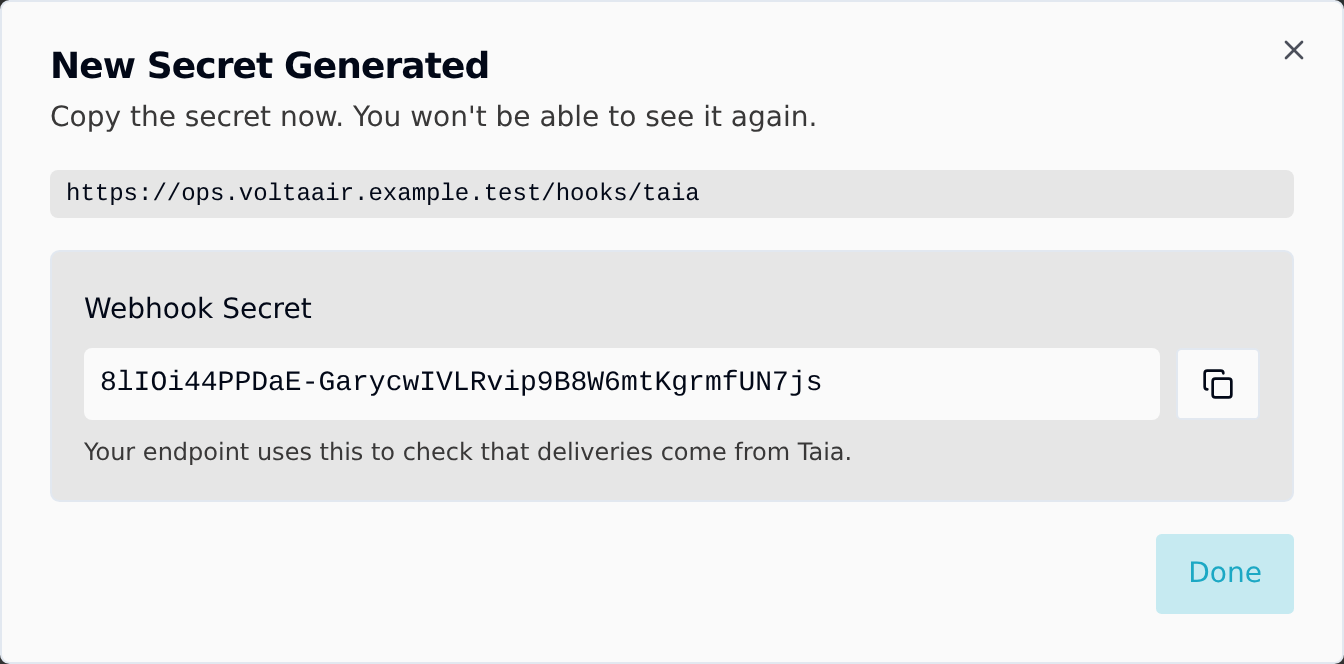
Copy the Webhook Secret and store it with your integration's other secrets, then click Done. Your endpoint uses it to check that a request really came from Taia, as described in verify the signature.
If you lose it, get a new secret for the same webhook.
Manage your webhooks
The webhook now appears on the key's Webhooks page with its events, sources and status.

- Pause it: use the switch in the Status column. Disabled webhooks receive nothing, and deliveries that come due while it is off are marked failed.
- See what was sent: click the eye icon to open Webhook Deliveries: each attempt with its event, status, your server's response code and any error. A failed delivery that hasn't used all five attempts has a Retry button.
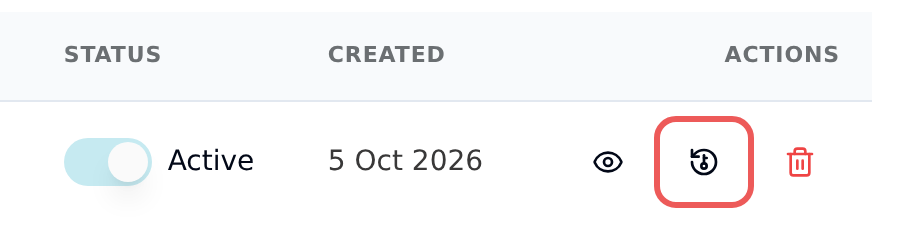
- Get a new secret: click Regenerate secret, the circular arrow with a key. See below.
- Delete it: click the red bin icon and confirm.
Taia expects a 2xx reply within 30 seconds. If it doesn't get one, it tries up to five times in total, counting the first attempt, with longer waits each time. Details are in Webhook events.
A key can't have two webhooks with the same URL. To send different events to one address, tick them all on a single webhook.
Get a new secret
Regenerate a webhook's secret if you lost it or think someone else has it. The webhook keeps its URL, events and delivery history.
-
On the webhook's row, click Regenerate secret: the circular arrow with a key, between the eye and the bin.
-
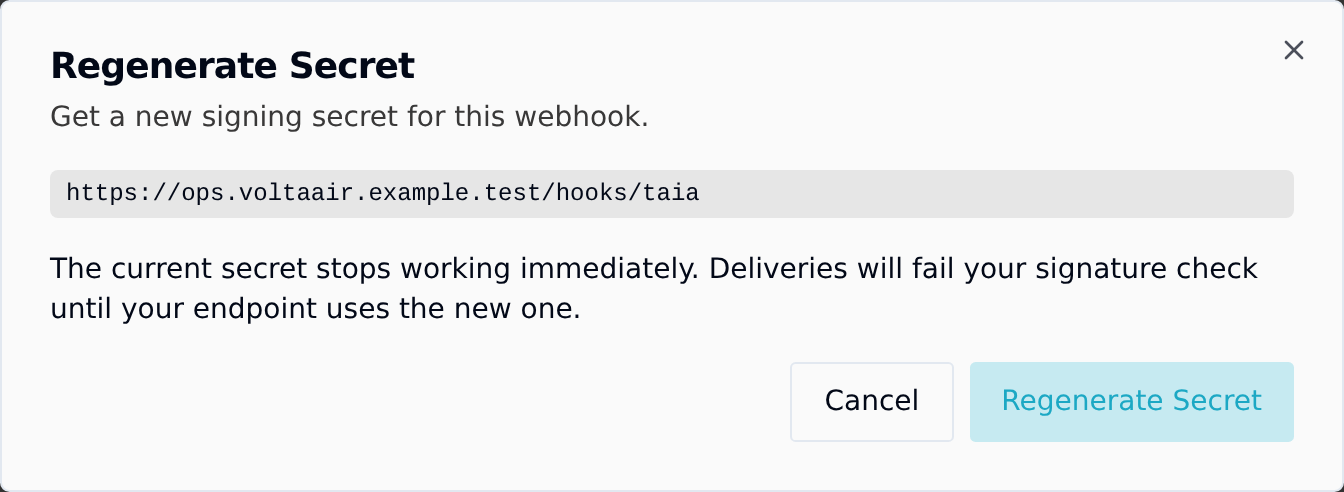
Check the webhook URL, read the warning and click Regenerate Secret. The current secret stops working immediately.
-
Copy the new Webhook Secret, put it in your endpoint's configuration, and click Done. It is shown once.
Until your endpoint has the new secret, our callbacks fail its signature check. If your endpoint answers those with an error (any non-2xx reply), Taia retries them over about two and a half hours, so nothing is lost as long as you update it within that time.